How to Start Page Numbering from a Specific Page in Word

To start page numbering from a specific page in Word, insert a Next Page section break before that page, turn off Link to Previous in its header or footer, and set Page Number > Format Page Numbers > Start at 1. A normal page break is not enough because it does not create an independently numbered section.
- Start page numbering from any page
- Start numbering on the second page
- Fix common page-numbering problems
- Can Word for the web add section breaks?
Important:
- Use a section break, not a page break, when the new page needs different numbering.
- Headers and footers are linked separately. Turn off Link to Previous in the area that contains your page number.
- Word for the web cannot add section breaks. Open the file in the desktop app for these steps.
How to Start Page Numbering from a Specific Page
The following example makes page 4 display as page 1, but you can use the same process for any page in Microsoft 365, Word 2024, Word 2021, Word 2019, or Word 2016.
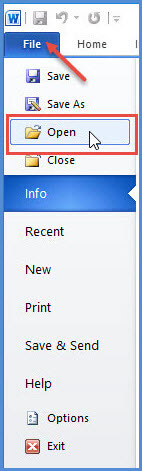
Step 1: Open the document and place the cursor at the end of the page immediately before the page where numbering should begin.
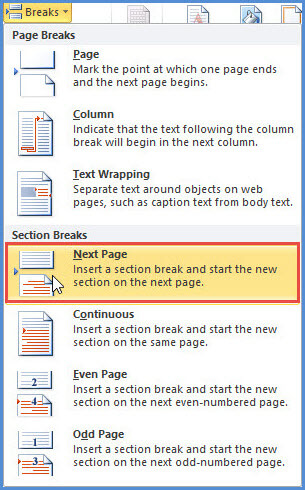
Step 2: Go to Layout > Breaks > Next Page. In Word 2010, the same command is under Page Layout > Breaks > Next Page. This starts a new section on the following page.
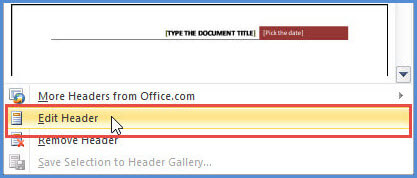
Step 3: Double-click the header or footer on the first page of the new section. You can also use Insert > Header or Insert > Footer, then choose Edit Header or Edit Footer.

Step 4: On the Header & Footer tab, select Link to Previous to turn it off. The “Same as Previous” label should disappear. If Link to Previous is greyed out, verify that you inserted a section break rather than a page break.
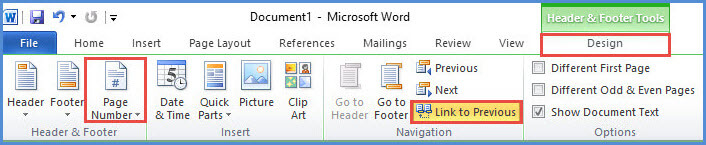
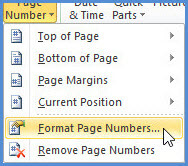
Step 5: Select Page Number, choose a position and style, and then select Page Number > Format Page Numbers.
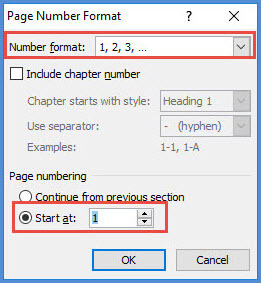
Step 6: Under Page numbering, select Start at and enter 1, or enter another starting number that fits your document. Select OK and close the header or footer.
How to Start Page Numbering on the Second Page
If you only want to hide the number on a title page, double-click the header or footer and enable Different First Page. The second page will normally keep its existing number. If you want the second physical page to display page 1, open Format Page Numbers and set Start at to 0, as described in Microsoft's page-numbering instructions.
Fix Common Word Page-Numbering Problems
Link to Previous is greyed out
Show formatting marks with Home > ¶ and confirm that a section break appears before the target page. A standard page break does not create a new section.
Changing one page number changes earlier pages
Open the header or footer in the new section and turn off Link to Previous. If the number is in the footer, changing the header link does not unlink the footer.
A blank page appears after adding the break
Make sure you chose Next Page, not Odd Page or Even Page. If a separate manual page break is next to the section break, remove the redundant break. See also how to remove blank pages and page breaks in Word.
Can Word for the Web Start Numbering from a Specific Page?
Word for the web can display existing section breaks, but it cannot add them. Use Open in Desktop App, create the section and numbering there, and then save the document. Microsoft documents the current workflow in its guides to insert a section break and customize page numbers in different sections.