How to Embed Video in PowerPoint 2010-2016 Presentation

A good presentation needs more information and additional content, you may want to insert video onto a slide and play it in your presentation. This is a great way to make your presentation more engaging for your audience. This guide will show 2 ways to embed video in presentation.
- Part 1: Insert online video
- Part 2: Inserted video from a file on my PC
- Part 3: Format and edit inserted video that from a file
Part 1: How to Embed Video Online
Step 1: Click Insert tab, click the Video drop-down arrow, then select Online Video.
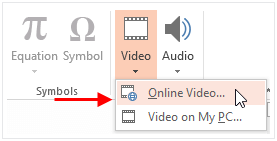
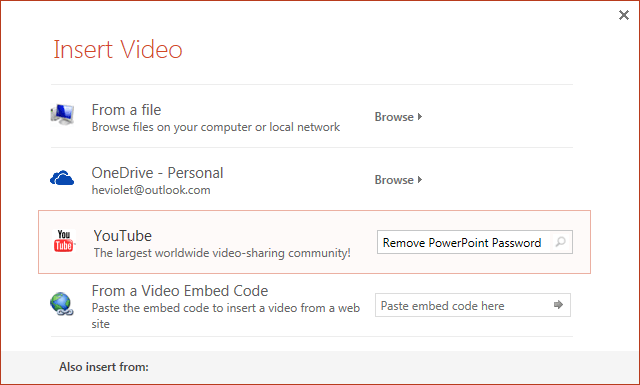
Step 2: In Insert Video window, you can search for videos on YouTube search box.
To insert a video's embed code, paste video URL into the From a Video Embed Code box.
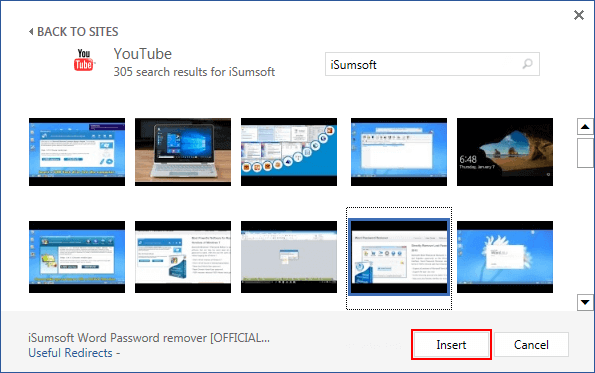
Step 3: When you find the video you want, select it and then click Insert.
Part 2: Embed Video from a File on My PC
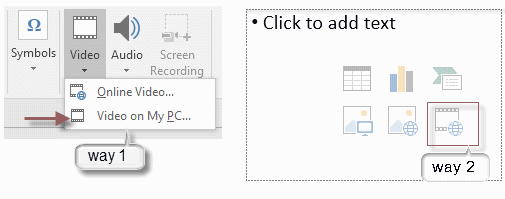
Step 1: From the Insert tab, click the Video drop-down arrow, then select Video on My PC.
Tips: You can select to click the Video embed link in the slides.
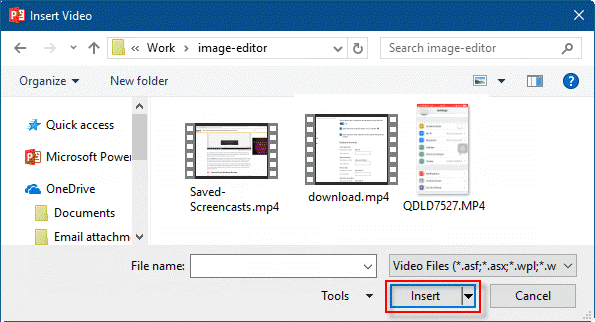
Step 2: Locate and select the desired video file, then click Insert button. The video will be added to the slide.
Part 3: Edit and Format the Inserted Video
You can edit the video within slides and customize its appearance. For example, you can trim the video's length, add bookmark or a fade in, and much more:
1. Format video by apply a video style which can beautify the video
Step 1: Select the video, then click the Format tab on the Ribbon.
Step 2: In the Video Styles group, click the More drop-down arrow to display available video styles.
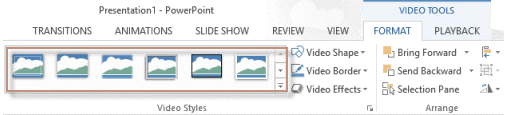
Step 3: Select the desired style. Then new style will be applied to the video.
2. Change the start and end times by trimming the video
The Playback tab has several options you can use to edit your video. For example, you can trim your video to play an excerpt from the original, and add bookmarks that allow you to jump to specific points in the video.
Step 1: Select the video, right-click on it, and select Trim Video command.
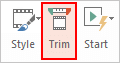
Step 2: Use the green handle to set the start time and the red handle to set the end time.
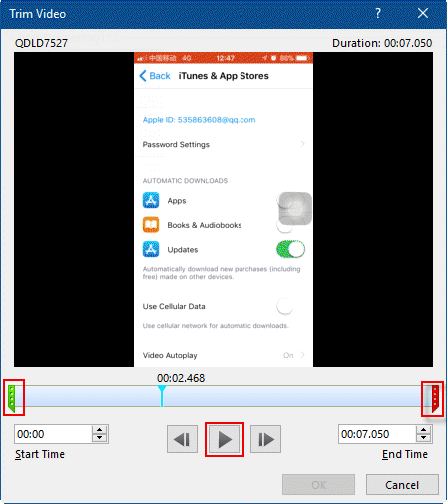
Step 3: To preview the video, click the Play button. When you're done trimming the video, click OK.
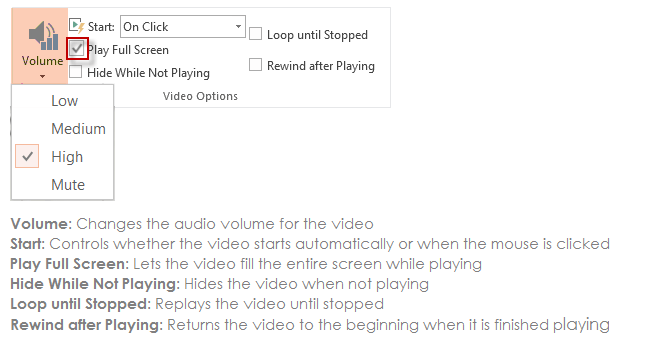
There are other options you can set to control how your video will play. This can be found in the Video Options group on the Playback tab. Set a video to play full screen.