How to Count the Number of Words in a Word Document

This guide describes 3 easy ways to count the number of words in a document in MS Office Word. The following methods apply to Microsoft Word 2007, 2010, 2013, and 2016.
Way 1: See the status bar
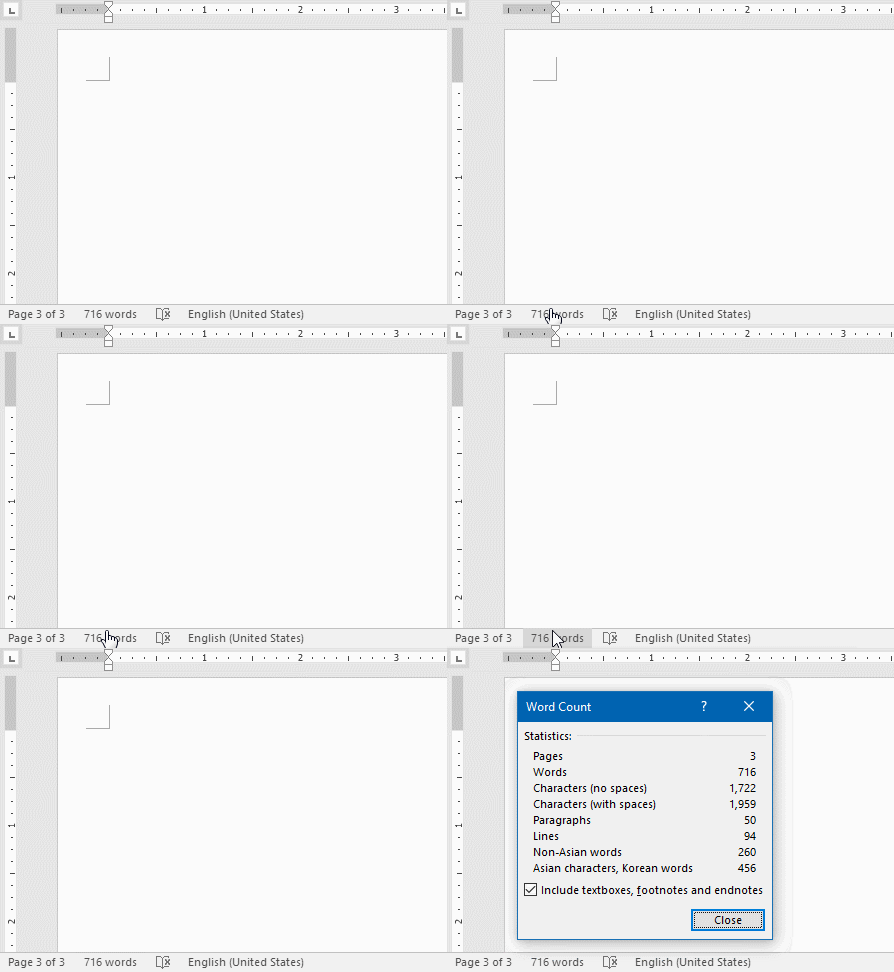
Here comes the simple trick to view the number of pages and words in your document.
To do: Take a look at the status bar at the bottom-right corner of the workspace.
See more information, click it to open Word Count dialog box.
Way 2: Use Word Count
To check how many words and characters in a document, here's how:
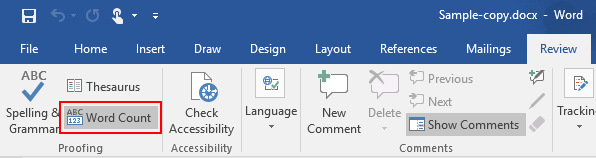
1. In Word, go to Review tab, click Word Count in the Proofing group.
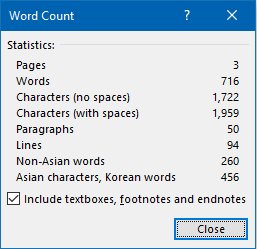
2. In the Word Count dialog box, you can see the number of:
- Pages
- Words
- Characters
- Characters excluding spaces
Way 3: Show the number of words in your document
1. Click where you want to add the number of words that are in your document.
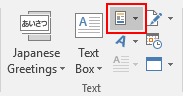
2. On the Insert tab, in the Text group, click Quick Parts.
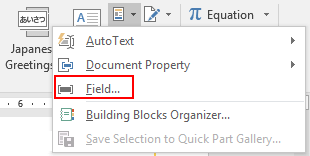
3. In drop-down list of Quick Parts, click Field.
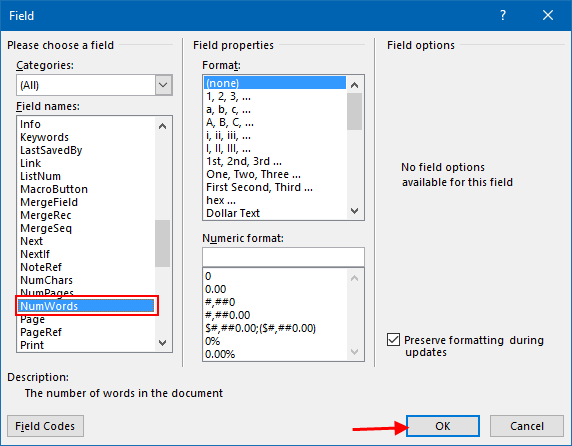
4. In the Field names list, click NumWords, and then click OK.