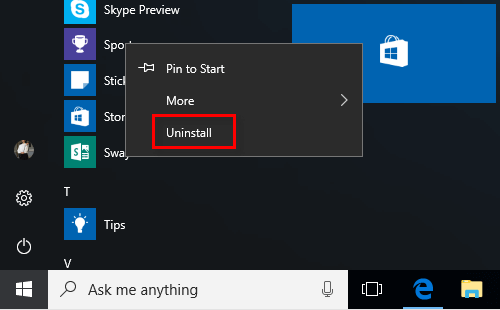
Have you ever tried to download an app from the Microsoft Store, only to find that the Install button is grayed out or you see a message saying "This app is not available"? You're not alone! This is a common issue that frustrates many Windows users.
Don't worry—there's usually a simple reason behind it, and in most cases, you can fix it yourself. In this beginner-friendly guide, we'll explain the 4 most common reasons why apps won't install from Microsoft Store, and show you easy solutions for each problem.
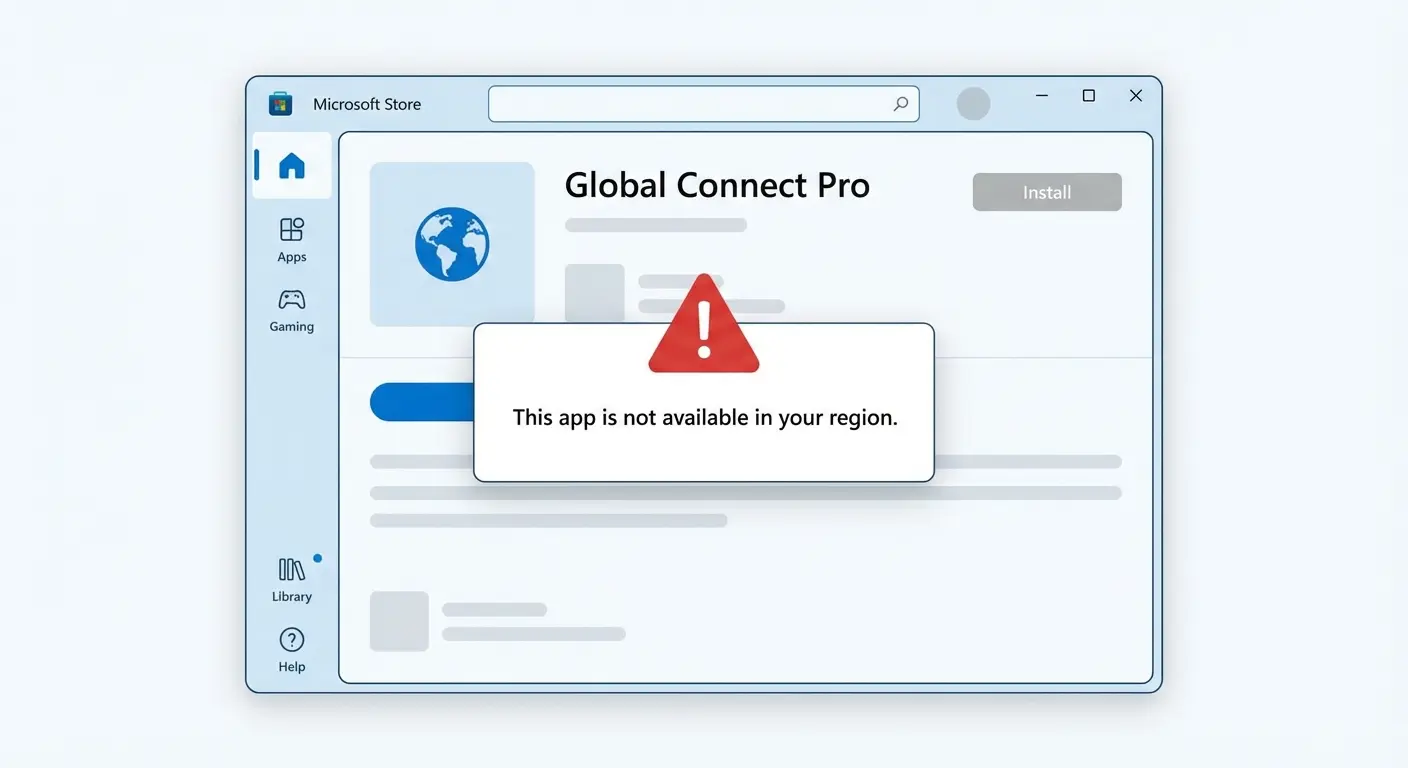
Some apps are only available in certain countries or regions. This is called region locking. If you're in a country where the app isn't offered, you'll see an error or the download button will be missing.
You have a few options to bypass this limitation:
Option A: Change Your Microsoft Account Region
1. Go to https://account.microsoft.com/profile and sign in.
2. Click on Your info or Edit profile.
3. Change your Country/Region to the country where the app is available.
4. Save your changes and restart Microsoft Store.
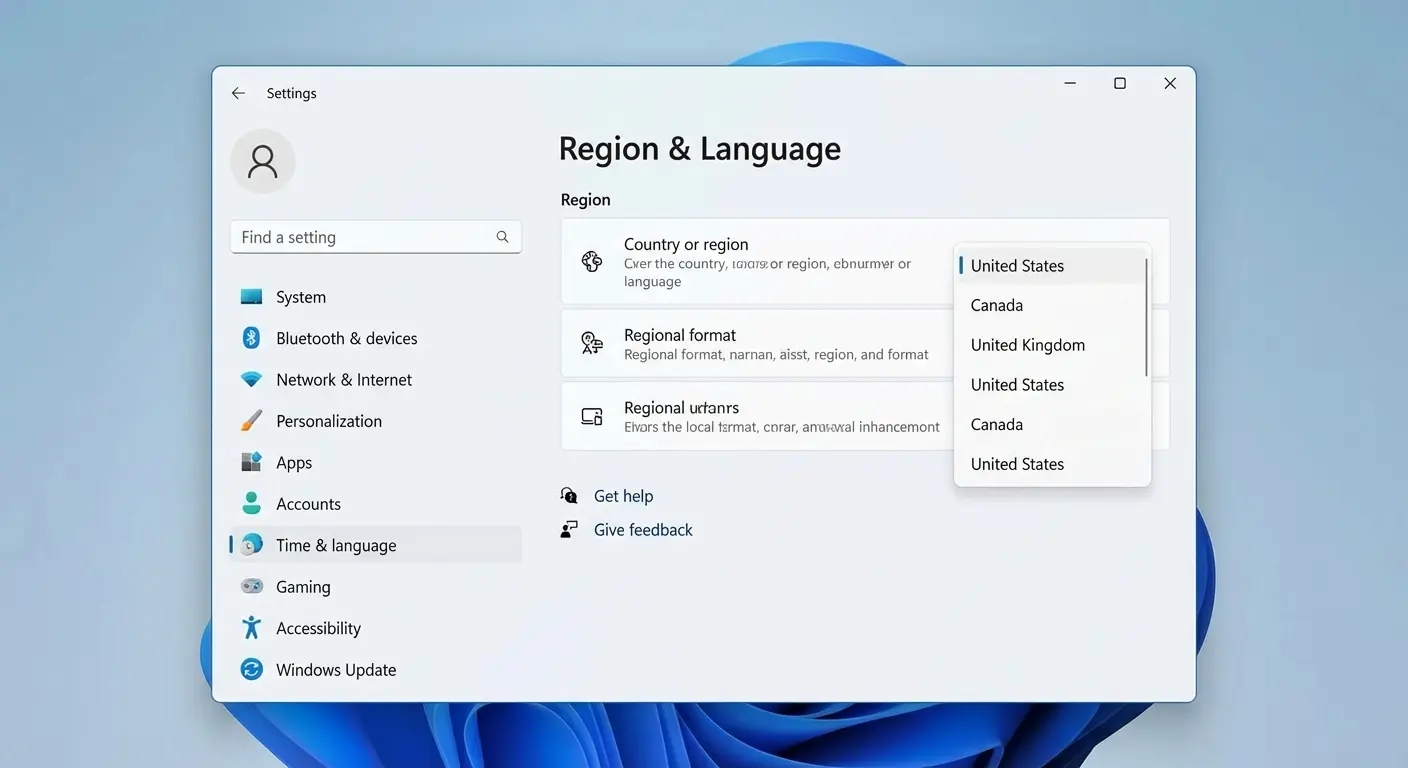
Option B: Change Windows Region Settings
1. Press Win + I to open Settings.
2. Go to Time & Language > Region.
3. Under "Country or region", select a different country.
4. Restart Microsoft Store and try again.
Notice:
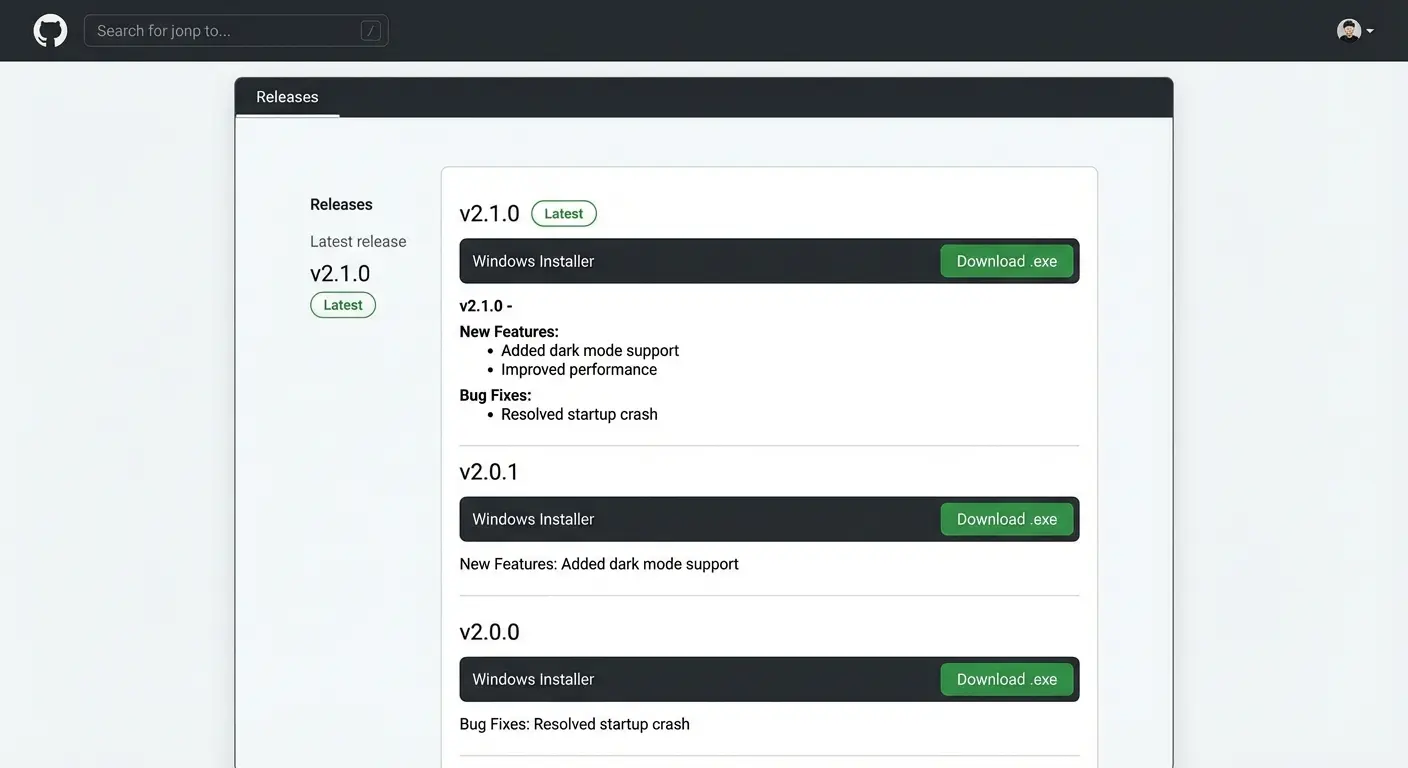
Not every Windows application is available on Microsoft Store. Many popular programs—like some open-source tools, older software, or specialized utilities—are only available from their official websites.
Here's how to safely download apps that aren't in Microsoft Store:
Step 1: Search for the app on Google. For example, type "VLC media player download" or "7-Zip download".
Step 2: Look for the official website of the software. Be careful to avoid fake download sites!
Step 3: Download the .exe or .msi installer file.
Step 4: Double-click the downloaded file to install the program.
Tips:
Some apps have specific hardware or software requirements. If your computer doesn't meet these requirements, you won't be able to install the app.
1. Check the requirements: Look at the app's download page to see what's needed.
2. Upgrade your hardware: If possible, add more RAM or free up disk space.
3. Use a Virtual Machine: If the app requires different hardware (like ARM64 or macOS), you can install it inside a Virtual Machine (VM) that meets the requirements.
4. Try a cloud PC: Services like Windows 365 let you use a cloud-based computer that might meet the app's requirements.
Sometimes Microsoft Store itself has problems. The store might not display the download button, show errors, or freeze. This is often caused by corrupted cache or sync issues.
Here are 5 easy ways to fix Microsoft Store problems:
This is the quickest fix. It clears the Store's cache and restarts it.
1. Press Win + R to open the Run dialog.
2. Type wsreset and press Enter.
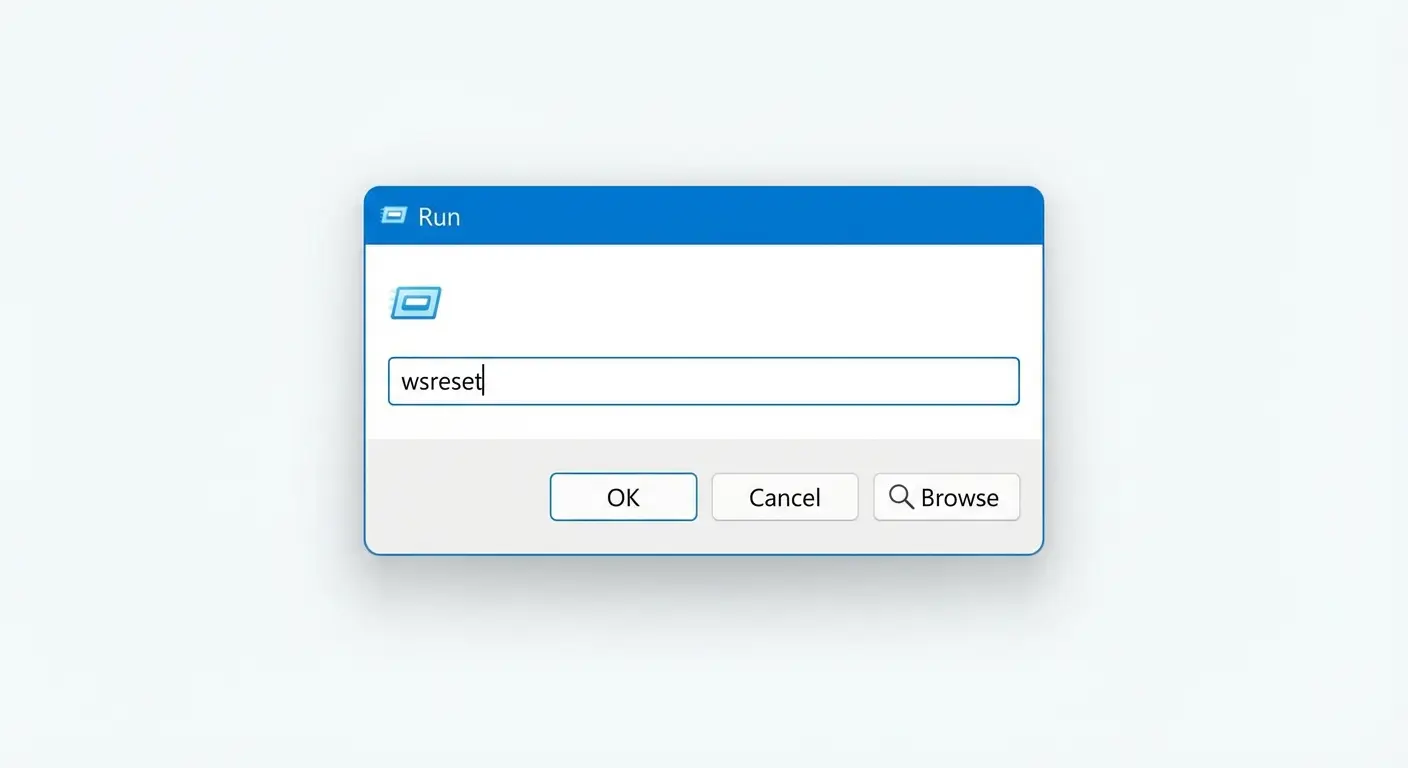
3. Wait for a black window to appear and close automatically. Microsoft Store will then open.
4. Try downloading your app again.
If wsreset doesn't work, try this:
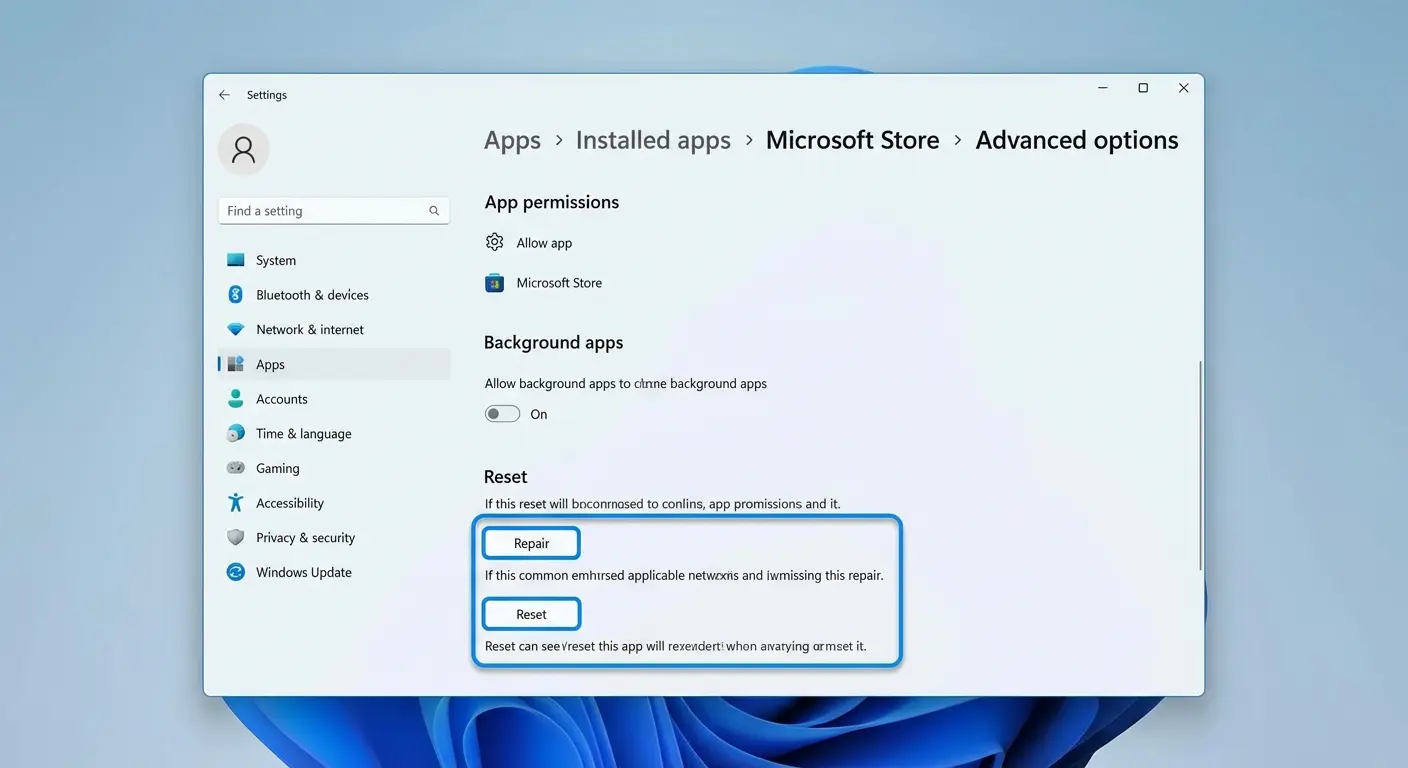
1. Press Win + I to open Settings.
2. Go to Apps > Installed apps (or "Apps & features" on older Windows).
3. Find Microsoft Store in the list and click on it.
4. Click Advanced options.
5. First try Repair. If that doesn't help, click Reset.
Microsoft Store is very sensitive to incorrect time settings. An wrong date or time can cause download problems.
1. Press Win + I to open Settings.
2. Go to Time & Language > Date & time.
3. Make sure Set time automatically is turned ON.
4. Make sure your time zone is correct.
Sometimes signing out of your Microsoft account and signing back in can fix sync issues.
1. Open Microsoft Store.
2. Click on your profile picture in the top right corner.
3. Click Sign out.
4. Close Microsoft Store, then reopen it.
5. Click the profile icon and Sign in again.
This is the most powerful fix. It completely re-registers Microsoft Store.
1. Right-click the Start button and select Windows PowerShell (Admin) or Terminal (Admin).
2. Type the following command and press Enter:
Get-AppxPackage -allusers Microsoft.WindowsStore | Reset-AppxPackage
3. Wait for the command to complete, then restart your computer.
4. Open Microsoft Store and try again.
If you can't install an app from Microsoft Store, don't panic! The problem is usually one of these four issues:
By following the steps in this guide, you should be able to get any app installed on your Windows PC. If you're still having trouble, feel free to leave a comment below!