How to Install and Use Android Apps on Windows 11: Step-by-Step Guide

In modern life, Android phones and Windows computers have become indispensable for work, study, and daily activities. With the release of Windows 11, Microsoft introduced the Windows Subsystem for Android (WSA), which functions similarly to Android emulators we used previously.

However, WSA has several advantages compare with other Android emulators:
- Better Compatibility with Windows: Seamless system integration.
- Free and Safe: No additional costs or complex configurations.
- Excellent Performance: Faster startup and smoother operation compared to most emulators.
Here's a detailed guide on how to install and use WSA and Android apps on Windows 11. Let's take a look!
- Step 1: Check for Windows 11 Updates
- Step 2: Verify System Requirements
- Step 3: Enable Virtualization
- Step 4: Install WSA and WSA Tools
- Step 5: Configure ADB Debugging Environment
- Step 6: Install Android Apps
- Step 7: Run Android Apps
Step 1: Check for Windows 11 Updates
WSA requires Windows 11 Build 22000.526 or higher, so you need to ensure your system is up to date:
- Go to Settings > Windows Update and check your Windows 11 version.

Step 2: Verify System Requirements
Make sure your system meets the minimum requirements to run WSA:
- Memory: At least 4GB (8GB recommended).
- Processor: Intel Core i3 8th Gen, AMD Ryzen 3000, Qualcomm Snapdragon 8c, or better.
- Storage: Solid-state drive (SSD).
- Microsoft Store App: Version 22110.1402.6.0 or higher.
- Windows 11: Build 22000.526 or higher.

Step 3: Enable Virtualization
Check Virtualization in Task Manager
- Open Task Manager, click on the Performance tab, and select CPU. Ensure that virtualization is enabled.

Enable Virtualization in Windows Features
- Search for "Turn Windows features on or off" in the Windows search box, open it, and check the "Virtual Machine Platform" and "Hyper-V" option. Then, restart your computer.


Enable Virtualization in BIOS
- Restart your computer and enter the BIOS by pressing the designated key (usually Delete or F2 during startup).
- Navigate to the Security or Advanced tab and enable the Virtualization option.

- Save changes (usually by pressing F10) and restart your computer.
Step 4: Install WSA and WSA Tools
Search for and Download WSA Tools on Microsoft Store.
- Open Microsoft Store, in the search bar, type "WSA Tools"and install it.

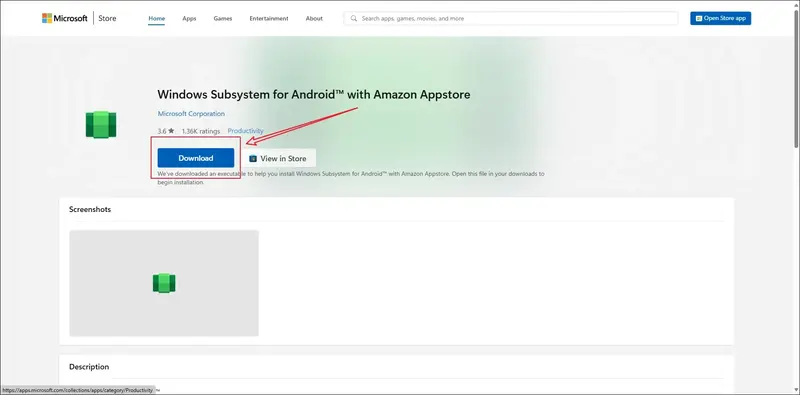
Open your browser and Download WSA
-You can click here to download WSA from your Microsoft store with AmazonAppStore.

Step 5: Configure ADB Debugging Environment
Download ADB (Android Debug Bridge)
- Open the WSA Tools and Download the ADB toolkit and extract it to a folder that does not require administrator permissions (e.g., `C:\adb`).

Choose an APK Installation Folder
- Create a folder to store APK files (e.g., `C:\APKInstallFolder`).

Step 6: Install Android Apps
Download APK Files
- Download the APK files of the Android apps you need from reliable sources.

Install APKs using WSA Tools
- Open WSA Tools, select the downloaded APK files, and install them.

Step 7: Run Android Apps
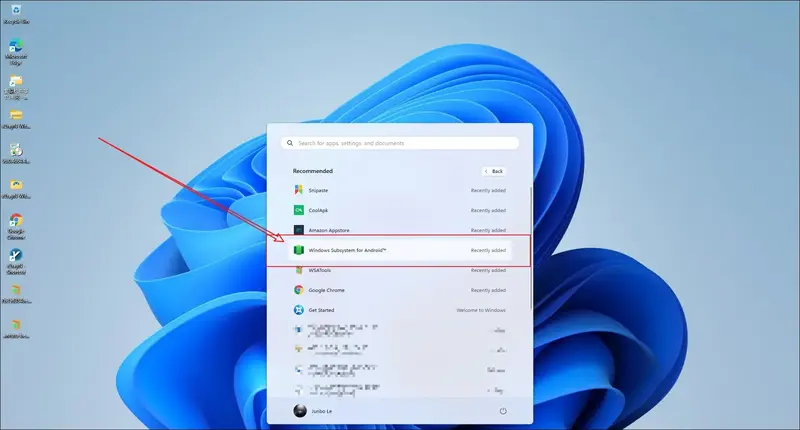
Launch WSA
- Find and launch the Windows Subsystem for Android from the Start menu.
Run the Installed Apps
- Open the WSA interface, find the apps you installed, and launch them.

Summing-Up
Now you can open and use your Android apps on your Windows computer, bringing convenience and efficiency to your life, work, and study. I hope this guide helps you.