
The Windows Insider Program is a great way to test new features before they are released to the public. However, preview builds can sometimes be unstable or buggy. If you're tired of constant updates or encountering issues, you might want to switch back to a stable version of Windows. This guide will show you how to leave the Windows 11 Insider Program using standard settings and the OfflineInsiderEnroll method.
The easiest way to leave the Insider Program is through the Windows Update settings. This method allows you to opt-out of future preview builds.
Step 1 Open Settings by pressing Win + I.
Step 2 Go to Windows Update > Windows Insider Program.
Step 3 Expand the Stop getting preview builds section.
Step 4 Toggle the switch to On for "Unenroll this device when the next version of Windows releases".

Note:
If you used the OfflineInsiderEnroll script to join the Insider Program, or if the standard settings aren't working, you can use the same script to leave.
Step 1 Download the OfflineInsiderEnroll script from GitHub if you don't have it anymore.
Step 2 Right-click the script and select Run as administrator.
Step 3 In the Command Prompt window, you will see options to enroll in different channels. Look for the option to Stop receiving Insider Preview builds.
Step 4 Type 4 (or the corresponding number for "Stop receiving Insider Preview builds") and press Enter.
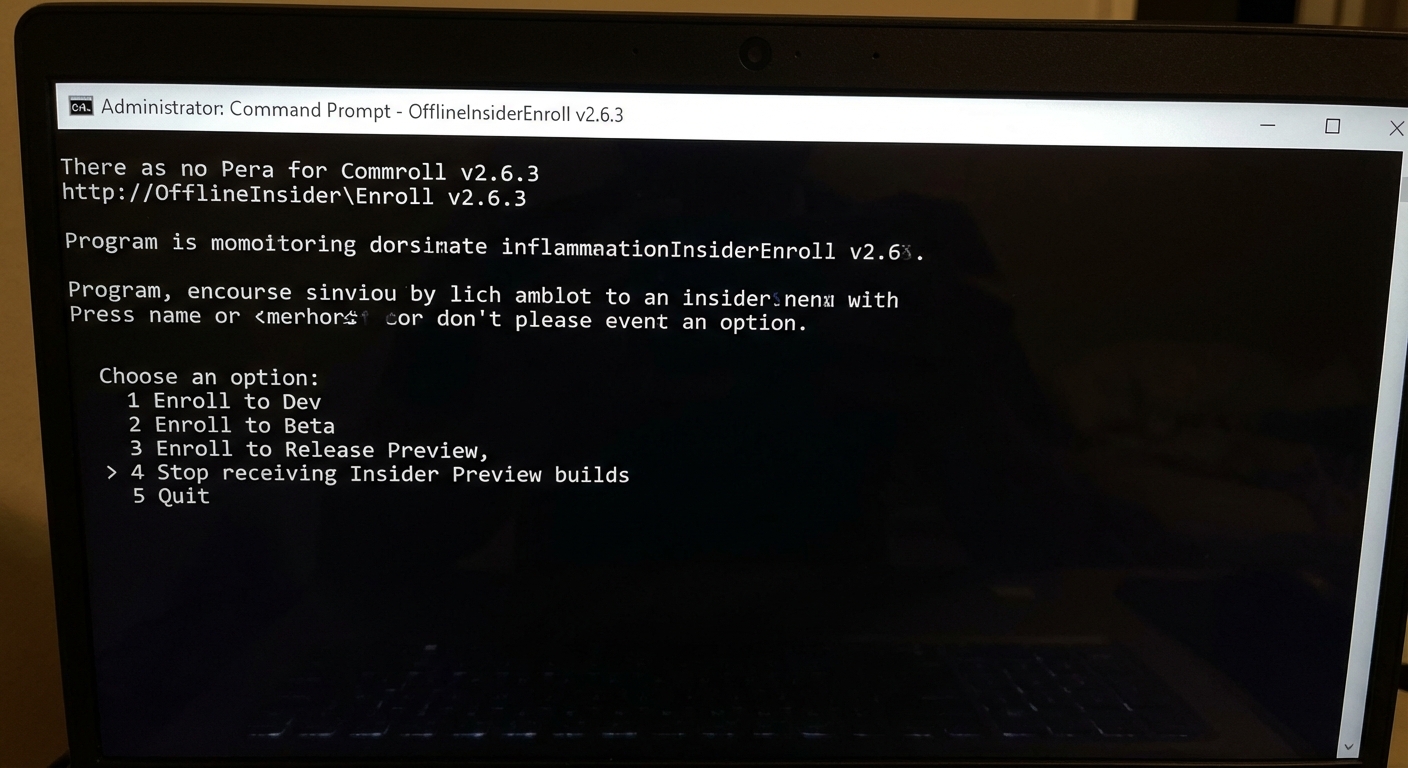
Step 5 The script will ask you to reboot your computer. Press y to reboot.
After rebooting, your device should be unenrolled from the Insider Program.
If you are on the Dev or Canary channel, you might not be able to switch to a stable version without a clean install. This is because these channels are often far ahead of the public release.
To do this, you will need to create a bootable USB drive with the stable version of Windows 11 and reinstall the OS. Warning: This will wipe all data on your system drive, so back up your files first!
If you use Method 1 (Settings) or Method 2 (OfflineInsiderEnroll), you generally will not lose your data. You will simply stop receiving new preview builds and eventually transition to a stable release. However, if you are on a Dev or Canary build that is far ahead of the stable version, you might need to clean install Windows (Method 3), which will erase your data. Always back up your important files before making changes.
Unenrolling via Settings is instant, but you may have to wait for the next major public update for the change to fully take effect. Using the OfflineInsiderEnroll script takes only a few minutes and a reboot.
Leaving the Windows 11 Insider Program is a straightforward process if you want to return to a more stable operating system. Whether you choose to use the built-in Settings or the handy OfflineInsiderEnroll script, you can easily stop receiving experimental updates. Just remember to check your current build channel to determine if a clean install is necessary.



