8 Ways to Fix Can't Type in Windows 11 Search Bar

Windows 11 Search can stop accepting keyboard input after a service glitch, Explorer freeze, broken text input process, damaged system files, or a Windows update issue. If you can click the search box but cannot type in it, start with the low-risk fixes below before running repair commands or resetting Windows.
Quick answer
- Try first: Restart your PC, restart Windows Explorer, restart the Windows Search service, and run C:\Windows\System32\ctfmon.exe.
- Then repair Windows: Check Windows Update, run the available Windows troubleshooter or Get Help flow, then run DISM and SFC as administrator.
- Use as last resorts: Re-register system apps with PowerShell only if simpler fixes fail, and reset Windows only after backing up important files.

- Way 1: Restart Windows Explorer
- Way 2: Restart Windows Search Service
- Way 3: Run Ctfmon.exe
- Way 4: Start the Text Input Service
- Way 5: Run the Search Troubleshooter or Get Help
- Way 6: Run DISM and SFC as Administrator
- Way 7: Re-register Windows System Apps with PowerShell
- Way 8: Reset Your Windows System
- Official Microsoft Sources
- Frequently Asked Questions
How to Fix "Can't Type in Windows 11 Search Bar" Issue
Way 1: Restart Windows Explorer
Windows Search is tied closely to the taskbar and Start experience. Restarting Windows Explorer is a low-risk first fix when the search box opens but does not accept input.
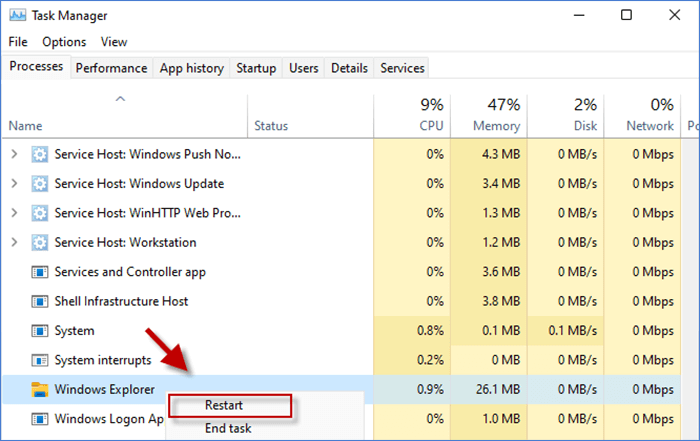
Step 1 Press Ctrl + Shift + Esc to open Task Manager.
Step 2 Select Windows Explorer, then choose Restart.
About Cortana
- Older guides sometimes recommend ending Cortana. On modern Windows 11, Cortana in Windows has been retired or deprecated, so it should not be treated as a primary Search fix. Focus on Windows Explorer, Windows Search, and text input services instead.
Way 2: Restart Windows Search Service
The Windows Search service supports indexing and search behavior. If the service is stuck, restarting it can bring the search box back without changing files or settings.
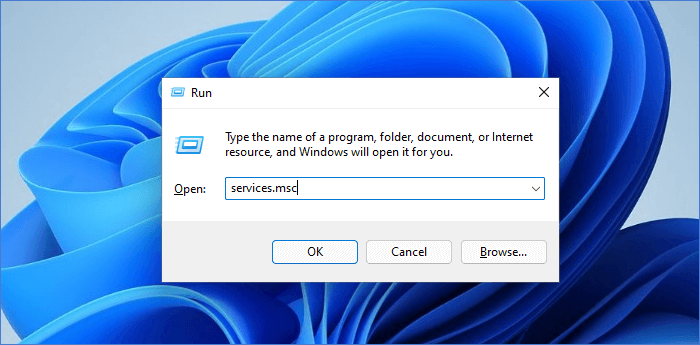
Step 1 Press Windows key + R, enter services.msc, and click OK.
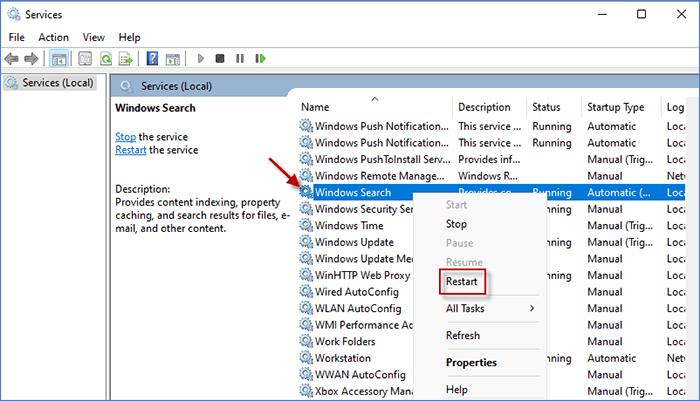
Step 2 Right-click Windows Search and select Restart. If it is not running, choose Start.
Way 3: Run Ctfmon.exe
Ctfmon.exe is related to text input services. If typing fails only in Start/Search or other Windows shell text boxes, manually launching it is a quick check.
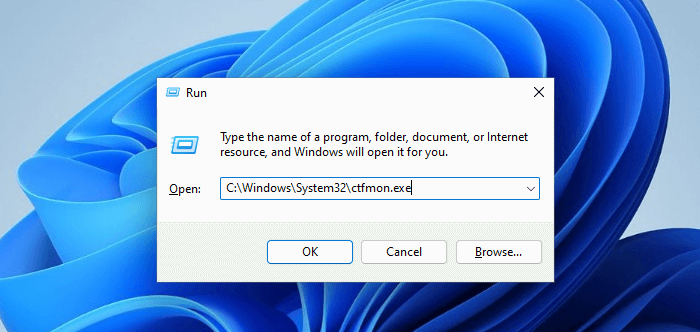
Step 1 Press Win + R, paste the command below, and click OK.
C:\Windows\System32\ctfmon.exeStep 2 Click the Windows Search box again and test whether typing works.
Way 4: Start the Text Input Service
If the text input service is disabled or stopped, Windows search boxes and on-screen typing features can behave incorrectly.
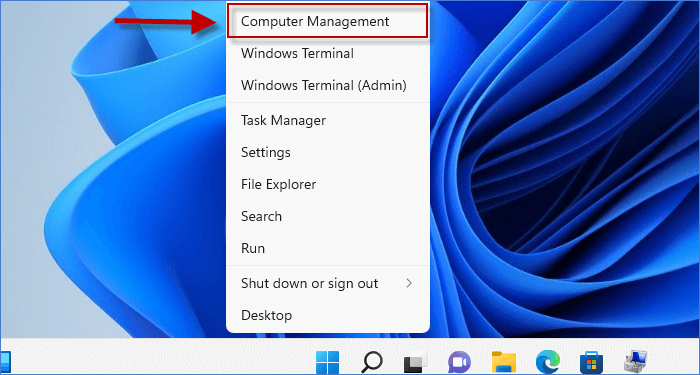
Step 1 Right-click the Start Menu icon and choose Computer Management.
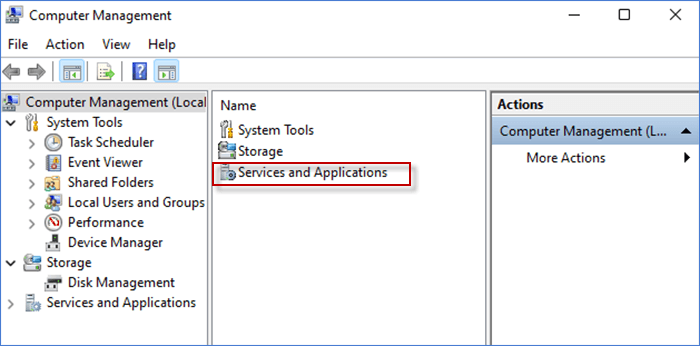
Step 2 Open Services and Applications and choose Services.
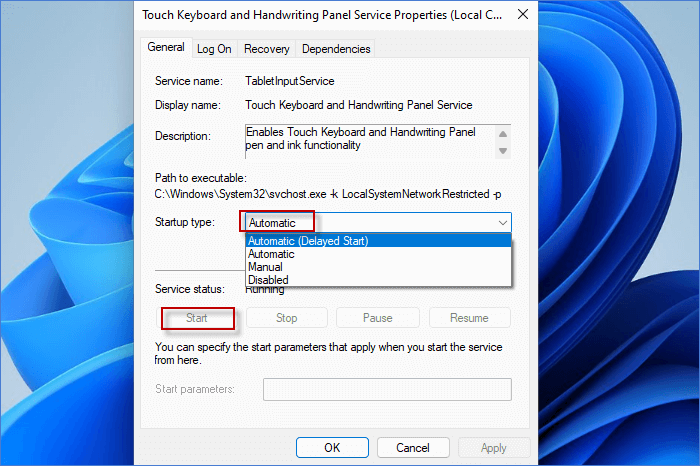
Step 3 Find Touch Keyboard and Handwriting Panel Service or the closest text input service name shown on your Windows 11 build, then start it and set its Startup type to Automatic.
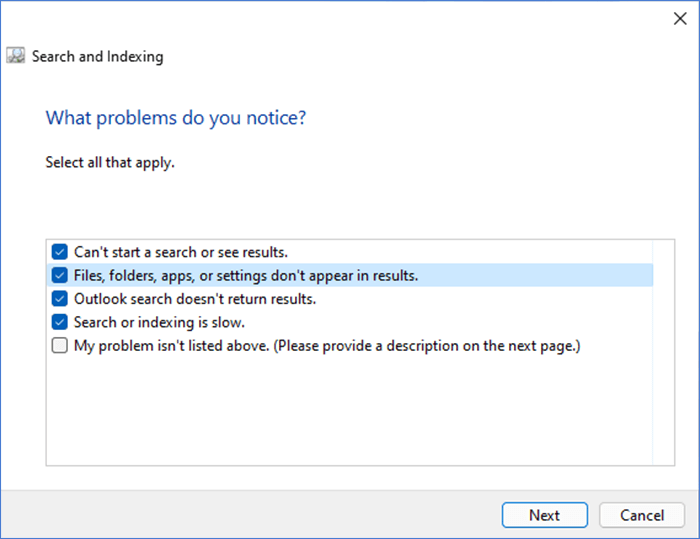
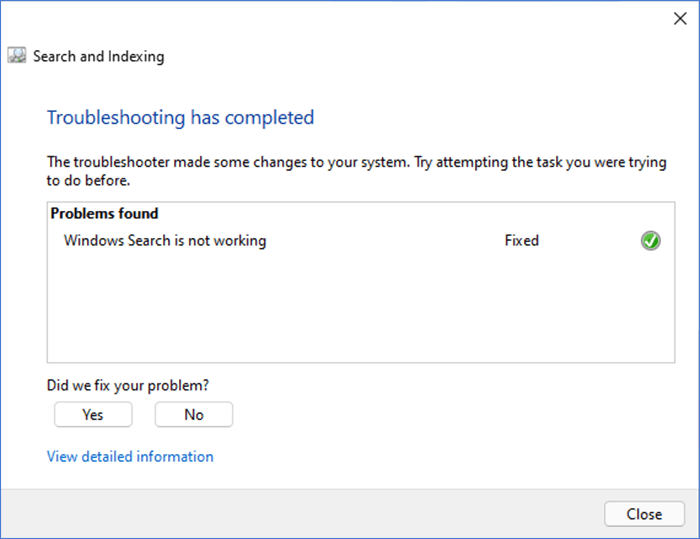
Way 5: Run the Search Troubleshooter or Get Help
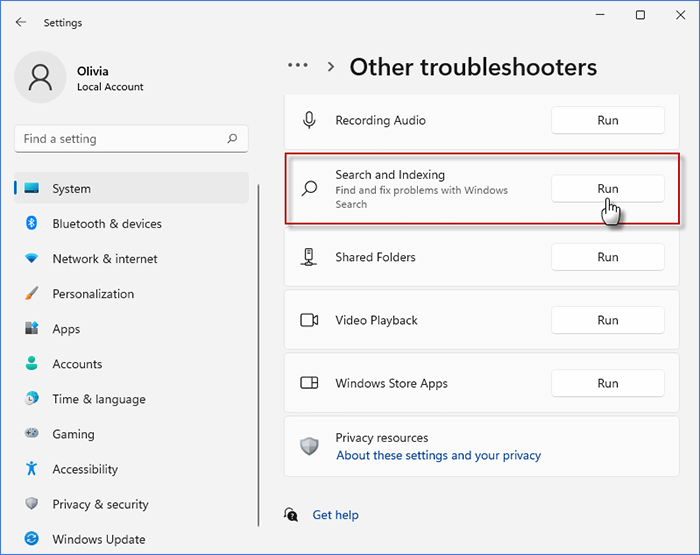
Some Windows 11 versions still show the Search and Indexing troubleshooter in Settings. Newer Windows 11 builds may redirect legacy troubleshooters to the Get Help app because Microsoft is retiring older MSDT troubleshooters.
Step 1 Press Win + I, open System > Troubleshoot > Other troubleshooters. If Search and Indexing appears, click Run.
Step 2 If the old troubleshooter is not available, open Get Help from Start and search for Windows Search or indexing problems.
Step 3 Follow the prompts and select the symptoms that match your issue.
Way 6: Run DISM and SFC as Administrator
DISM and System File Checker can repair Windows component store and system file problems. Microsoft recommends running these from an elevated command prompt.
Before running repair commands
- Update first: Install available Windows updates and restart your PC.
- Use administrator rights: These commands should be run in Command Prompt as administrator.
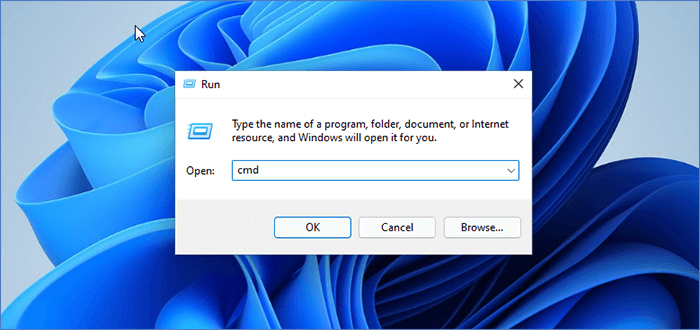
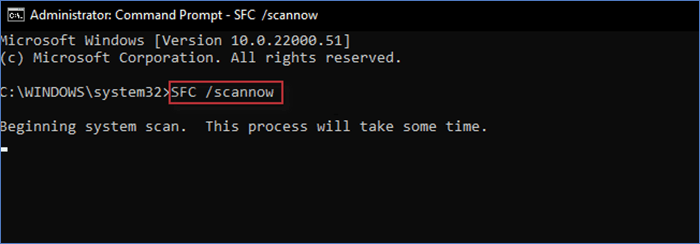
Step 1 Open Start, type cmd, right-click Command Prompt, and choose Run as administrator.
Step 2 Run this command first:
DISM /Online /Cleanup-Image /RestoreHealth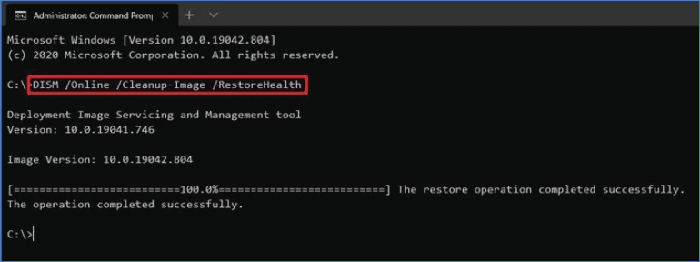
Step 3 After DISM finishes, run:
sfc /scannowStep 4 Restart your PC and test Windows Search again.
Way 7: Re-register Windows System Apps with PowerShell
Use this only after the safer fixes above fail. Re-registering system app packages can repair broken Start/Search components, but it is a broader system change than restarting a service.
Advanced fix
- Run as administrator: Open PowerShell or Windows Terminal as administrator.
- Avoid unrestricted policy changes: Do not use PowerShell -ExecutionPolicy Unrestricted as a routine step.
- Create a restore point: If this is a work PC, check with your administrator before re-registering system app packages.
Step 1 Right-click Start and choose Terminal (Admin) or Windows PowerShell (Admin).
Step 2 Run the following command:
Get-AppXPackage -AllUsers | Where-Object {$_.InstallLocation -like "*SystemApps*"} |
                            Foreach {Add-AppxPackage -DisableDevelopmentMode -Register
                            "$($_.InstallLocation)\AppXManifest.xml"}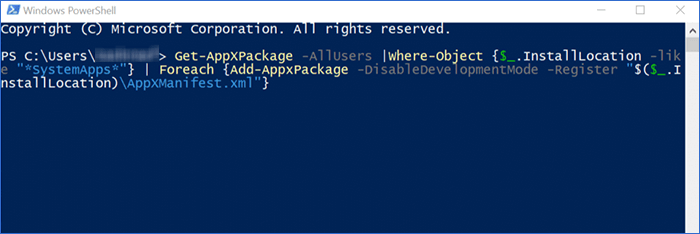
Step 3 Restart your PC after the command completes.
Way 8: Reset Your Windows System
If none of the above methods work, Reset this PC can reinstall Windows while offering a Keep my files option. Treat this as a last resort because it removes apps and resets settings.
Before resetting Windows
- Back up important files: Keep my files is not a substitute for a backup.
- Save your BitLocker recovery key: If device encryption or BitLocker is enabled, make sure you can access the recovery key before resetting.
- Expect app removal: Desktop apps and custom settings may be removed even when personal files are kept.
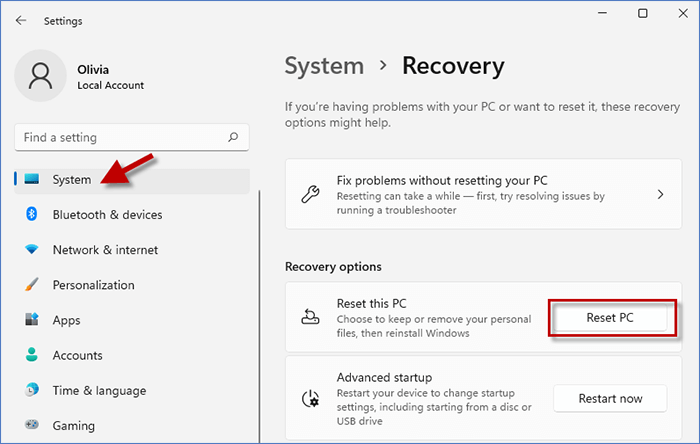
Step 1 Press Windows Key + I, open System > Recovery, then click Reset PC.
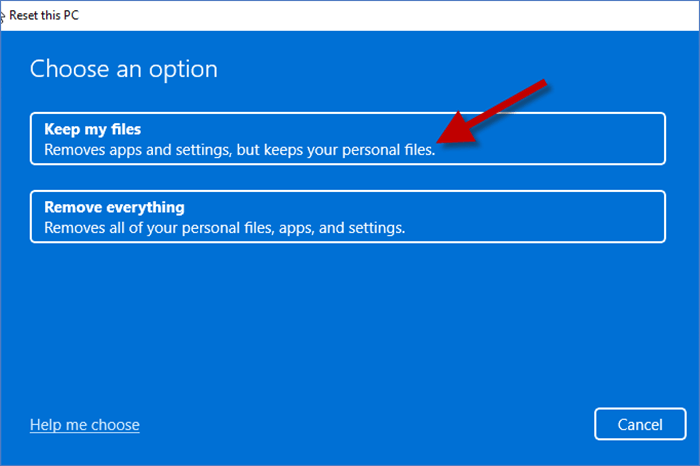
Step 2 Choose Keep my files, then follow the prompts. You may be asked to choose Cloud download or Local reinstall.
Official Microsoft Sources
The guidance above was checked against these Microsoft resources:
Frequently Asked Questions
Q: Why can't I type in the Windows 11 Search bar?
A: Common causes include a frozen Windows Explorer process, a stopped Windows Search service, a text input service problem, damaged system files, or a Windows update issue.
Q: Is Cortana required for Windows 11 Search?
A: No. Cortana in Windows has been retired or deprecated on modern Windows 11, so restarting Cortana should not be the main fix for Search typing problems.
Q: Should I run the PowerShell command first?
A: No. Try restart, service, ctfmon, troubleshooter, and DISM/SFC fixes first. Use PowerShell re-registration only as an advanced repair step.
Q: Does Reset this PC delete my files?
A: The Keep my files option is designed to keep personal files, but it removes apps and resets settings. Back up important files and save your BitLocker recovery key before starting.
These fixes cover the most common reasons Windows 11 Search stops accepting typed input. Start with the low-risk steps and move to repair commands or Reset this PC only when the simpler fixes do not work.
Related Articles
![How to fix Windows 11 File Explorer not responding]() 8 Ways to Fix
Windows 11 File
Explorer Not Responding
8 Ways to Fix
Windows 11 File
Explorer Not Responding![Windows 11 Start Menu not working after update]() 8 Ways to Fix
Windows 11
Start Menu Not Working after Update
8 Ways to Fix
Windows 11
Start Menu Not Working after Update![Taskbar missing from Windows 10]() 6 Ways to Fix
Taskbar Missing
from Windows 10
6 Ways to Fix
Taskbar Missing
from Windows 10![Downgrade from Windows 11 to Windows 10]() How to
Downgrade from Windows
11 to Windows 10 without Losing Data
How to
Downgrade from Windows
11 to Windows 10 without Losing Data![There are currently no power options]() Fix "There
are currently no
power options" in Windows 11
Fix "There
are currently no
power options" in Windows 11![Battery missing from taskbar Windows 10]() 7 Ways to
Fix Battery Icon
Missing from Taskbar in Windows 10
7 Ways to
Fix Battery Icon
Missing from Taskbar in Windows 10![Power button missing from Windows login screen]() How to Fix
Power Button
Missing from Windows 10 Login Screen
How to Fix
Power Button
Missing from Windows 10 Login Screen