How to Uninstall Desktop Apps and Windows Apps in Windows 10

The guide describes how to uninstall apps and programs on a Windows 10 PC. Windows 10 has two types of apps such as Desktop apps and Windows apps. When you uninstall a desktop app, it will be uninstalled for all users on the PC. When you uninstall a Windows app, it will be uninstalled for current user account only.
Here show several ways to uninstall apps in Windows 10:
- Option 1: Uninstall Windows apps in Start
- Option 2: Uninstall Windows apps in Settings
- Option 3: Uninstall Desktop program in Program
- Option 4: Uninstall Desktop Apps in Command Prompt
How to Uninstall Desktop and Windows Apps in Start Menu
This is the quickest way to get rid of any desktop program or Windows Store app in Windows 10. Here's how:
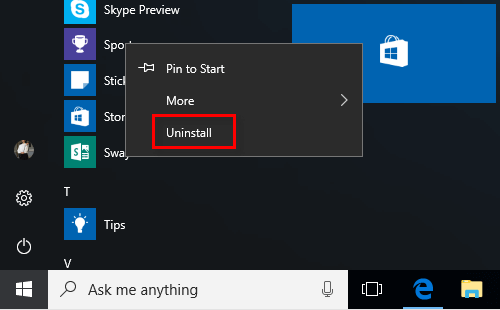
Step 1: Go to Start menu > All apps list, find the app you want to remove.
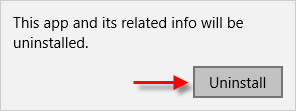
Step 2: Right-click the app tile, and select Uninstall. Then follow the instruction as Step 3 shows.
How to Uninstall Windows Apps in Settings
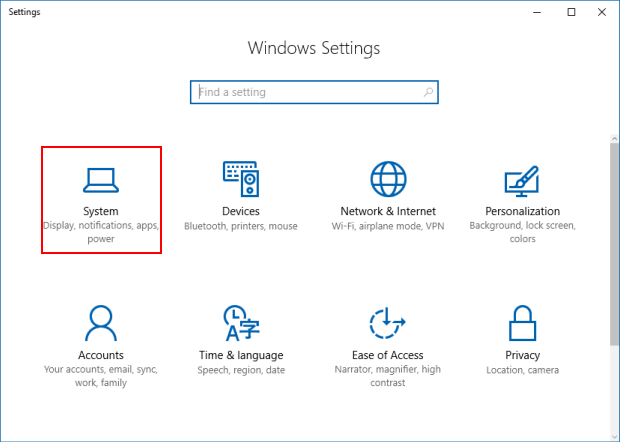
Step 1: Open Settings app, and click on the System icon.
Step 2: In System settings, click on App & features on the left side.
On the right side, find the app you want to uninstall, and then click on the Uninstall button.
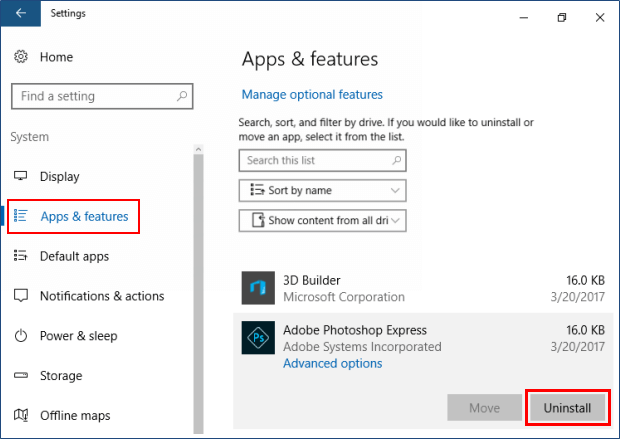
Step 3: Click on Uninstall to confirm. You may have to go through an uninstaller wizard if it is a desktop app. Then follow the rest of the on-screen instructions for that program's uninstaller.
How to Uninstall Desktop Apps using Program and Features Option
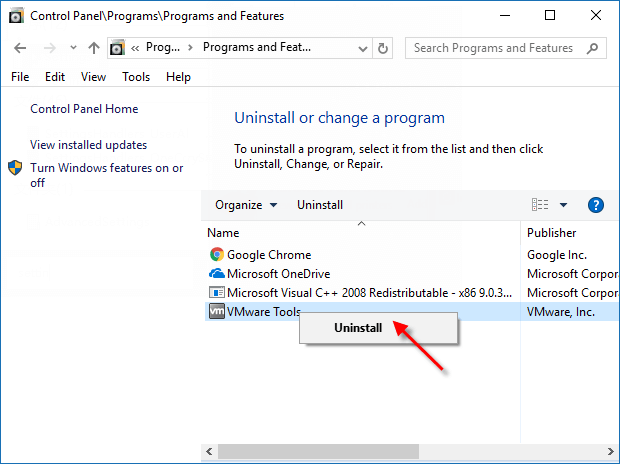
Method 1: Uninstall Desktop apps in Control Panel
Step 1: Press Windows logo + X and then hit F on the keyboard, you can easily open Programs and Features window.

Step 2: Click a program that you want to uninstall, click Uninstall.
Method 2: Uninstall Desktop apps in the Program Files folder
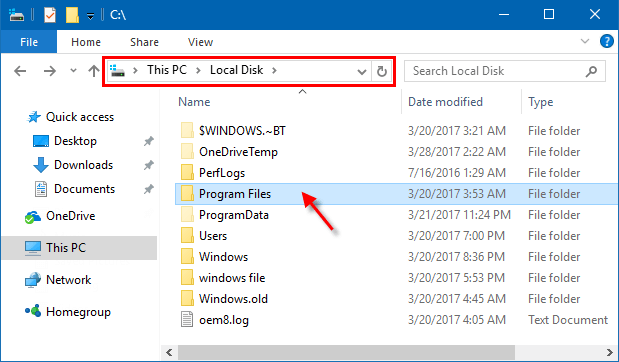
Step 1: Open File Explorer, and open the Program Files (x86) or Program Files folder.
Tips: If you use a 32-bit Windows 10, then you will only have the Program Files folder available. If you have a 64-bit Windows 10, then you will have the Program Files (x86) (32-bit programs) and Program Files (64-bit programs) folder available.
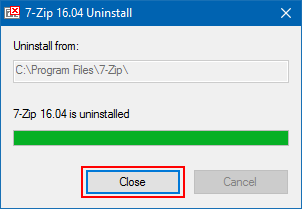
Step 2: Open the folder for the program that you want to uninstall. Click on the uninstall.exe file for that program. In the program's uninstaller, select Uninstall.
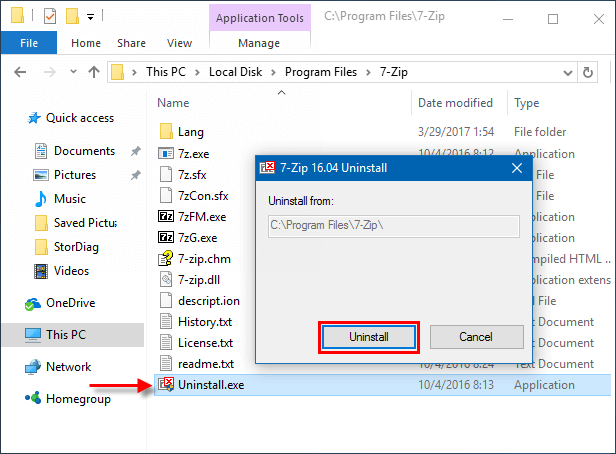
Step 3: When it has done, click Close.
How to uninstall Desktop Apps via Command Prompt
This option only works for the program that uses Windows Installer when installed. You could also use uninstall in Programs and Features to have a full list of the installed program.
You must be signed in as an administrator to be able to do this option.
Step 1: Open Command Prompt and run it as an administrator.
Press Win + X keys, then press A key. This can quickly open the Command Prompt(Admin).

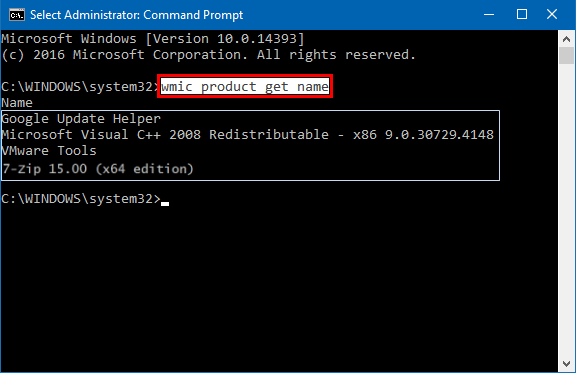
Step 2: In command prompt window, enter wmic product get name, then press Enter to see a list of all programs installed by Windows Installer.
Step 3: Then execute the uninstall apps command: wmic product where name="name of program" call uninstall.
For example: wmic product where name="7-Zip 15.00 (x64 edition)" call uninstall.
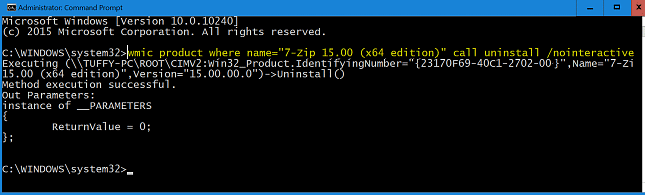
When finished, close the command prompt window.