[2024] How to Unlock Phone Free with IMEI Number iPhone

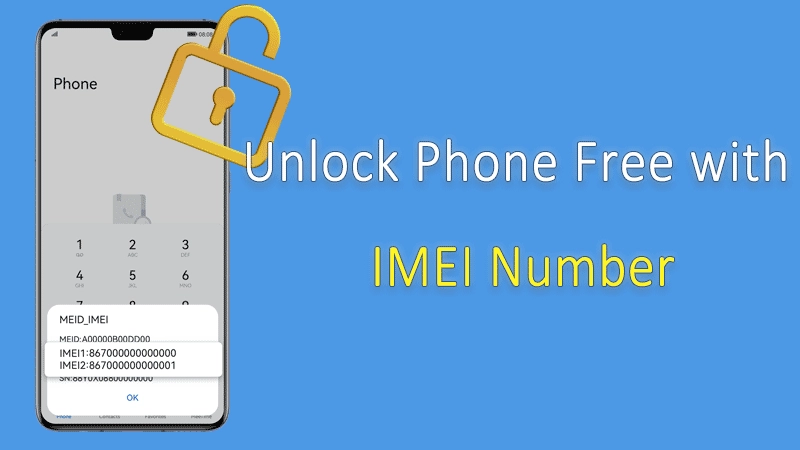
IMEI number is a string of particular numbers that identifies the phone. You can not only track your stolen iPhone with the IMEI number but also use the IMEI number to unlock your iPhone for free. Check this article, you will learn the meaning of the IMEI number and how to unlock a phone with an IMEI number.
- Part 1: What is the IMEI Number?
- Part 2: Where to Find My IMEI Number
- Part 3: How to Unlock Phone Free with IMEI Number iPhone
- Tips: How to Unlock an iPhone without Passcode or Apple ID
- Bottom Line
Part 1: What is the IMEI Number?
The IMEI (International Mobile Equipment Identity) consists of 15 digits, each with a specific meaning. The first 8 digits usually represent the phone model, date of manufacture, and sales region. The last 7 digits usually represent the phone's serial number and can be used to track the phone's identity. It is used to identify any independent mobile communication device, such as a mobile phone on a mobile network. The formats of IMEI number are usually XXXXXX-XX-XXXXXX-X or XX-XXXXXX-XXXXXX-X.
Part 2: Where to Find My IMEI Number
You may wonder where to find my IMEI number, this part will share 4 ways to find your IMEI number. (Suitable for both iPhone and Android phone)
- Method 1: Contact with *#06#
- Method 2: Find the IMEI Number via Settings
- Method 3: Find the IMEI Number with the Retail Box
- Method 4: Pull out the SIM Card Slot to Find the IMEI Number
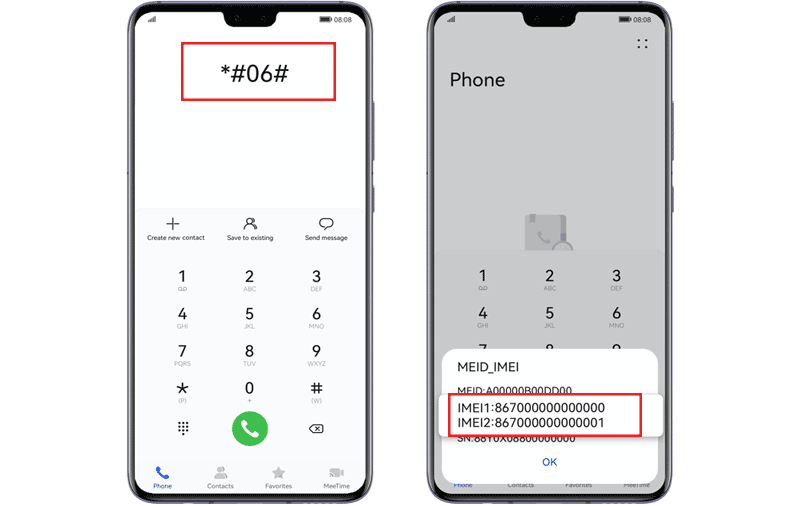
Method 1: Contact with *#06#
Open your phone app and type *#06# then press the call button, and you will see your IMEI number.
Method 2: Find the IMEI Number via Settings
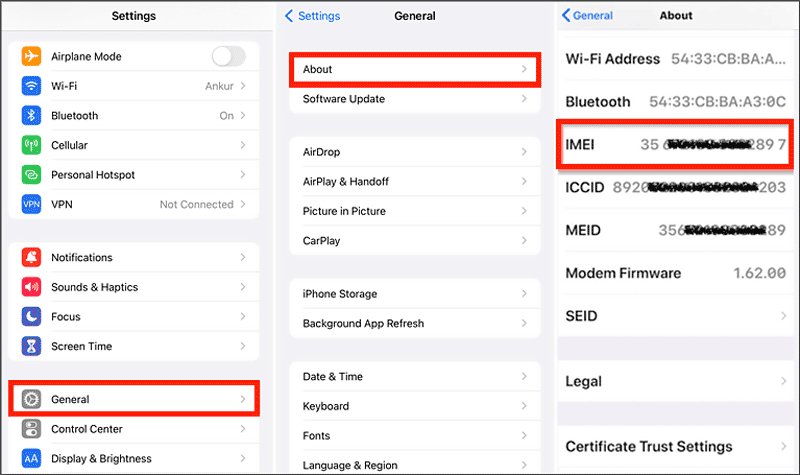
Steps: Go to Settings → General → About, you will find your IMEI number.
Method 3: Find the IMEI Number with the Retail Box
If you still keep your retail box, you can check the sticker which may contain your IMEI code. There is a situation where you can find the IMEI code from the back panel of your phone.

Method 4: Pull out the SIM Card Slot to Find the IMEI Number
Some phone manufacturers will engrave the IMEI number in the SIM card slots, you can pull it out with a SIM card ejector tool or a thin stick and check the IMEI number.

Part 3: How to Unlock Phone Free with IMEI Number iPhone
Knowing your IMEI number, you can contact your carrier to unlock your phone. Here are the steps to locate your carrier:
Step 1: Prepare the necessary information you should provide to the carrier first:
- Your name registered to your iPhone;
- Your phone number;
- Your security questions' answers;
- Phone IMEI number;
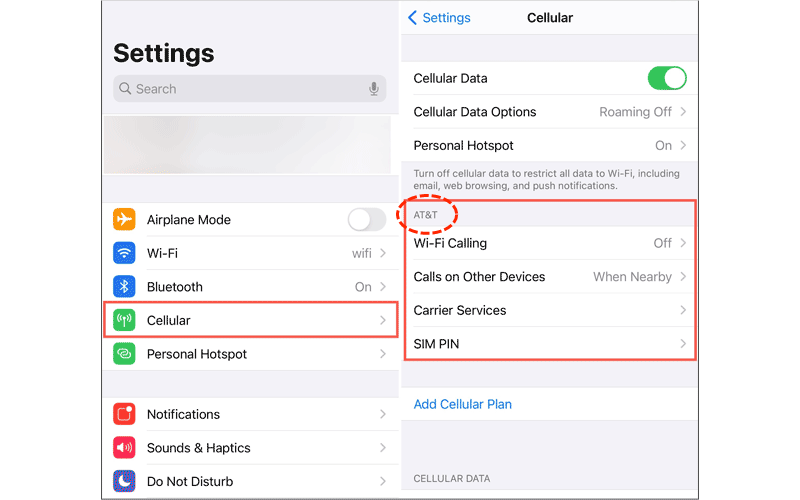
Step 2: Go to Settings → Cellular, you can find your SIM carrier at the circled location.
Step 3: Contact your carrier. The carrier will require you to provide the detailed information you have prepared for confirmation. Once confirmed, the carrier will send you the unlock passcode within 30 days.
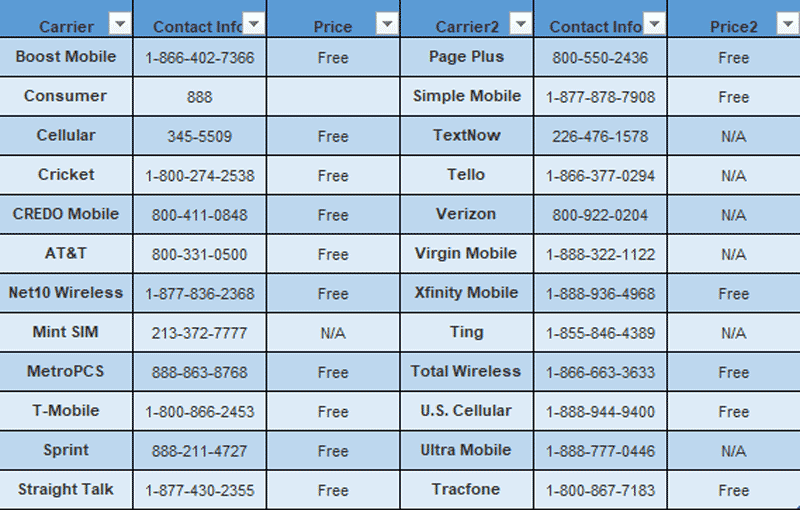
Here are the contact numbers of most carriers.
As we have mentioned, using the IMEI number to unlock your phone requires detailed information. But if you meet a situation where an iPhone is unavailable or disabled, using IMEI cannot unlock your phone. Then how to fix an iPhone unavailable without passcode? Try the following method.
Tips: How to Unlock an iPhone without Passcode or Apple ID
The limitation of unlocking a phone free with an IMEI number is you need to satisfy all the carrier’s criterion, and you need to wait for a long time to get the passcode. Here is a simple way to unlock an iPhone without passcode or Apple ID using iSumsoft iPhone Passcode Refixer.
iSumsoft iPhone Passcode Refixer is a safe and effective tool that helps users troubleshoot iPhone-related issues with simple clicks, like unlocking screen passcodes, removing Apple ID, removing screen time passcodes, etc.
iSumsoft iPhone Passcode Refixer
Remove Various Passcodes on Your iPhone, iPad, and iPod Touch
- Unlock Screen Lock from locked, disabled, or unavailable lock screen
- Remove Screen Time passcode or Restrictions passcode without data loss
- Delete iCloud account without Apple ID password
- Bypass Remote Management (MDM) Screen & Remove MDM Profile
- Remove iTunes Backup Encryption with one click
- Detect, View, and Export All Passwords with iOS Password Manager
Step 1: Download and install iSumsoft iPhone Passcode Refixer .
Step 2: Select Unlock Lock Screen. Connect your phone to the PC with a suitable USB cable.
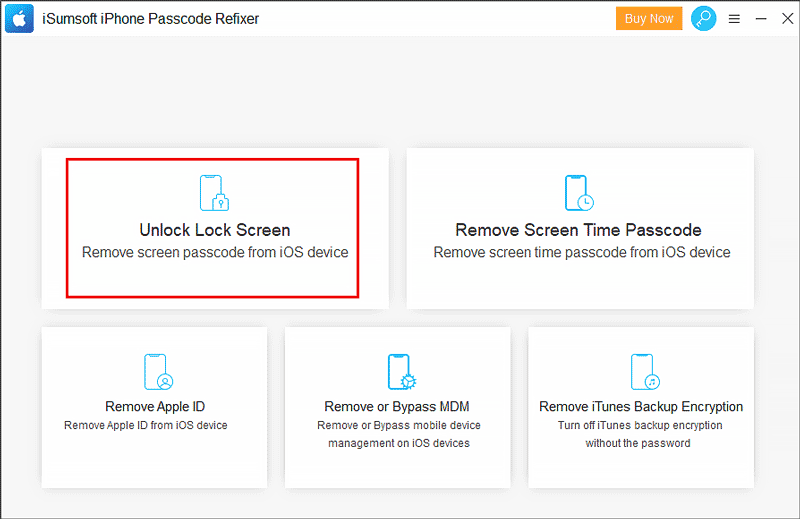
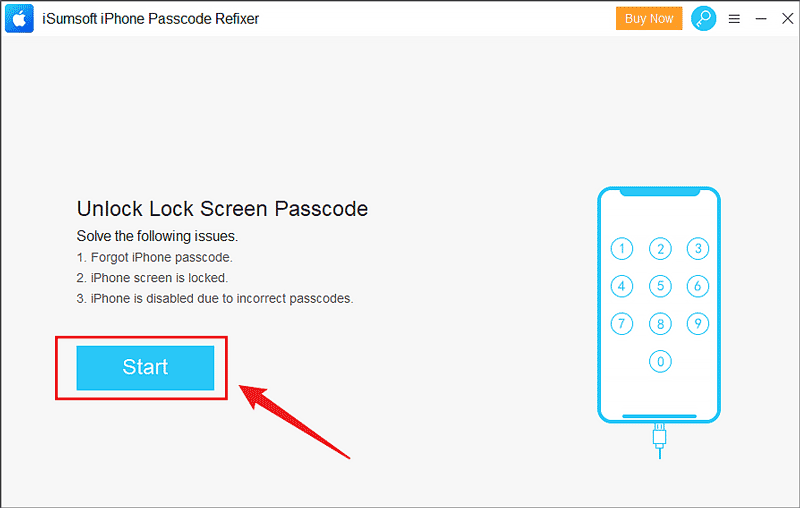
Step 3: Click Start.
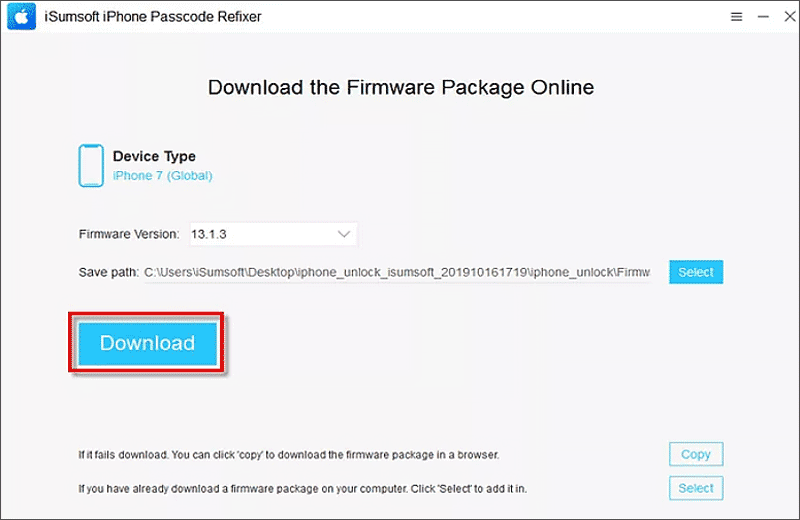
Step 4: Download the firmware package.
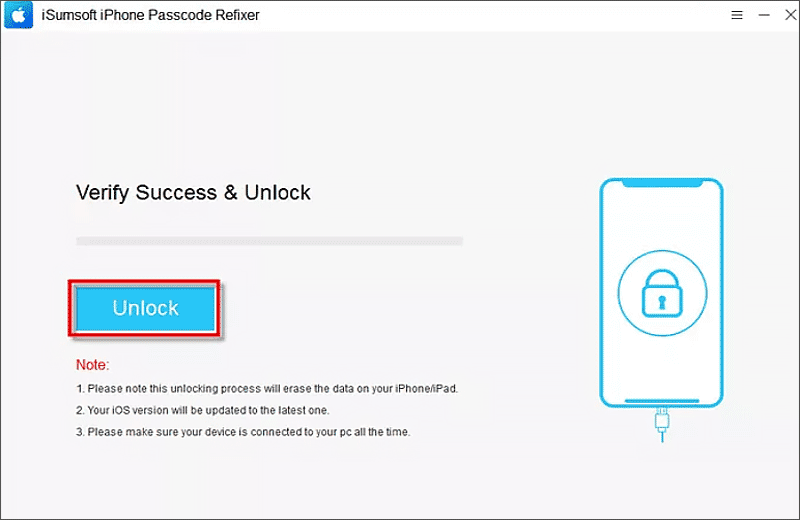
Step 5: Click Unlock. Then wait for the process to finish, your phone will restart automatically and you can get into your phone without a password.
Bottom Line
This article mainly talks about the way to get an IMEI number and unlock phone free with IMEI number and also provides a simple way to fix iPhone unavailable without passcode and Apple ID. If you want to use free IMEI to unlock your Android phone, the steps are the same as for iPhone. Why not have a try?
Related Articles
![How to Fix iPad Unavailable/Security Lockout in 4 Useful Ways]() How
to Fix iPad Unavailable/Security Lockout in 4 Useful Ways
How
to Fix iPad Unavailable/Security Lockout in 4 Useful Ways![How to Unlock A disabled iPhone with Android Phone]() How to
Unlock A disabled iPhone with Android Phone
How to
Unlock A disabled iPhone with Android Phone![[Solved] Unlock iPhone to Use USB Accessories Forgot Passcode]() [Solved]
Unlock iPhone to Use USB Accessories Forgot Passcode
[Solved]
Unlock iPhone to Use USB Accessories Forgot Passcode![How to Use Touch ID to Unlock the iPhone/iPad]() How to Use Touch
ID to Unlock the iPhone/iPad
How to Use Touch
ID to Unlock the iPhone/iPad![How to Unlock iPhone with/without Emergency Call Screen iOS 14/13/12/6.1]() How to
Unlock iPhone with/without Emergency Call Screen iOS 14/13/12/6.1
How to
Unlock iPhone with/without Emergency Call Screen iOS 14/13/12/6.1![How to Block a Stolen iPhone with IMEI Number]() How to Block a
Stolen iPhone with IMEI Number
How to Block a
Stolen iPhone with IMEI Number

![[Solved] Unlock iPhone to Use USB Accessories Forgot Passcode](../images/unlock-iphone/unlock-iphone-to-use-accessories-forgot-passcode/unlock-iphone-to-use-accessories-forgot-password.png)