[6 Ways] How to Unlock iPad Passcode with/without Computer

Sometimes, you may set a complex passcode for your iPad to prevent your data from prying eyes. However, a complex passcode difficult to guess is always hard to remember. Especially when you set different passcodes for your multiple devices, it is easy to mix them up. In this case, you may likely to forget your passcode and be locked of out iPad. Here in this article, you can learn about how to unlock iPad with/without Computer if forgot passcode in 6 useful ways.

- Part 1: How to Unlock iPad with Computer If Forgot Passcode
- Part 2: How to Unlock iPad without Computer If Forgot Passcode
Part 1: How to Unlock iPad with Computer Forgot Passcode
- Way 1: How to Unlock iPad without Passcode using Professional Unlock Tool
- Way 2: How to Unlock iPad without Passcode via iTunes
- Way 3: How to Unlock iPad without Passcode in Recovery Mode
Way 1: Unlock iPad without Passcode Using Professional Unlock Tool
The most conveninent and secure way to unlock iPad password is to use a professional unlocking tool such as iSumsoft iPhone PassCode Refixer. It is a powerful and easy-to-use tool designed to fix passcode problems for iOS devices. With this efficient tool, you can easily get rid out of lock screen without passcode by erasing all data and removing passcode in iPad/iPhone/iPod touch. Here you can follow these steps to unlock your iPad.

iSumsoft iPhone Passcode Refixer
Remove Various Passcodes on Your iPhone, iPad, and iPod Touch
- Unlock Screen Lock from locked, disabled, or unavailable lock screen
- Remove Screen Time passcode or Restrictions passcode without data loss
- Delete iCloud account without Apple ID password
- Bypass Remote Management (MDM) Screen & Remove MDM Profile
- Remove iTunes Backup Encryption with one click
- Detect, View, and Export All Passwords with iOS Password Manager
Before start, you need to download and install iSumsoft iPhone PassCode Refixer on your Computer.
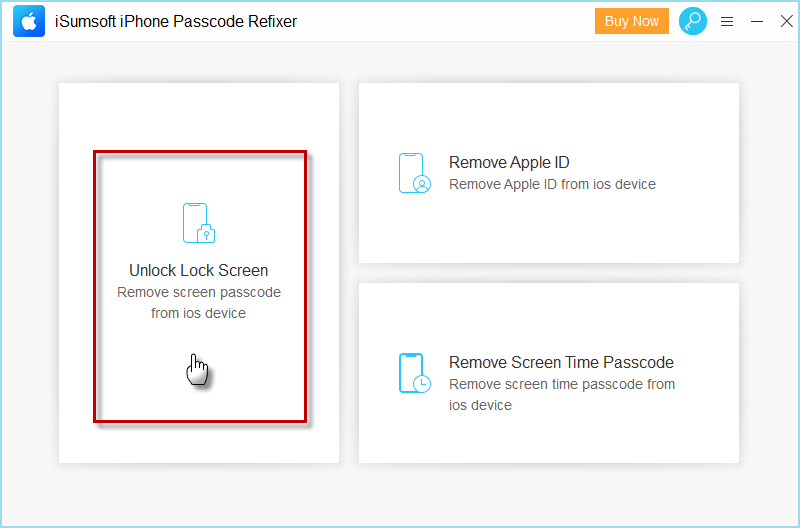
Step 1: After installing iPhone Passcode Refixer on your Computer, open it and choose Unlock Lock Screen on its home page.
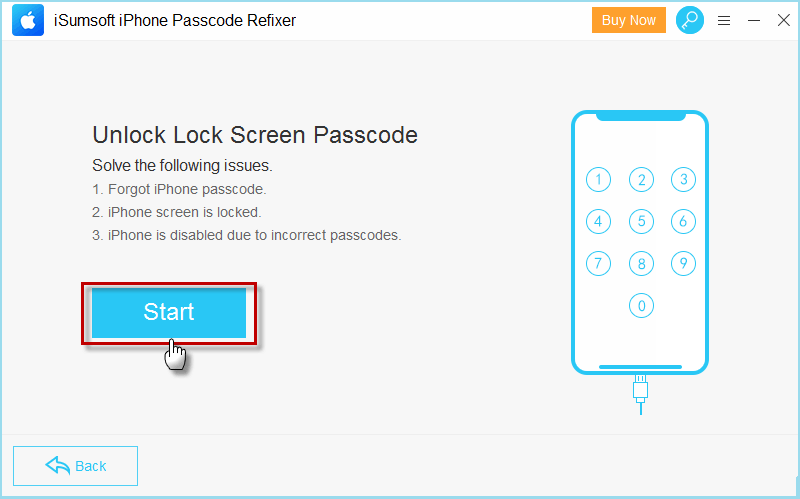
Step 2: Click Start and connect your iPad to the computer. Then put iPad into recovery mode and click Next.
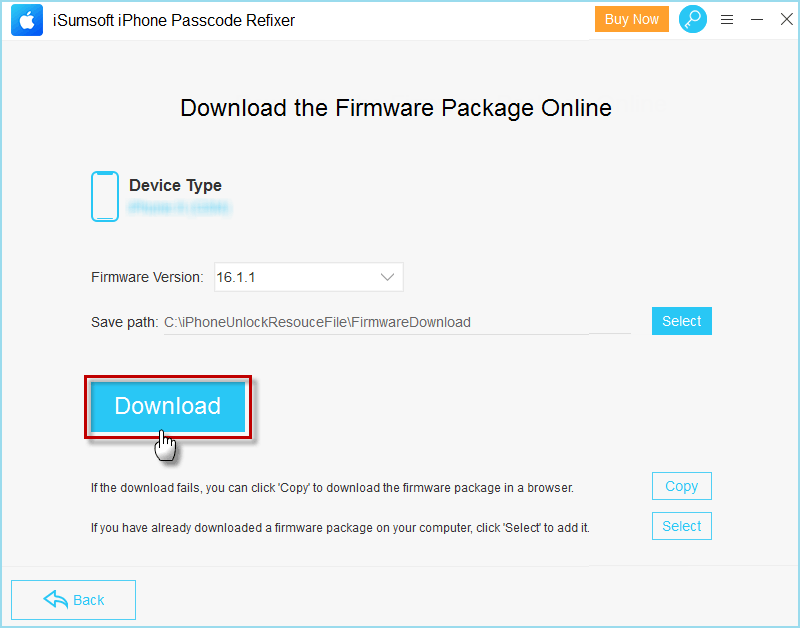
Step 3: iSumsoft iPhone Passcode will automatically match a firmware package for your iPad, and then you can click Download button to save it to the Computer.
Step 4: Once the firmware package is successfully downloaded, you can click Unlock to start unlocking your iPad.
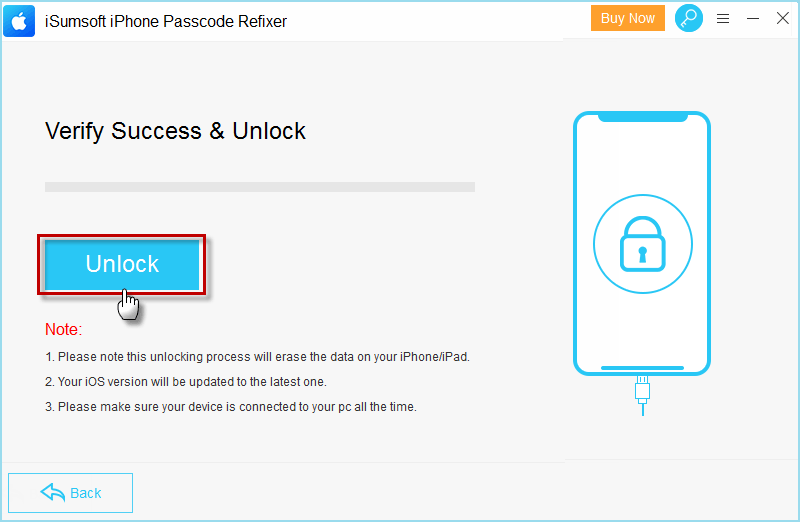
Step 5: During unlocking process, make sure your iPad is constantly connected to the Computer until "Unlocked Screen successfully!" appears on the screen.
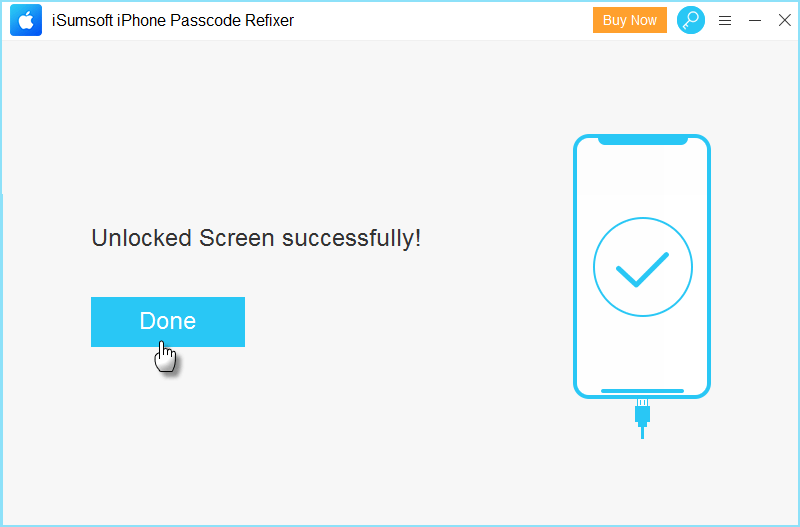
Within a few minutes, iSumsoft iPhone Passcode Refixer will unlock your iPad and you can access your iPad freely without entering any passcode.
Way 2: Unlock iPad without Passcode via iTunes
If you have iTunes installed on your Computer, you can also attempt to unlock your iPad without passcode via iTunes. In this way, iTunes will help you restore the iPad by erasing all the data and settings in it. Here you can follow these steps.
Step 1: Launch iTunes on your Computer and make sure your iPad is connected to the Computer with an official Apple cable.
Step 2: Click iPad icon on the upper left once your iPad is recognized by iTunes.
Step 3: Click Restore iPad and confirm it. iTunes will wipe your data, also removing iPad forgot passcode.
![unlock iPad without Computerand passcode with iTunes]](../images/unlock-iphone/forgot-ipad-passcode-how-to-unlock-without-computer/unlock-ipad-with-itunes.png)
Way 3: Unlock iPad without Passcode in Recovery Mode
If iTunes does not recognize your iPad, you can put your iPad into recovery mode and you will also find a restore option popping up in iTunes. Make sure your Computer has latest version of iTunes and keep your iPad connected to Computer. Then turn off iPad and follow these steps to unlock iPad without passcode.
Step 1: If your iPad has no home button, quickly press volume button nearest to the top button and quickly press another volume button. Finally press and hold the top button until the recovery screen appears. If your iPad has home button, just press and hold the home and top button until iPad get into recovery mode.
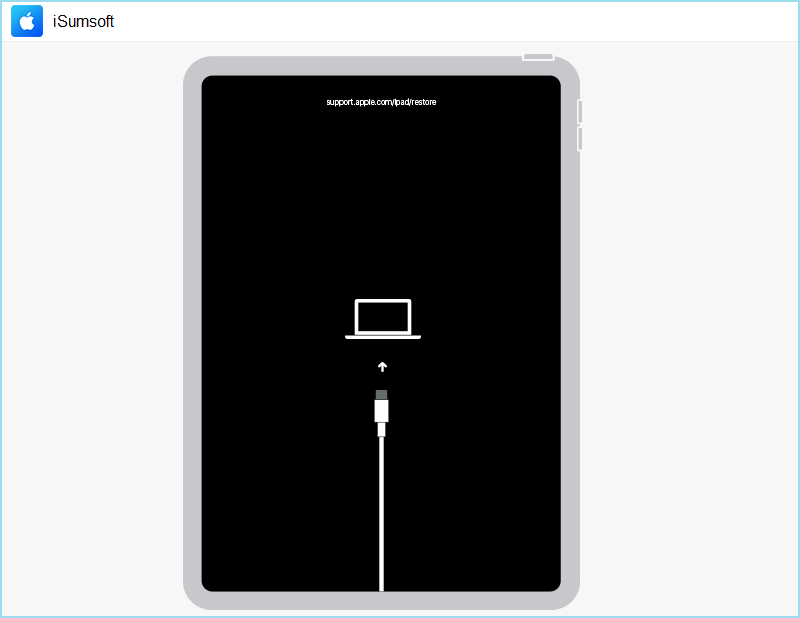
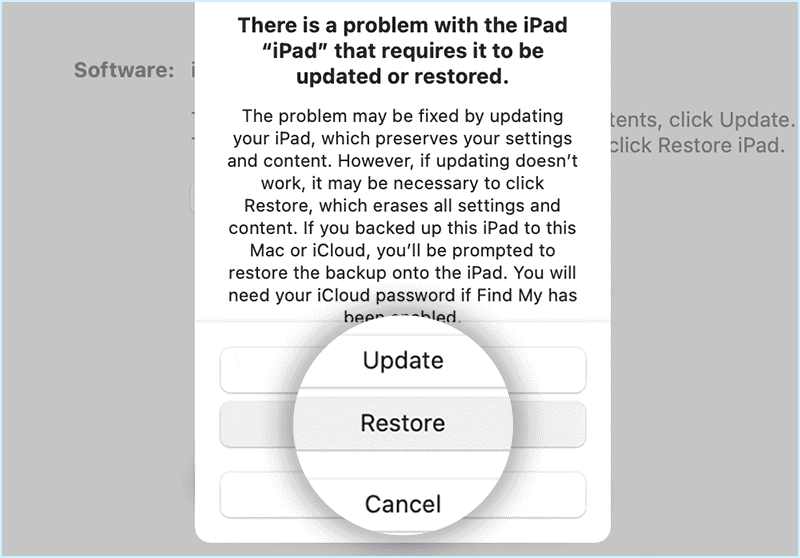
Step 2: When the update and restore option shows up, click Restore to erase all the data and passcode, thus unlocking iPad.
Part 2: How to Unlock iPad without Computer If Forgot Passcode
- Way 1: How to Unlock iPad without Computer on lock Screen If Forgot Passcode
- Way 2: How to Unlock iPad without Computer in iCloud If Forgot Passcode
- Way 3: How to Unlock iPad without Computer via Siri If Forgot Passcode
Way 1: Unlock iPad without Computer on lock Screen If Forgot Passcode
For iPad 15.2 and later version, you can easily unlock iPad passcode on lock screen without Computer. There is an Erase iPad button designed for users to reset iPad by easing all contents. When you enter a wrong passcode on iPad in multiple times, the Erase iPad button will appears and you can try to unlock iPad forgotten passcode with following easy steps.
Step 1: On the iPad lock Screen, click on Erase iPad button at the bottom center.
Step 2: When a passcode box shows up, input the Apple ID password used in this iPad.
After verification, iPad will allows you to erase all contents and settings including your passcode.

Way 2: Unlock iPad without Computer in iCloud If Forgot Passcode
If you have no Computer and Erase iPad button on lock screen, you can try to unlock forgot iPad passcode in iCloud or on another iOS device like iPhone. Go to use Find My feature to locate your iPad and then erase it. In this way, your forgotten passcode will be removed and your iPad should be unlocked.
Step 1: On iCloud website page, enter your Apple ID and password used in iPad to log in iCloud and choose Find My option.

Step 2: Expand All Device and select your iPad on the Find My page. Then you can click Erase iPad to remove everything on your iPad containing the forgotten passcode.

Way 3: Unlock iPad without Computer via Siri If Forgot Passcode
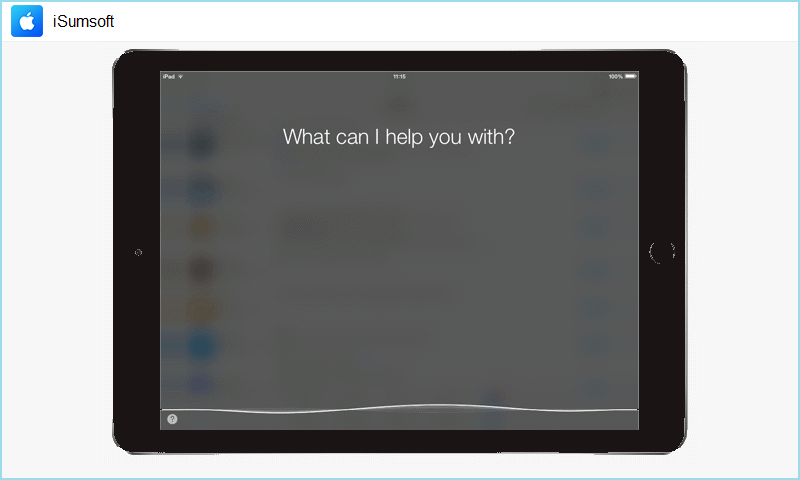
Is there any other way to unlock iPad forgot passcode without Computer? Sure. According to some users, they can unlock iPad without any other device just by Siri. By recognizing your voice, Siri may let you bypass lock screen without entering passcode. Note that this way is only suitable for iPad from iOS 8.0 to iOS 10.1 and may not 100% work. However, there is still a chance to unlock iPad passcode without losing any data, which is worth trying.
On your iPad, press the Home button until Siri is activated.
Option 1: Ask "what time is it"
1. When Siri detect your voice and show a clock icon, tap the clock icon to enter World clock.
2. In World clock, click "+" icon to add another clock. Then randomly enter a place and choose "Select All".
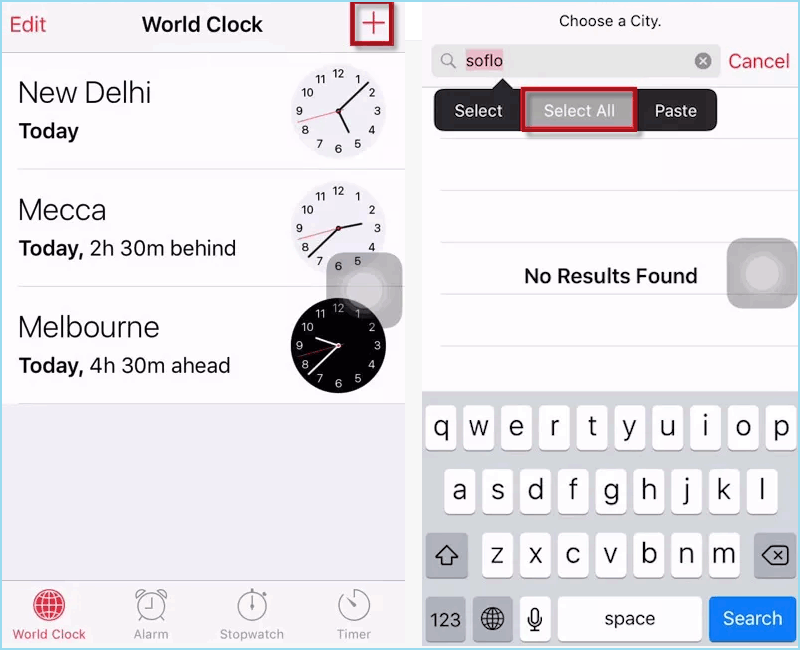
3. After selecting all, you are able to choose "Share" option under search box.
4. When a sharing window pops up, tap Message icon to share it via Message.
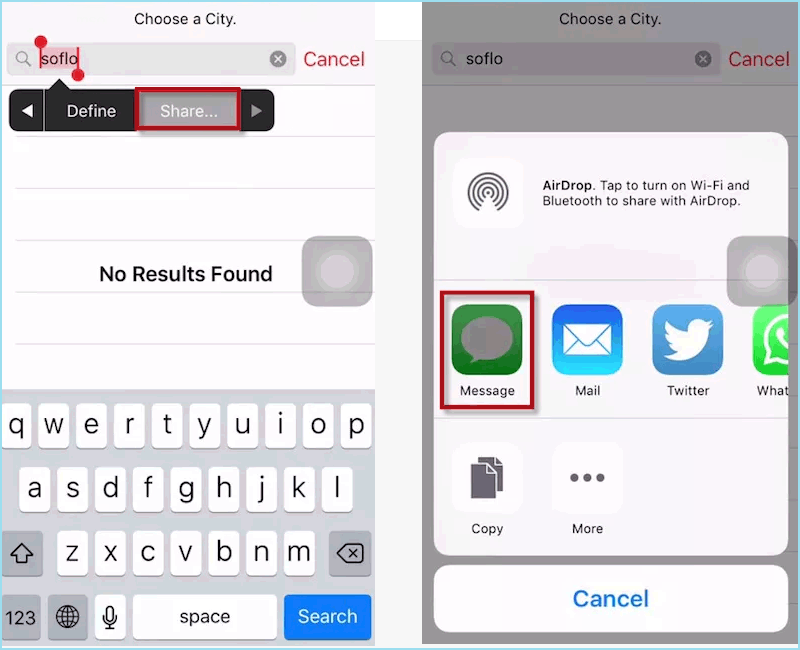
5. Randomly enter something in "To" field and tap Return. In this case, your text will be highlighted in green. Then you can touch "+" and choose "Create new contact" in the next page.
6. Tap add photo and select Choose Photo. Then the gallery of your iPad will be opened.
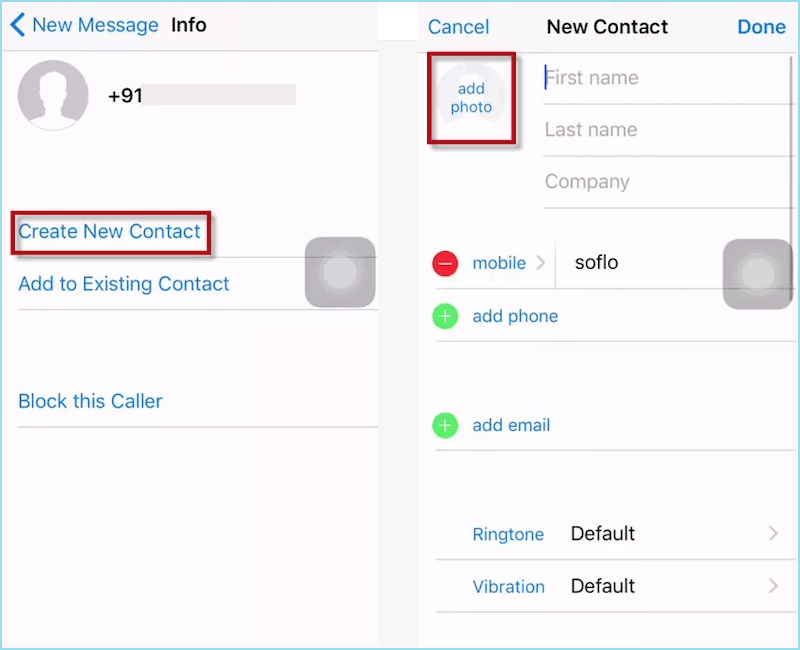
After that, press home button again to go back to the home screen. You will find that your iPad is unlocked.
Option 2: Ask Siri to run an app that does not exist on your device.
1. Siri will say that the app does not exist and then show you the App Store icon.
2. Touch the App Store icon. When a window pops up, choose to download the app or update any other apps.
3. Once the preview shows up, please end the active front screen task. Now your iPad may be unlocked and allow you to access without passcode.
The Bottom Line
That’s all about how to unlock iPad if forgot passcode with/without Computer in 6 effective ways. If you want to unlock forgot passcode without Computer, you can use Erase option on iPad lock screen/Find My feature or Siri. If you plan to unlock iPad with Computer, you can use iTunes to easily restore iPad and get it unlocked. However, sometimes iTunes may fail to restore iPad for unknown errors. In this case, the best way to unlock iPad is to use an alternative tool like iSumsoft iPhone PassCode Refixer. Such a professional passcode unlocking tool can help you unlock iPhone/iPad/iPod Touch without screen/Apple ID passcode at ease.
Related Articles
-
![Recover iPad Backup Password]() Forgot iPad Backup Password |
Recover iPad Backup Password in iTunes
-
![iPhone asks for passcode after factory reset]() [Solved] iPhone
Asks for Passcode after Factory Reset
![iPhone keeps asking for Apple ID password]() iPhone Keeps
Asking For Old Apple ID Password [Fixed]
![forgot Apple ID and password to activate iPhone]() Forgot Apple
ID and Password to Activate iPhone, What to Do
![unlock disabled iPhone without iTunes]() How to Unlock a
Disabled iPhone without iTunes or iCloud
![iTunes could not restore the iPhone because password was incorrect]() Fixed:
iTunes Could Not Restore the iPhone Because the Password Was Incorrect