How to Print Excel Header Row on Every Page

To print an Excel header row on every page, open the worksheet in the Excel desktop app, go to Page Layout > Print Titles, and enter the header row in Rows to repeat at top. For example, use $1:$1 to repeat the first row or $1:$2 to repeat the first two rows.
- Repeat a header row on every printed page
- Alternative path in older Excel versions
- Fix Print Titles when it is greyed out
- Can Excel for the web repeat header rows?
Before you start:
- This setting controls printed pages; it does not freeze the header row while you scroll.
- Use the Excel desktop app. Excel for the web cannot currently repeat print titles.
- Select one worksheet before opening Page Setup. Grouped worksheets disable the repeat-row fields.
How to Repeat an Excel Header Row on Every Printed Page
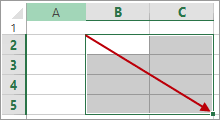
Step 1: Open the worksheet you want to print. If you need help selecting a complete header row, see how to select rows and columns in Excel.
Step 2: On the Page Layout tab, select Print Titles in the Page Setup group.
Step 3: In the Sheet tab of the Page Setup dialog, click inside Rows to repeat at top. Enter $1:$1, or use the collapse-dialog button and select the header row directly on the worksheet.
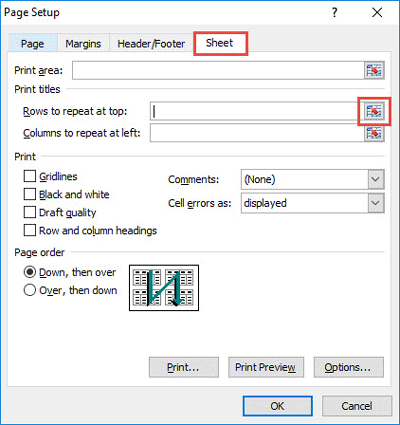
Step 4: To repeat more than one header row, enter a range such as $1:$2. You can also use Columns to repeat at left, such as $A:$A, when a wide worksheet prints across multiple horizontal pages.

Step 5: Select OK, then go to File > Print. Move through the print preview pages and confirm that the selected header row appears at the top of each page.
Alternative Path in Excel 2010 and Other Older Versions
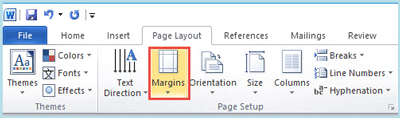
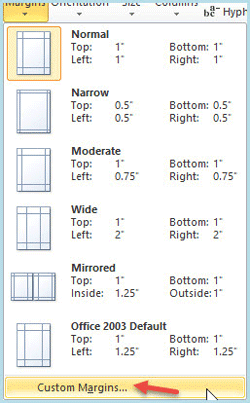
Older Excel ribbons may make Page Setup easier to reach through the margins menu. Open Page Layout > Margins > Custom Margins, then switch to the Sheet tab. The same Rows to repeat at top setting is available there.
First open the Page Layout tab and select Margins.
Select Custom Margins from the menu, and then open the Sheet tab in Page Setup.
Why Is Print Titles Greyed Out?
If Print Titles or the repeat-row fields are unavailable, check the following:
- Press Enter or Esc to leave cell-editing mode.
- Click a regular cell if a chart or other object is selected.
- Ungroup multiple worksheets by right-clicking a selected sheet tab and choosing Ungroup Sheets.
- Make sure a printer is installed in Windows.
Can Excel for the Web Repeat Header Rows When Printing?
No. Excel for the web cannot currently repeat column headers on each printed page. Select Editing > Open in Desktop App, configure Print Titles there, save the workbook, and print from the desktop version.
These steps apply to Microsoft 365, Excel 2024, Excel 2021, Excel 2019, and Excel 2016. For the current product limitations and menu path, see Microsoft's official Print Titles instructions.