
Ultimate System Repair: Fix 150+ iOS /iPadOS Issues with Ease
iSumsoft iOS Refixer is designed to repair over 150 iOS- and iPadOS-related issues without data loss, ensuring your device runs smoothly and efficiently. From common glitches to more complex technical problems, the tool allows you to troubleshoot and fix any issues that may be affecting your device's performance.
-

Stuck on Apple Logo
-

Loading Screen
-

Support.apple.com / iphone / restore
-

SOS Mode
-

Battery Drain
-

Touch Screen Unresponsive
-

Headphone Mode
-

Frozen Screen
-

Won't Turn on
-

Update Failure
Empower Your Choice: Select Your Preferred System Repair Mode
Giving two options to choose between Standard Mode and Advanced Mode, iSumsoft iOS Refixer safeguards your data while effectively resolving system issues. Whether you prefer a quick resolution or a more in-depth fix, this tool empowers you to confidently take charge of your device.

Standard Mode
In Standard Mode, iSumsoft iOS Refixer allows you to fix common problems without data loss. This mode is perfect for solving usual issues such as getting stuck in recovery mode, flashing the Apple logo, facing white or black screens, and other similar issues. With Standard Mode, you can restore the functionality of your device and get it back to normal in no time.

Advanced Mode
For more complex and unusual issues, Advanced Mode is recommended. Though Advanced Mode may involve data loss, it provides a comprehensive solution to tackle even the most complicated iOS problems. It is particularly useful when dealing with severe software glitches, persistent crashes, or issues that cannot be resolved through Standard Mode alone.
3 Steps to Repair Your System Issues
-
Step 1: Select System Repair
-
Step 2: Choose Standard Mode
-
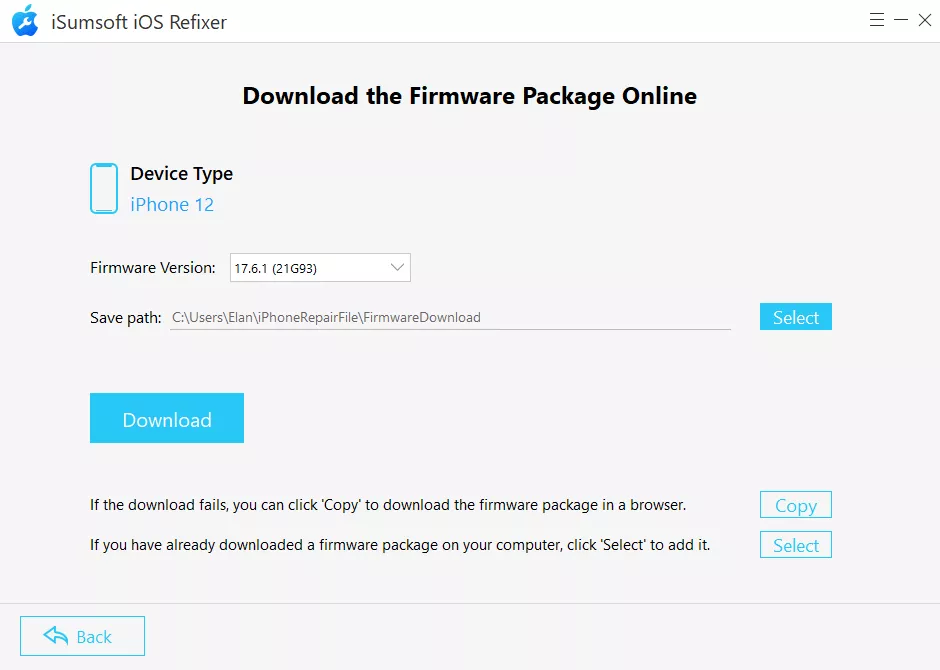
Step 3: Download a Firmware Package


One-click Solution: Efficiently Resolve 200+ Complex iTunes Error Codes
From installation, download, and update to connection, backup, restore, sync, and CDB errors, iSumsoft iOS Refixer, with one simple click, is here to assist you address various iTunes error codes, enabling you to conquer any iTunes error codes that may come your way!

Installation / Download / Update Errors
- iTunes Error 10
- iTunes Error 1667
- iTunes Error 3259
- iTunes Error 4000
- iTunes Error 9006

Connection / Backup / Restore Errors
- iTunes Error 10
- iTunes Error 1667
- iTunes Error 3259
- iTunes Error 4000
- iTunes Error 9006

Sync / CDB Errors
- iTunes Error 10
- iTunes Error 1667
- iTunes Error 3259
- iTunes Error 4000
- iTunes Error 9006

Other 100+ iTunes Errors
- iTunes Error 10
- iTunes Error 1667
- iTunes Error 3259
- iTunes Error 4000
- iTunes Error 9006
An All-in-one Fix for iPhone, iPad, and iPod Touch System Problems
- Screenshot is not working on iPhone
- iPhone Stuck on Recovery Mode
- Gmail Not Working After iPhone Update
- Guided Access Not Working on iPhone/iPad
- iPad Stuck on Charging Screen - Red Battery
- iPhone Camera Black Screen and Flashlight Not Working


iOS 27 Upgrade or Downgrade without iTunes
Upgrade your iPhone to iOS 27 or downgrade from iOS 27 to iOS 26 without the use of iTunes. With this streamlined process, you can easily explore the new features and enhancements of the iOS 27 version without the need for complex software like iTunes. Keep your device up-to-date and customized to your preferences without the constraints of traditional software methods.

Repair Apple USB Driver Issues
When the Apple Mobile Device USB Driver is corrupted or missing, you may encounter difficulties in establishing a stable connection between your iOS device and computer. iSumsoft iOS Refixer comes to the rescue with its convenient one-click solution.
iSumsoft iOS Refixer Tech Specs
Supported Devices
- iPhone: iPhone 18 Pro/Pro Max, iPhone 17 series, iPhone Air, iPhone 16 series, iPhone 15 series, iPhone 14 series, iPhone 13 series, iPhone 12 series, iPhone 11 series, iPhone XS/XR/X, iPhone 8 series, iPhone 7 series, iPhone SE, iPhone 6 and former
- iPad: All iPads, iPad Mini, iPad Pro, and iPad Air
- iPod: iPod Touch 7/6/5/4/3/2
Supported Systems
- Windows
- Windows 11/10/8.1/8/7/XP/Vista/2000
- Windows Server 2025/2022/2019/2016/2012/2008/2003
- Mac
- macOS 26/15/14/13/12/11/10.15/10.14/10.13/10.12
- macOS X 10.7, 10.6, 10.5, 10.4, 10.3, 10.2, 10.1
Supported iOS Versions
- iOS
- iOS 27/26/18/17/16/15/14/13/12/11 and earlier
- iPadOS
- iPadOS 27/26/18/17/16/15/14/13 and earlier
Hardware Requirements
- CPU
- Win: 1 GHz or higher (Interl or AMD)
- Mac: 1 GHz or higher (Inter or Apple M1/M2)
- RAM
- Win & Mac: 1 GB at least
- Hard Disk Space
- Win: 20.6 MB Minimum
- Mac: 19.1 MB Minimum
FAQs and Hot Topics of iSumsoft iOS Refixer
- FAQs
- Hot Topics
-
Q1: What iOS issues can iSumsoft iOS Refixer fix?
A: iSumsoft iOS Refixer can help fix numerous iOS issues, such as getting stuck in recovery mode, DFU mode, white screen, black screen, Apple logo screen, or a boot loop. -
Q2: Does iSumsoft iOS Refixer repair hardware issues?
A: No, iSumsoft iOS Refixer is designed to address software-related issues on iOS devices, such as iPhones, iPads, or iPod touch. If your iOS device is experiencing hardware problems, such as a broken screen, malfunctioning buttons, battery issues, or other physical component failures, iSumsoft iOS Refixer will not be able to resolve those issues. -
Q3. Does using this software to repair your system lead to data loss?
A: iSumsoft iOS Refixer provides two repair modes: Standard Mode and Advanced Mode. Standard Mode allows you to fix iOS system without losing any data. But if you have serious problems with your iOS system and Standard Mode fails to repair, you have to choose Advanced Mode to repair the iOS system and delete all data. -
Q4. What's the difference between iSumsoft iOS Refixer and iTunes?
A: In short, iSumsoft iOS Refixer is able to fix unusual and more complex issues with advanced algorithms, while iTunes is not. The former is primarily focused on troubleshooting and repairing iOS system issues, while the latter provides media playback, library management and device management, including iOS device synchronization and software updates. -
Q5. Is it necessary to put my device into Recovery Mode or DFU mode while using iSumsoft iOS Refixer?
A: It depends on the specific issue you are facing with your iOS device. In some cases, when your device is encountering other severe software issues or cannot be recognized by the computer, it may be necessary to put your device into Recovery Mode or DFU Mode to establish a stable connection between your device and the computer.
Device Bugs & Glitches
iPhone Stuck Issues
iPad Problems
Update & Downgrade Issues
Apple Server Errors
iSumsoft iOS Refixer worked wonders on my iPhone! It efficiently repaired the iOS issues I was facing and restored my device to full functionality. I am impressed with the results.
I cannot thank iSumsoft iOS Refixer enough for its outstanding repair capabilities. It successfully regenerated my iOS system and eliminated all the glitches and errors I was experiencing. Highly recommended!
Kudos to iSumsoft iOS Refixer for its excellent performance in fixing my iPhone's software issues. It is a reliable tool that effectively regenerated my device and resolved all the iOS-related problems.