How to See System Memory (RAM) Size in Windows 10/7

The computer uses RAM to load data and store information for running programs. If your computer is running slowly, you may want to check if RAM is too little. This guides will show you how to check how much physic RAM you have installed, how much virtual memory it is, as well as how much is it currently being used. This information can be used to determine if a computer needs to add more RAM to improve performance.
- If you just want to see how much RAM is installed on computer, go to option 1.
- If you want to see the physic memory, virtual memory, and available memory, go to option 2.
Option 1: Show how much RAM is on this Computer
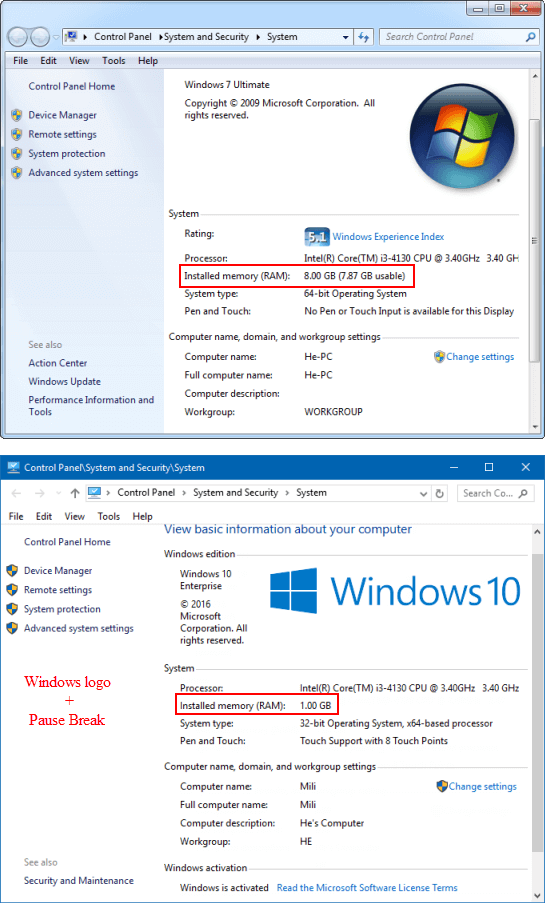
The easiest way to view the installed memory and the usable memory is by using shortcut keys: Windows logo+Pause Break to open Windows System. Then, view the Installed memory (RAM) and usable RAM value under System.
More options to view the installed RAM in Windows 10
Way 1: Using Settings app
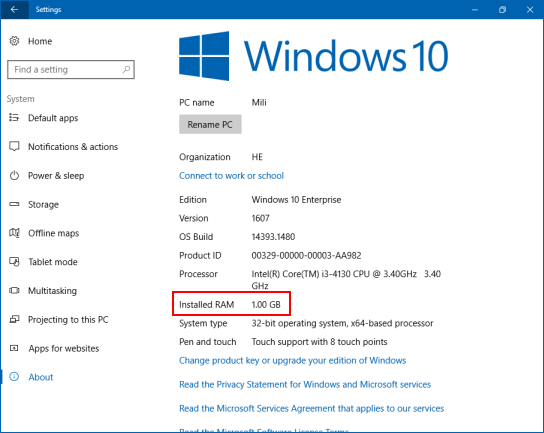
Step 1: Open the Settings by pressing Win+I, then click on the System icon.
Step 2: Select About on the left side. On the right side, you can see how much the installed RAM is.
Way 2: Using Task Management
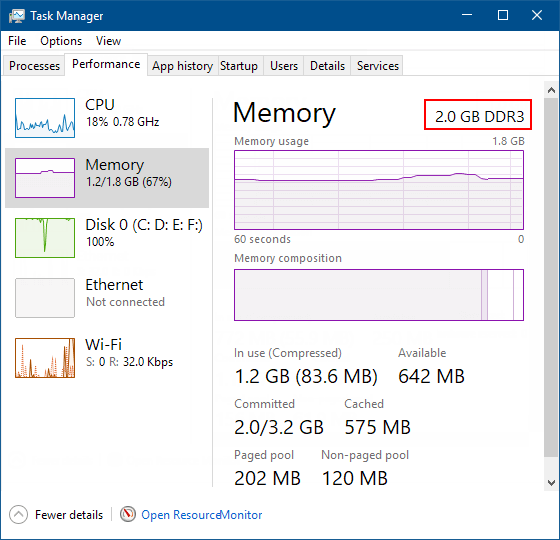
Step 1: Open Task Management in more details view.
Step 2: Click on the Performance tab. It'll show how much memory size is, what type of RAM (DDR3) is.
Option 2: To see the detail system memory size in Windows 7/10
With these steps below, you can see how much physic memory it is, how much virtual memory it has, and how much available memory it has. Here's how:
Way 1: Show system memory via System Information tool
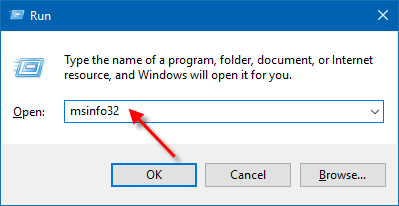
Step 1: Press the Win + R keys to open the Run dialog, type in msinfo32, and hit Enter.
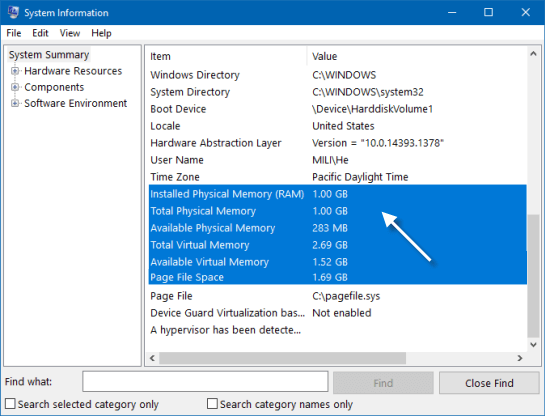
Step 2: In System Summary, you can see the detail information about system memory.
- Installed RAM
- Available physical memory
- Total virtual memory
- Available virtual memory
- Page file Space
Way 2: Check system memory size via command prompt
Step 1: Open Command Prompt on your computer.
In Windows 7, click the Start button, type cmd in the search box, then hit Enter key.
In Windows 10, press Windows logo key+ X, then hit C key on the keyboard.

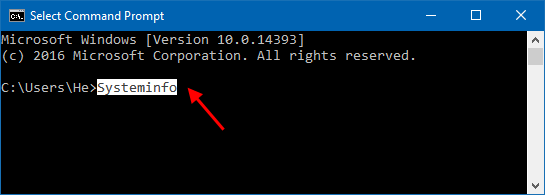
Step 2: Type Systeminfo in the command prompt, and press Enter.
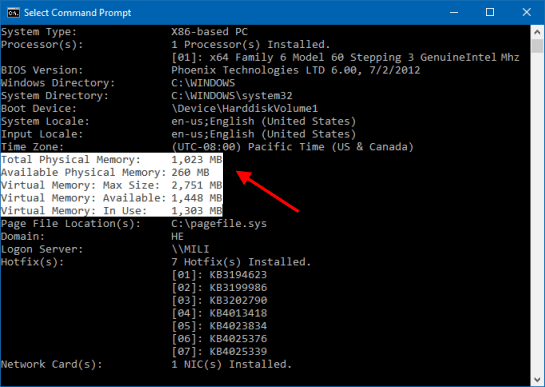
You will see the information about total physical memory, available physical memory, as well as virtual memory.
Related Articles
-
![check computer ram problems]() Check
for System Memory Problems with Diagnostic Tool
Check
for System Memory Problems with Diagnostic Tool
-
![find event viewer logs for ram test]() How
to Find the Event Viewer Logs for Memory Diagnostic
How
to Find the Event Viewer Logs for Memory Diagnostic
-
![add more ram increasing pc performance]() How to Add
More RAM Increasing PC Performance
How to Add
More RAM Increasing PC Performance
-
![Not enough memory]() Fixed: Not Enough
Memory to Open This Page in Chrome
Fixed: Not Enough
Memory to Open This Page in Chrome
-
![see number of cpu core and processor your pc has]() See How
Many CPU Cores and Processors Your PC Has
See How
Many CPU Cores and Processors Your PC Has
-
![set appropriate virtual memory pagefile size]() Set Appropriate
Virtual Memory Pagefile Size in Windows 10
Set Appropriate
Virtual Memory Pagefile Size in Windows 10