How to Fix the C : Drive Turning Red on Windows 10/11

When we install an operating system, the C: drive is usually designated as the system disk. It's essential because it holds the operating system, virtual memory, and software cache, which can consume a lot of space. If the C: drive turns red, indicating low free space, it can cause issues like stuttering, restarts, or blue screens.

As we download software and files—most of which install on the C: drive—this space can fill up quickly. Windows will then alert you about the low space. So, how can you resolve this? Follow my tutorial to find out!
What Makes the C : Drive Turn Red?
1. Insufficient Space Allocation
When partitioning your disk, you may not have allocated enough space to the C : drive. It is generally recommended to allocate 100-150 GB for the C : drive. If you install software on a dedicated partition, you can adjust this based on your needs, but it is advisable to keep at least 60 GB for the C : drive.
2. Accumulation of Temporary Files
Temporary system files and recycle bin files can take up significant space on the C : drive. If you haven't cleaned your C : drive in a long time, this accumulation can lead to insufficient space.

How to Fix C : Drive Turn Red?
Understanding these reasons can help you choose an appropriate solution to address the problem. If your C : drive has more than 150 GB but is still running out of space, follow these steps to free up space and restore your C : drive to normal.
Solution 1: Slimming Your C : Drive
Step 1 Find and open the "Disk Cleanup" app on your PC.

Step 2 Choose your C : drive and click OK.

Step 3 Select the files you want to clean up on your computer and click OK.

Tips:
- These files can be cleaned up without any risk and will not affect the normal use of your computer.
Step 4 Click the Delete Files option.

Then go back to check the status of your C : drive. However, if the capacity of your C: drive is still insufficient after cleaning, you can try to expand your C: drive. Follow solution 2 below to increase the capacity of your C: drive!
Solution 2: Expand the Capacity of Your C : Drive
So how do you expand your C : drive? Disk management varies for different users. Here are three ways to handle different situations. First, right-click your Start button and open Disk Management. Then, follow the instructions based on your situation.

Situation A : The C : Drive is Next to Other Disks

Step 1 Format the disk next to the C : drive (if there are important data on this disk, please back up your data before formatting).

Step 2 After formatting, delete this disk. Right-click the disk in Disk Management and click "Delete Volume."

Step 3 Right-click the C : drive and select "Extend Volume" to expand the capacity of your C : drive.

Situation B : The Recovery Zone is Next to the C : Drive

Step 1 Click here to download Disk Genius software.
Step 2 After installing Disk Genius, open it and find the recovery zone.

Step 3 Right-click it and select the "Delete Current Partion" option and Save all.
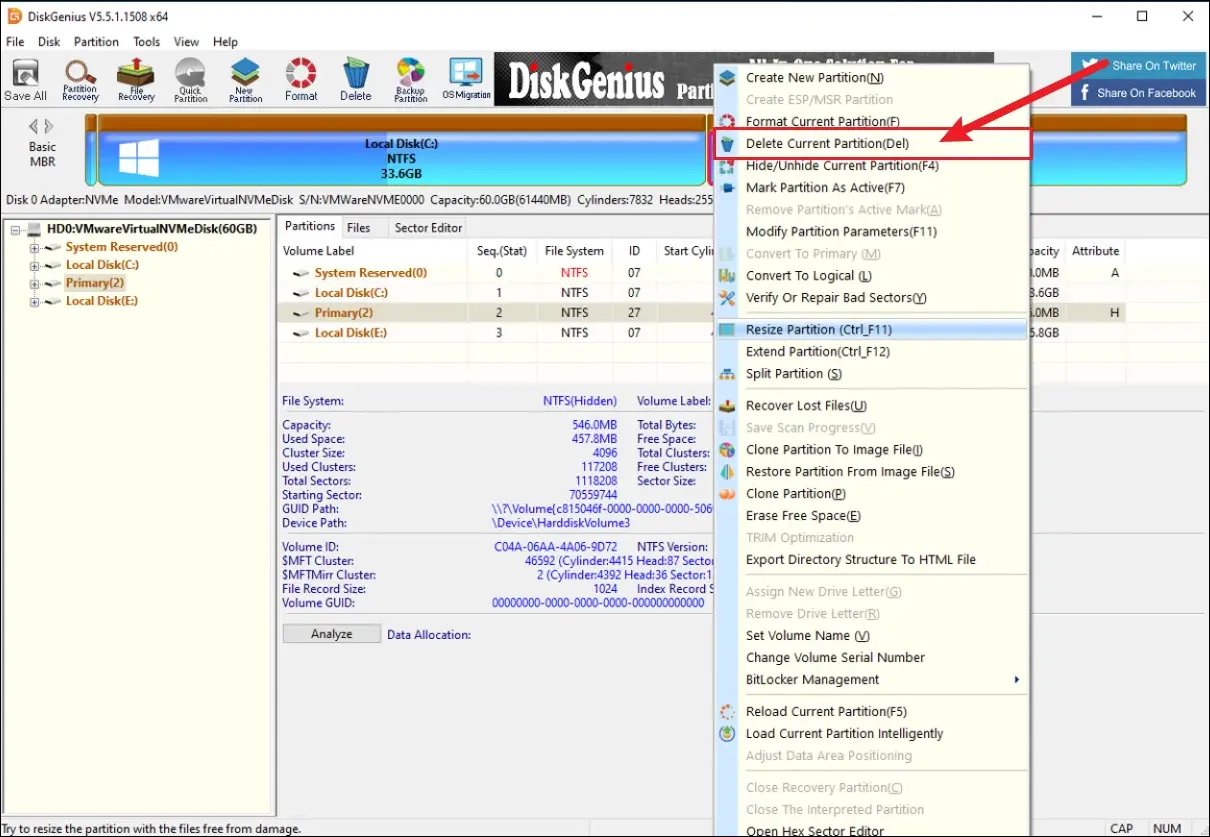
Step 4 Then right click the free space and click Allcoate free space to the next drive.

Step 5 Click start, once done, your disk management should look like Situation A. Then, format the disk and extend your C : drive.
Situation C : The C : Drive is Next to a Green Zone
This is an early disk partitioning method. If you find that your Disk Management looks like the image below, it can be a little troublesome. You may need to first back up and delete all the files in the green area of the disks, and then follow the steps in Solution A.

3: Final words
This article shares reasons and solutions for when the C: drive turns red and provides different solutions for various situations readers may encounter. By following this tutorial, you can manage your C: drive space more effectively and ensure your computer runs smoothly. Hope this article can solve your problems.
Related Articles
![Add delete user accounts]() How to
Add, Delete, and Modify User Accounts on Windows 10
How to
Add, Delete, and Modify User Accounts on Windows 10
-
![100 disk usage task manager]() Task Manager Shows 100% Disk
Usage in Windows 10 HP Laptop
Task Manager Shows 100% Disk
Usage in Windows 10 HP Laptop
-
![Does bitlocker impace on hard disk performance]() How
Much does BitLocker Have Impacts on Hard Disk Read/Write Performance?
How
Much does BitLocker Have Impacts on Hard Disk Read/Write Performance?
-
![change drive letter]() How to
Change Local/Removable Disk Drive Letter on Windows 10
How to
Change Local/Removable Disk Drive Letter on Windows 10
-
![Secure Microsoft Account]() How to Secure and Protect
Your Microsoft Account
How to Secure and Protect
Your Microsoft Account
-
![Access disk cleanup on windows 10/7]() How to Open/Access
Disk Cleanup on Windows 10/7 PC
How to Open/Access
Disk Cleanup on Windows 10/7 PC