How to Reinstall Windows 11 Without Losing Apps [2025]

Are you frustrated with the sluggish performance of your current Windows 11? Are you considering either reinstalling a new operating system or using a different version of the operating system? If your answer is yes, then the next question arises: How to reinstall Windows 11 without losing apps (and files)?

This article presents two scenarios: the first scenario assumes that you have a USB driver available, while the second scenario assumes that you don't. Let's proceed and find the best solution for you!
Tips:
- The primary difference between the two cases is the ability to keep your installed applications.
- If you have a USB driver and choose to reinstall or clean install, you can preserve both your files and applications. Otherwise, you will lose all installed applications.
- Back up Your Data - Optional
- Method 1: Reinstall Windows 11 without Losing Apps and Files (USB Driver)
- Method 2: Reinstall Windows 11 without Losing Data (No USB Driver)
Back up Your Data - Optional
When large amounts of data are involved, it is recommended to back up your data in case something goes wrong. With iSumsoft Cloner, you can clone the whole disk containing apps and files quickly and effortlessly.

Step 1 After completing the installation of Cloner, launch it and switch to the Backup tab.
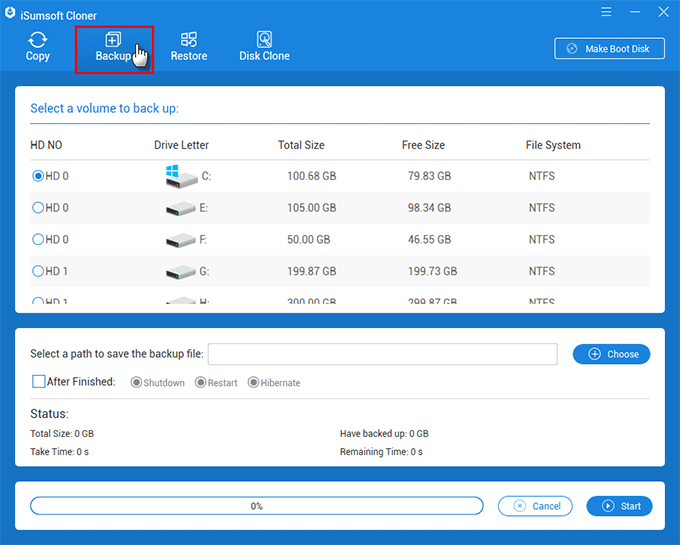
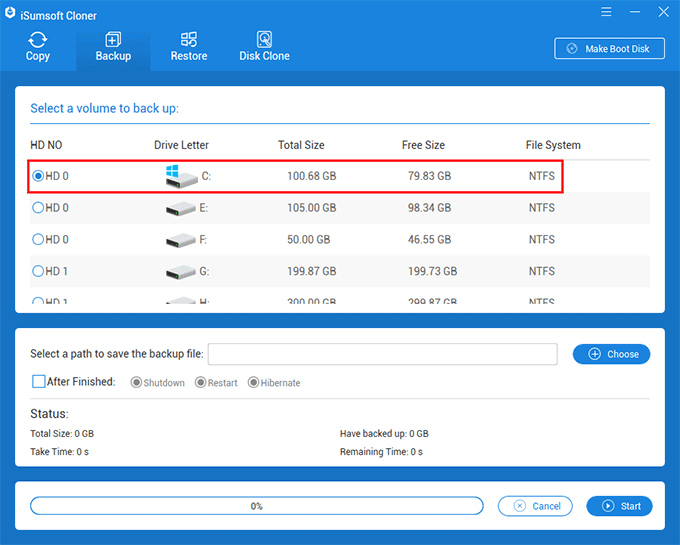
Step 2 Select the disk where the apps and files are stored.
Step 3 Select a folder to save the backup by clicking on the Choose option.

Step 4 Click Start to copy your data. When see a prompt window, click Yes to continue. Then wait for the backup process to complete.

How to Reinstall Windows 11 without Losing Apps and Files
By creating a Windows 11 installation media, you are allowed to refresh your current system without losing apps and files. Following is the detailed tutorial.
Step 1 Go to Microsoft Download Windows 11 Page, then scroll down and locate Create Windows 11 Installation Media. From there, click Download Now.

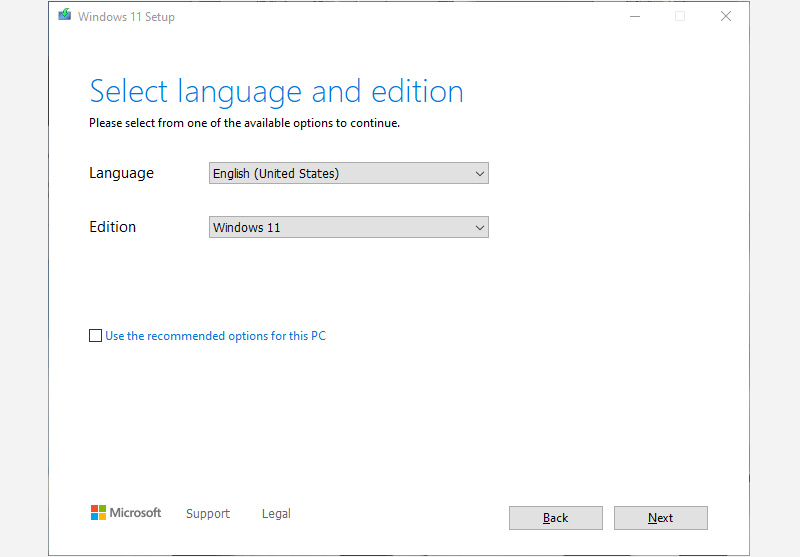
Step 2 After downloading, run this tool and follow the onscreen instructions. Here, select language and edition.
Notes:
- The language you selected needs to be matched to your current system. To see what language you're currently using, go to Time & language in PC settings or Region in the Control Panel.
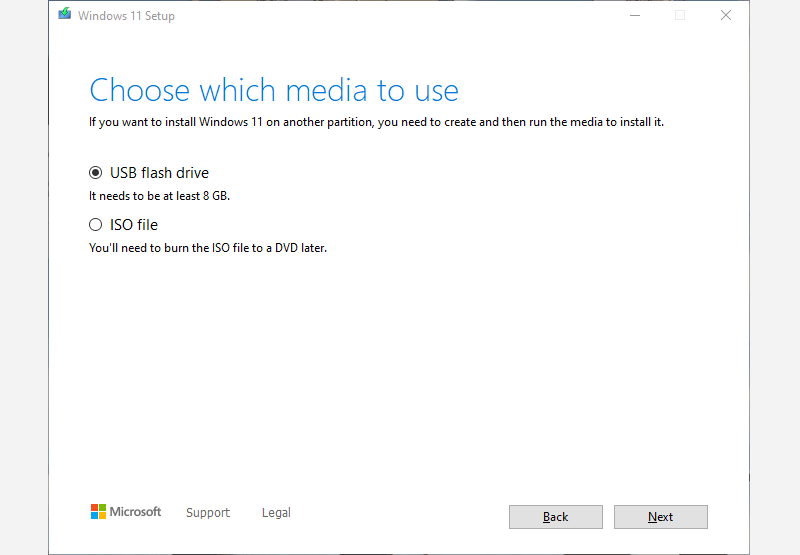
Step 3 Select USB flash drive.
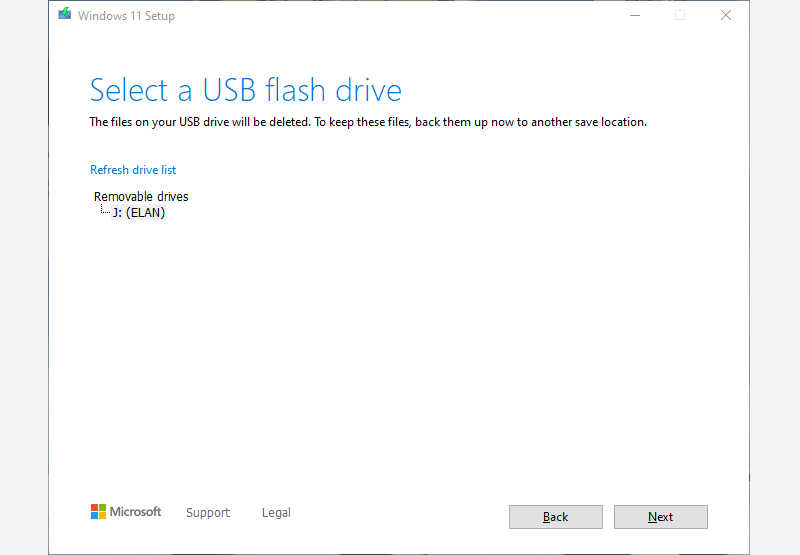
Step 4 Choose the connected drive. If not seeing the drive on the list, you can clickRefresh the Drive on the top.
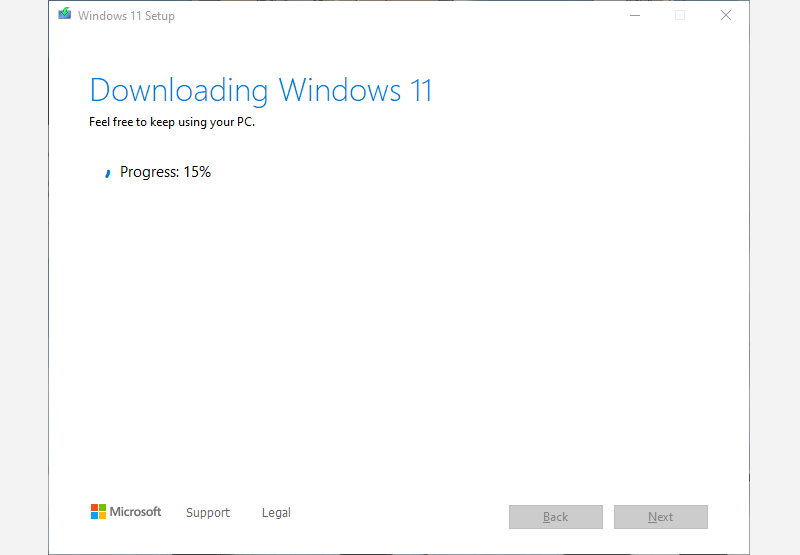
Step 5 The application is downloading the Windows 11 file and it is going to create a Windows media for the computer.
Step 6 When the process is completed, open the USB driver, then launch setup.exe. If you see a pop-up window, click Yes to continue.

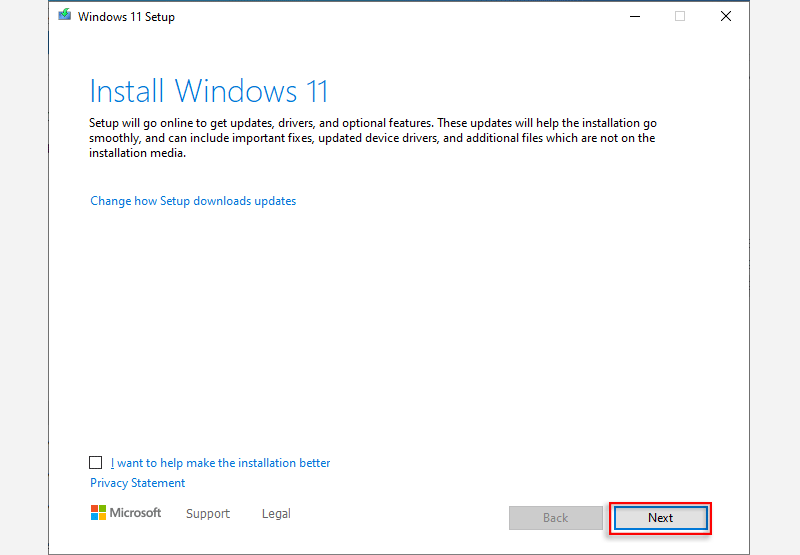
Step 7 Click Next to reinstall Windows 11 and the application will check for updates. Wait for the process to complete.
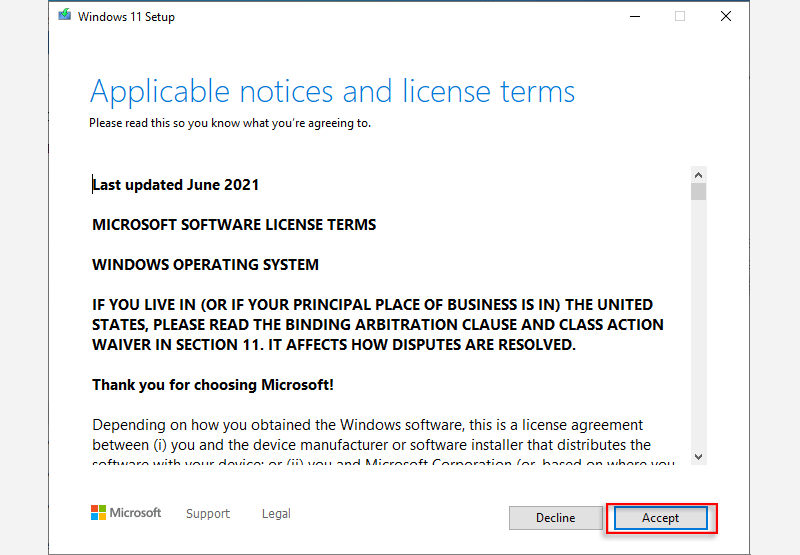
Step 8 Click Accept to agree with the license.
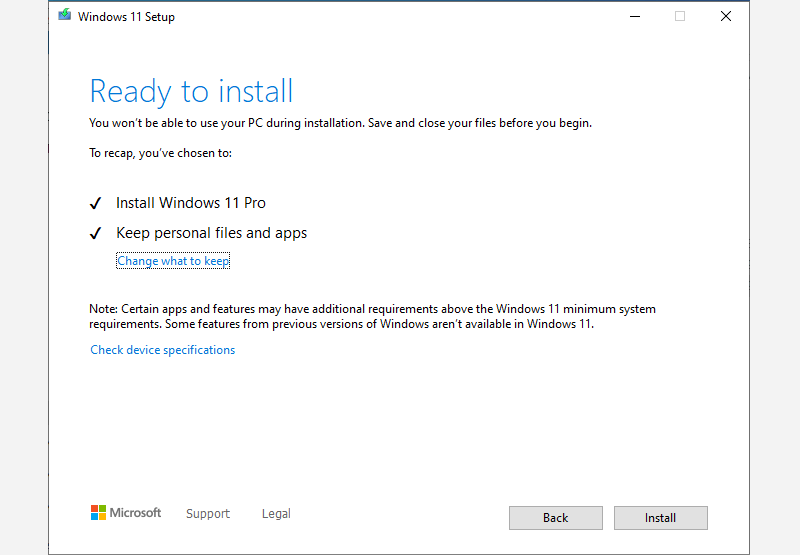
Step 9 Click Change what to keep.
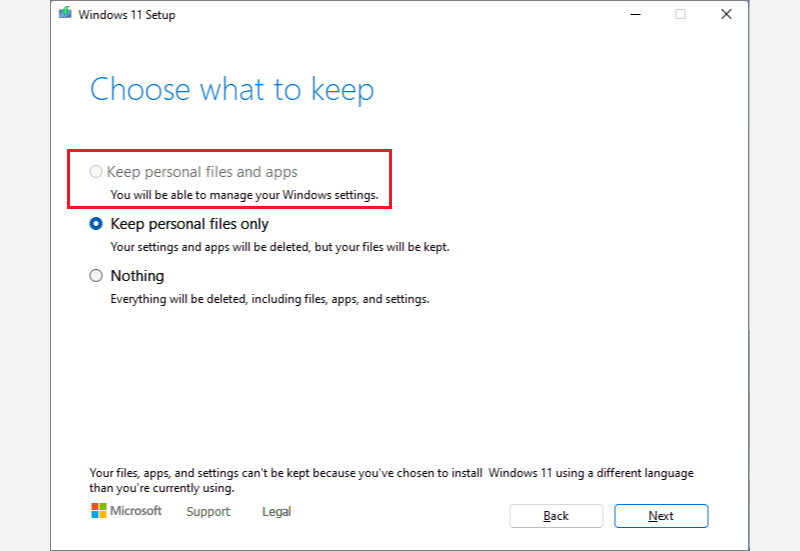
Step 10 Choose Keep personal files and apps and click Next to proceed.
Step 11 Click Install.
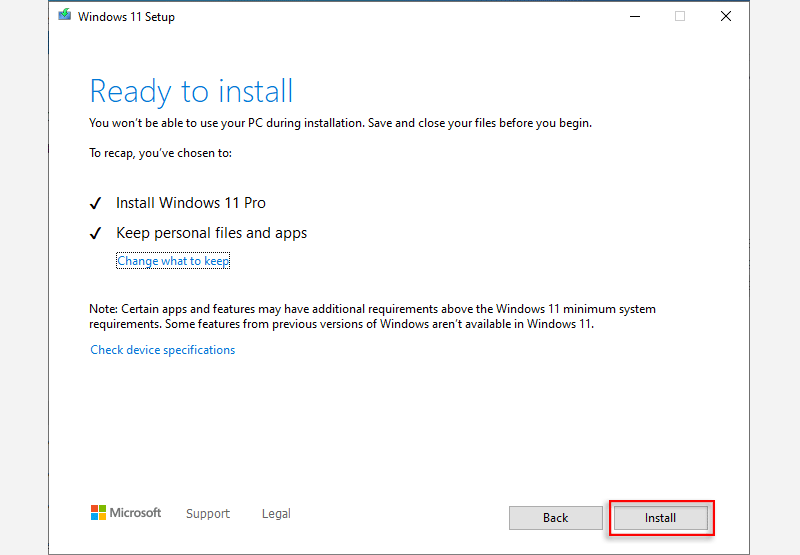
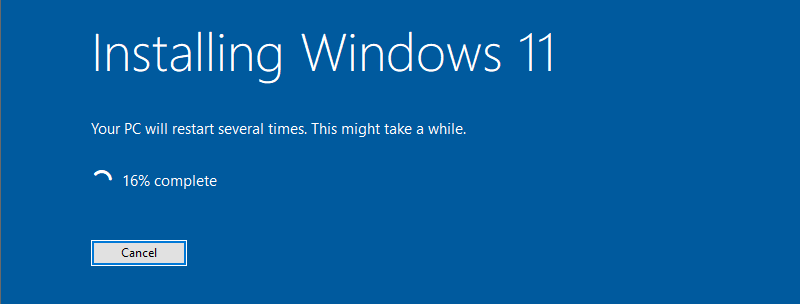
Step 12 Windows 11 is being installed. Once the installation is finished, the PC will restart automatically with a new Windows.
How to Reinstall Windows 11 without Losing Data (No USB Driver)
Factory resetting, which doesn't require an installation media, allows you to set your PC as a new device, reinstalling Windows 11 without losing files, while apps and settings will be deleted compared to the first method. Follow these steps:
Step 1 Go to Settings > System > Recovery.

Step 2 Select Reset PC.

Step 3 Select the first option, Keep my files.

Step 4 Select Local reinstall. Make sure your computer is connected to the internet.

Step 5 Click Next.

Step 6 Select Reset to reinstall Windows 11 on your computer and wait for the process to complete.

Related Articles
-
![Fix 'There Are Currently No Power Options Available' in Windows 11]() Fix "There Are
Currently No Power Options Available" in Windows 11
Fix "There Are
Currently No Power Options Available" in Windows 11
-
![Set the F8 key for Quick Access to Advanced Startup Options in Windows 11]() Set
the F8 key for Quick Access to Advanced Startup Options in Windows 11
Set
the F8 key for Quick Access to Advanced Startup Options in Windows 11
-
![Perfectly Solved: Win + L Shortcut not Working]() Perfectly Solved:
Win + L Shortcut not Working
Perfectly Solved:
Win + L Shortcut not Working
-
![How to View WIFI Password in Windows 11]() How to View WIFI
Password in Windows 11
How to View WIFI
Password in Windows 11
-
![How to Move Windows 11 to Another Drive]() How to Move
Windows 11 to Another Drive
How to Move
Windows 11 to Another Drive
-
![Easily Migrate Windows 11 to New m.2 SSD without Reinstalling]() Easily
Migrate Windows 11 to New M.2 SSD without Reinstalling
Easily
Migrate Windows 11 to New M.2 SSD without Reinstalling