Disable Windows 10 Built-in Ads and Tips with 6 Effective Methods

Windows 10 has numerous built-in advertisements and tips. To turn them off and enhance your user experience, this article outlines 6 ways to disable these ads and tips.
Method 1: Disable Windows 10 Lock Screen Advertisements
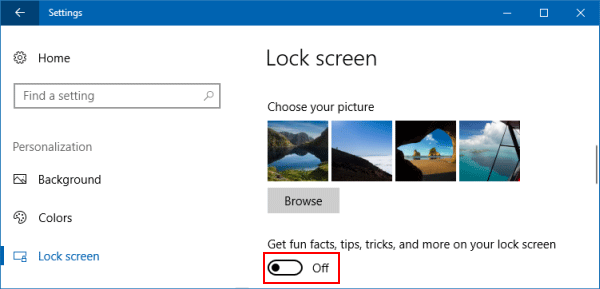
Windows 10 displays ads on the lock screen through Windows Spotlight. To disable these lock screen ads, follow these steps:
Step 1: Open the Settings app. Click Personalization > Lock Screen.
Step 2: Turn off the "Get fun facts, tips, tricks, and more on your lock screen" option.
Method 2: Remove Suggested Apps from the Start Menu
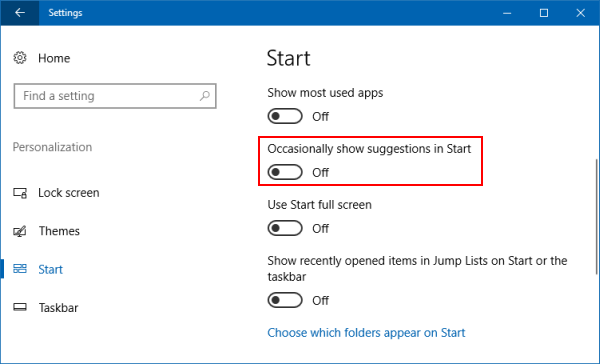
Windows 10 occasionally shows suggested apps in the Start menu, some of which may include advertisements. To remove suggested apps from the Start menu, follow these steps:
Step 1: Go to Settings > Personalization > Start.
Step 2: Turn off the Occasionally show suggestions in Start option.
Method 3: Stop Notification Ads from Appearing
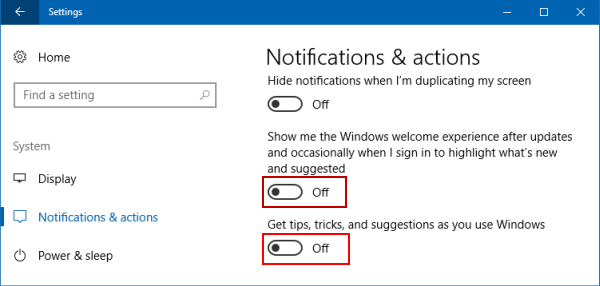
To disable tips and notifications related to Windows 10 features, navigate to Settings > System > Notifications & actions. Disable the "Show me the Windows welcome experience after updates and occasionally when I sign in to highlight what's new and suggested" and "Get tips, tricks, and suggestions as you use Windows" options.
Method 4: Remove Ads from the Windows Ink Workspace
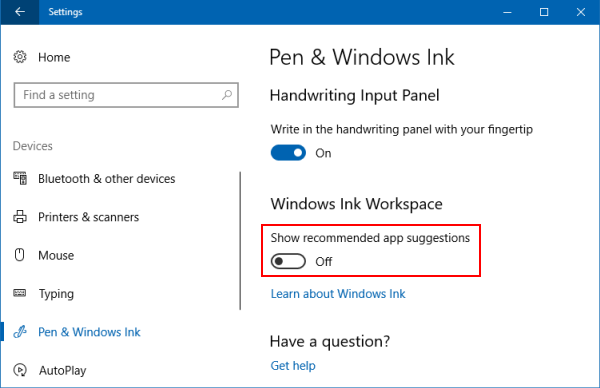
The Windows Ink Workspace includes a "Suggested apps" section that advertises pen-enabled apps. To disable these ads, go to Settings > Devices > Pen & Windows Ink and turn off the "Show recommended app suggestions" option.
Method 5: Remove Online Tips from the Settings App
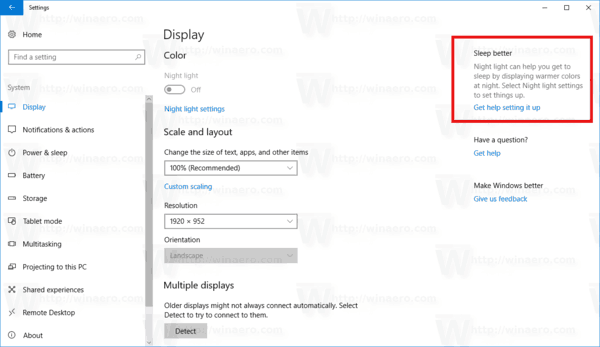
Recent Windows 10 versions display tips in the Settings app. To disable these online tips, use the Local Group Policy Editor.
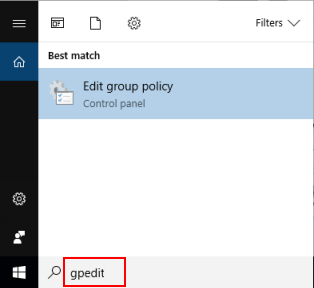
Step 1: Open the Local Group Policy Editor.
Press the Windows logo key to focus on the Search box, enter gpedit.msc, and hit Enter.
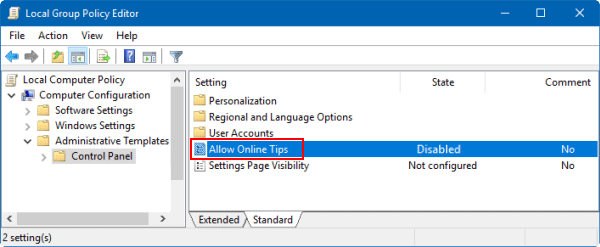
Step 2: In the Group Policy Editor, navigate to Computer Configuration > Administrative Templates > Control Panel. Double-click the Allow Online Tips policy to disable it.
Method 6: Disable Advertisements from File Explorer
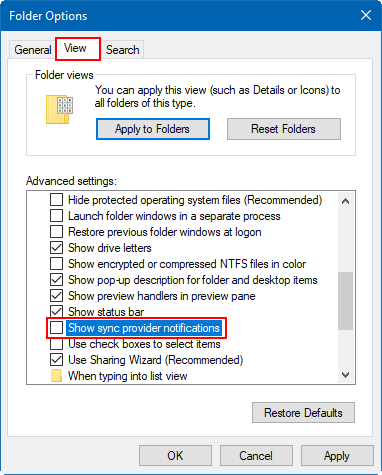
Microsoft displays ads in File Explorer. To disable these, open File Explorer's options window.
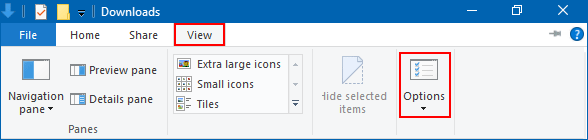
Step 1: Open File Explorer. Click the View tab and select Options.
Step 2: In Folder Options, click the View tab and uncheck "Show sync provider notifications."