2 Ways to Copy the Full Path of Files and Folders in Windows 10/11

This article will show you how to copy the full path of a file, folder, or a program in Windows 10/11. Here are 2 methods to do that:
Method 1: Copy the full path of files or folder in Windows 10/11 with Address Bar
Step 1: Open the Windows Explorer, then navigate to the file or folder you want to get its full path.
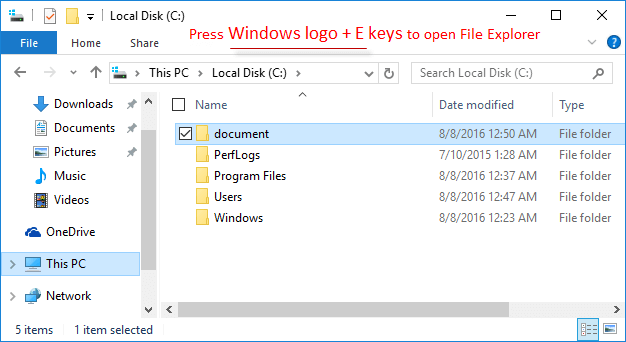
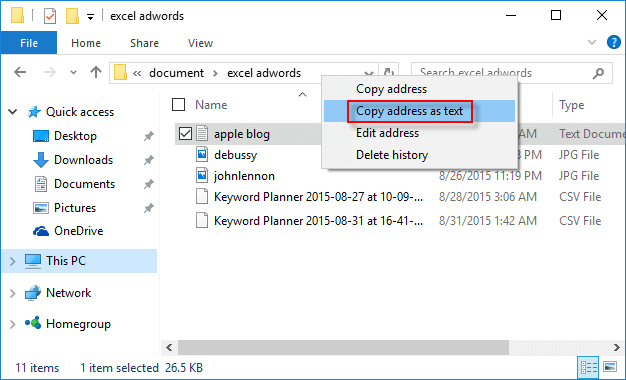
Step 2: Once find it, simply right-click on the Address bar and select Copy address as text.
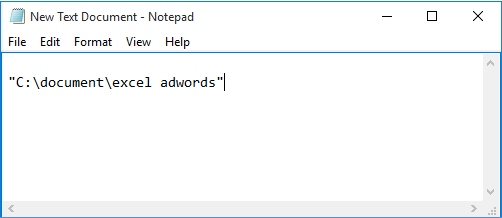
Step 3: Then you can copy its file path to a Notepad, then paste that path into the target program box.
Method 2: Copy the full path of a file, folder or program in Windows 10/11 Using Clipboard
You may need to know the full path to a file or directory, Copy as path is useful when the user wants to know the full path or actual location of a file, folder, or program which located deep inside a tree of directories or network file share.
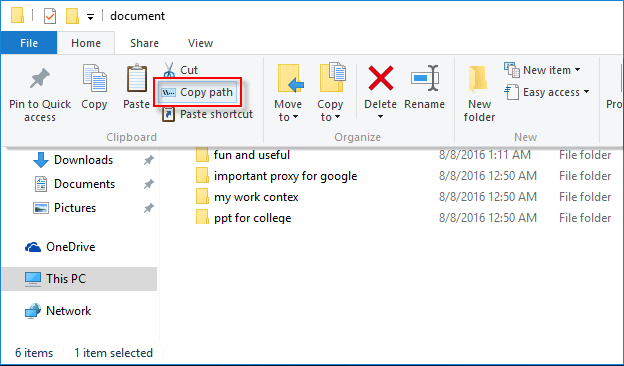
Step 1: Press "Windows logo key + E" to open "Windows Explorer", and then navigate to the file or folder that you want to get the full path. Once find that files or folders, click on the Home menu of Windows Explorer.
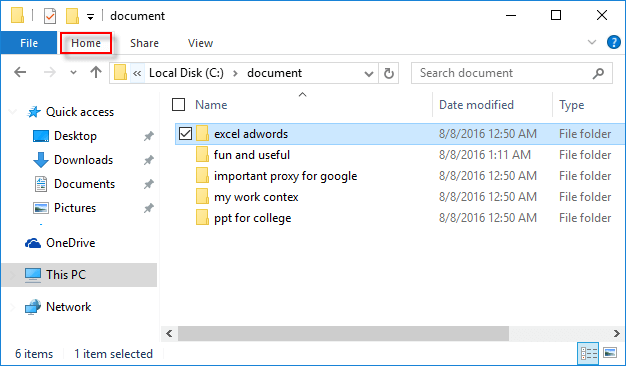
Step 2: In the "Clipboard" section, click on Copy path.
Step 3: To copy the full path of a program, here is how:
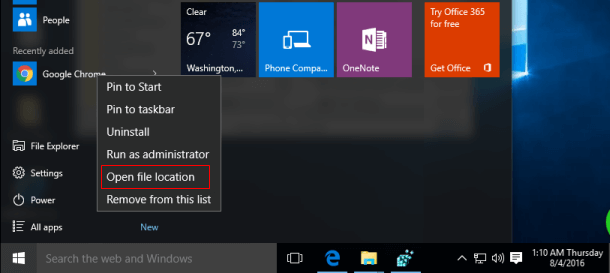
Go to the Start menu, find the program you want. Then right-click on it and select Open file location.
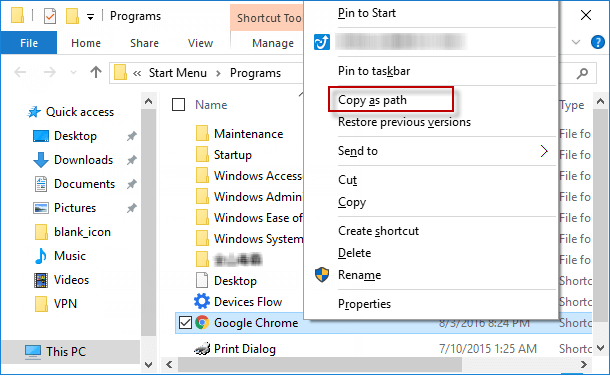
When you're getting to the location of the program, holding down the Shift key while right-clicking on that program icon. Then choose Copy as path.
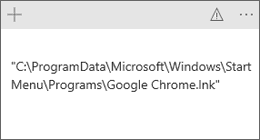
Then paste it to a Notepad or a Sticky note.
Related Articles
-
![Show hidden files and folders in Windows 10]() How to
Show the Hidden Files and Folders in Windows PC
How to
Show the Hidden Files and Folders in Windows PC
-
![Display the full path of files and folders]() How to Display
Full Path of Files and Folders in Windows 10
How to Display
Full Path of Files and Folders in Windows 10
-
![force delete file that cannot be deleted]() How to Force Delete
a File That Cannot Be Deleted Windows 10
How to Force Delete
a File That Cannot Be Deleted Windows 10
-
![Compress Windows 10 operating system]() 2 Ways to
Compress/Decompress Files and Folders on Your PC
2 Ways to
Compress/Decompress Files and Folders on Your PC
-
![permanently delete files from usb drive]() How
to Permanently Delete/Erase Files from USB Flash Drive on Windows
How
to Permanently Delete/Erase Files from USB Flash Drive on Windows
-
![permanently delete files without recovery]() How
to Permanently Delete Files from Computer without Recovery
How
to Permanently Delete Files from Computer without Recovery