12 Tips Make Your MacBook Battery Last All Day

In today's fast-paced world, the ability to use your MacBook for an entire day without needing to charge it is a dream for many MacBook's users. Whether you're on the go, in meetings, or handling heavy workloads, these practical tips will help you maximize your MacBook's battery life, ensuring you can use it for extended periods without needing to find a power outlet.
- Lower Screen Brightness
- Turn Off Keyboard Backlight
- Disable Bluetooth and Wi-Fi
- Close Background Apps and Browser Extensions
- Check Battery Usage in Activity Monitor
- Unplug Your iPhone from Mac
- Turn Off the Lock Screen Display and Sleep
- Enable Low Power Mode
- Optimize Battery Charging
- Keep Your MacBook Cool
- Use a Portable Power Bank
- Turn on Dark Mode
1. Lower Screen Brightness
Screen brightness is one of the biggest power consumers. Lowering the brightness to a comfortable level not only protects your eyes but also significantly extends the battery life of your MacBook. You can adjust the brightness using the control in the menu bar, touch bar(if your MacBook supports touch bar) or just in "System Settings."

2. Turn Off Keyboard Backlight
Keyboard backlighting is an useful function in low-light conditions, but it also drains your battery.
If you're in a well-lit environment, turning off the keyboard backlight can help extend battery
life. Go to "System Settings," find the "Keyboard" option, and turn off the
backlighting. You can also turn off the keyboard backlight by keep pressing the  key to turn it
off.
key to turn it
off.

3. Disable Bluetooth and Wi-Fi
When you're not using Bluetooth or Wi-Fi, turning them off can reduce power consumption significantly. You can easily disable them from the menu bar or manage connections in "System Settings."

4. Close Background Apps and Browser Extensions
Background apps, especially some browsers and browser extensions can silently consume a lot of power. Especially with some resource-heavy browsers, closing unnecessary background apps can make your battery last longer. In "Activity Monitor," you can see which apps are consuming the most power and close them.

5. Check Battery Usage in Activity Monitor
Use the "Activity Monitor" tool to check which apps and processes are consuming the most power. Closing these power-hungry apps can help your MacBook's battery last longer.

6. Unplug Your iPhone from MacBook
If your iPhone is connected to your Mac for charging, it will drain your MacBook's battery. For instance, if you're transferring photos or files between your iPhone and Mac, the constant connection can quickly deplete your battery. Once the transfer is complete, unplug the iPhone or use a separate charger to save your MacBook's power. You can use Airdrop or maybe the later iPhone Mirroring function in macOS Sequoia to do it.

7. Turn Off the Lock Screen Display and Sleep
When you're not using your MacBook, turning off the lock screen display and putting it to sleep sooner can prevent battery drain. There's no need to keep the lock screen on, which will help your battery last longer.
You can also manually turn off the display or put your Mac to sleep without waiting for the timer :
Press Control + Shift + Power ( or Control + Shift + Eject on older Macs ) to instantly turn off the display.

Alternatively, press Command + Option + Power ( or Command + Option + Eject ) to put the Mac to sleep immediately.

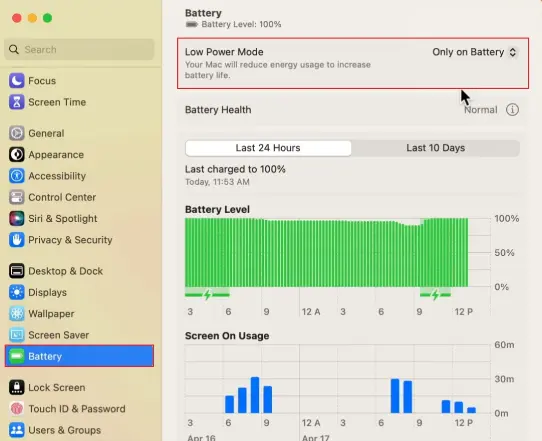
8. Enable Low Power Mode
In "System Settings," turn on Low Power Mode. This mode reduces your MacBook's performance and limits background activity to extend battery life. It's perfect for long periods away from a charger.
9. Optimize Battery Charging
Apple's battery management system is smart; it learns your usage habits to optimize charging. When possible, try to charge your MacBook when the battery is between 10-20% and stop charging at 80%. This method can prolong the life of your lithium battery.
Go to Battery Settings:
In System Settings, find and click on Battery.
Enable Optimized Battery Charging:
In the Battery settings, you will see an option for Battery Health, click on it.
Check the box next to Optimized Battery Charging.

10. Keep Your MacBook Cool
High temperatures can affect battery performance and may even cause permanent damage. When using your MacBook, place it in a well-ventilated area and avoid using it on your lap for extended periods. What's more? Starting with the 2018 MacBook Air, Apple introduced a single-fan design. With the 2020 release of the M1 chip version, the MacBook Air further evolved to a fanless design. This design reduces power consumption and heat generation, helping to extend battery life. So keep your MacBook cool.

11. Use a Portable Power Bank
If you really need a longer battery life, carrying a high-capacity portable power bank (like a 30k mAh one) is a great option. This way, you can recharge your MacBook even when you're away from a power outlet.

12. Turn on Dark Mode
Dark Mode not only makes your screen easier on the eyes in low-light environments but also saves a bit of battery life. This is especially effective on devices with OLED screens, where Dark Mode can significantly reduce power consumption. In the "Appearance" or "General" settings, you'll see three options: Light, Dark, and Auto. Select Dark to enable Dark Mode.

Summing-up
By following these tips, you can significantly extend your MacBook's battery life, ensuring it supports you through an entire day without plugging in. Maximize your MacBook's battery life and say goodbye to the anxiety of running out of power! Hope this article can help you!
Related Articles
-
![Check macOS information and battery status]() [Full
Guide] How to Check Your Macbook ...
[Full
Guide] How to Check Your Macbook ... -
![Free up space on Mac]() How to Free up Space on Mac
How to Free up Space on Mac
-
![Fix frozen macbook touchbar]() 6 Fixes
for a Frozen or Malfunctioning MacBook Touch Bar
6 Fixes
for a Frozen or Malfunctioning MacBook Touch Bar -
![Could the Apple Vision Pro Replace the MacBook Pro? Here’s What We Found…]() Could the
Apple Vision Pro Replace the MacBook Pro? Here’s What We Found…
Could the
Apple Vision Pro Replace the MacBook Pro? Here’s What We Found… -
![What is new in macOS Sequoia]() Discover What's New in macOS
Sequoia: Enhanced Features and Improvements
Discover What's New in macOS
Sequoia: Enhanced Features and Improvements -
![10 Ways to Free up Space on Mac]() 10 Ways to Free up Space on Mac
10 Ways to Free up Space on Mac