iSumsoft iSelectGo User Guide
iSumsoft iSelectGo is an intuitive tool that lets you easily change your GPS location on iPhone and iPad devices. Whether you need to test location-based apps, simulate movement in games, or protect your privacy, iSelectGo makes it simple. Follow this guide to get started and make the most of all the powerful features.
- Getting Started
- Option 1: Change GPS Location with One Click
- Option 2: Simulate GPS Movement between Two Points
- Option 3: Simulate Multi-Spot Movement
- Option 4: Simulate Jump Movement
- Option 5: Simulate Joystick Movement
Getting Started
1. Launch the Software
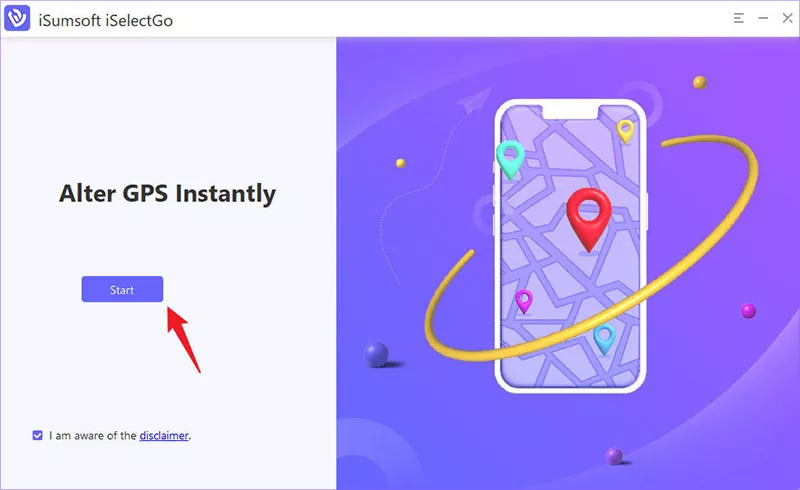
Open iSelectGo and click Start to begin.
2. Connect Your iPhone
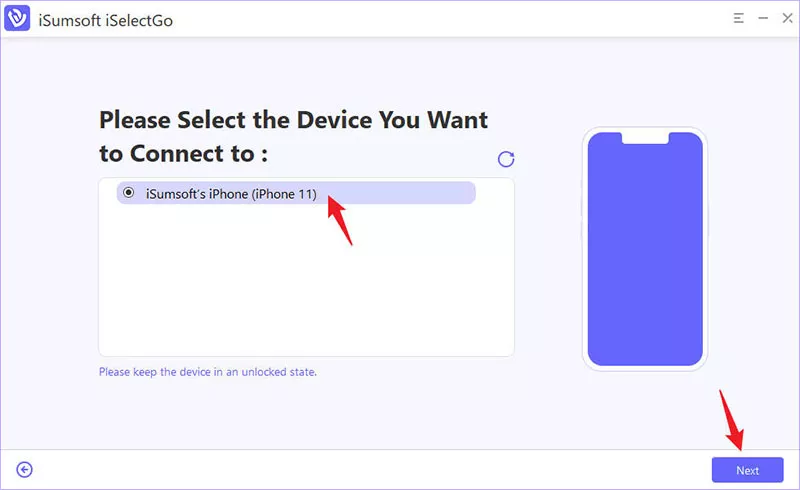
Connect your iPhone to your computer via USB cable or WiFi.
3. Unlock Your iPhone
Unlock your iPhone and tap Trust if prompted to establish the connection. Ensure your iPhone screen stays unlocked while using the software.
4. Select Your Device
The software will automatically detect your connected iPhone. Choose the device you want to change the GPS location for, and click Next.
5. View Your Current Location
The software will automatically fetch your current GPS location and show it on the world map.
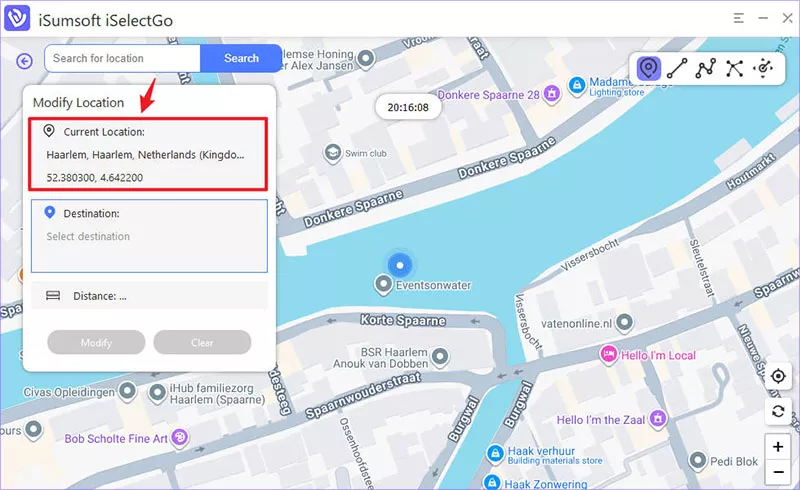
Next, you can choose to change the GPS location or simulate GPS movement using one of the following options: single-spot movement, multi-spot movement, jump movement, or joystick movement. Below, we will explain how each of these options works.
Option 1: Change GPS Location with One Click
iSumsoft iSelectGo lets you change GPS location on your iPhone/iPad with just one click.
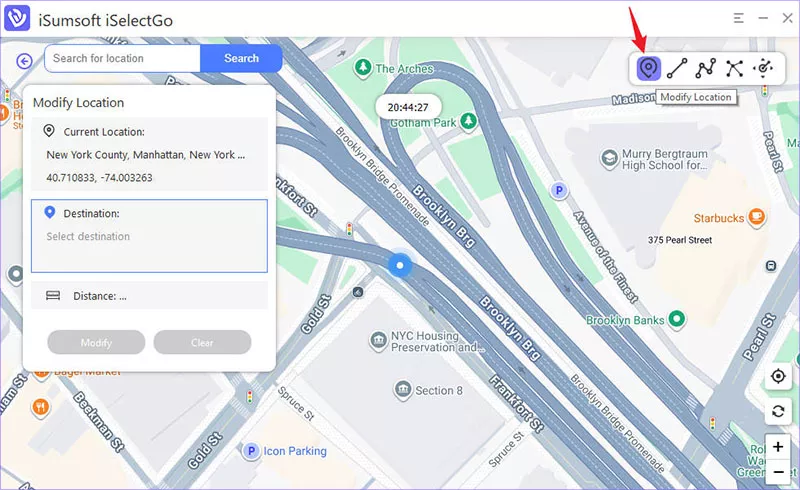
Step 1: Select the Modify Location option
Select the “Change Location” option (the first option) in the upper-right corner of the software's main interface.
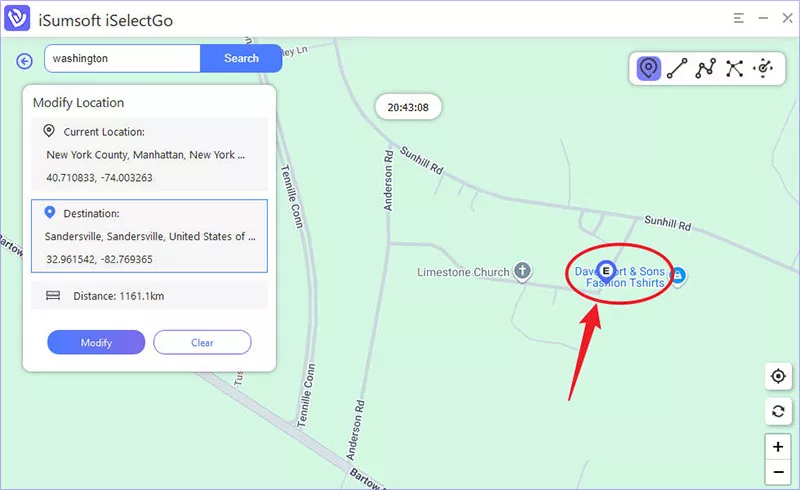
Step 2: Select the target location
Search your desired destination in the search box at the top left, or click on the map to select a specific location.
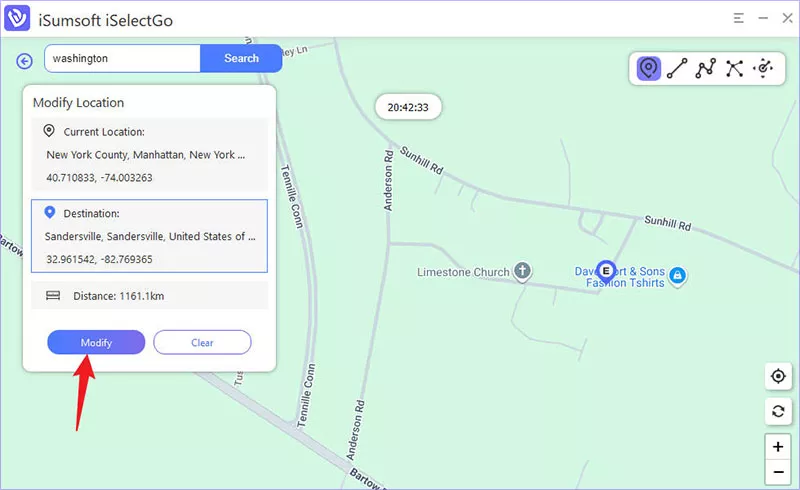
Step 3: Click the Modify button
Click the Modify button. Your location will be changed at once. All location-based apps on your iPhone will be changed to the fake location as well.
Option 2: Simulate GPS Movement between Two Points
iSumsoft iSelectGo allows you to simulate realistic GPS movement between any two points on the map. You can customize your journey by selecting your mode of transportation-walking, cycling, or driving, and adjust the speed to match real-world conditions.
Here is how:
Step 1: Select Single-Spot Movement
Select the Single-Spot Movement option (the second option) in the upper-right corner of the software's main interface.
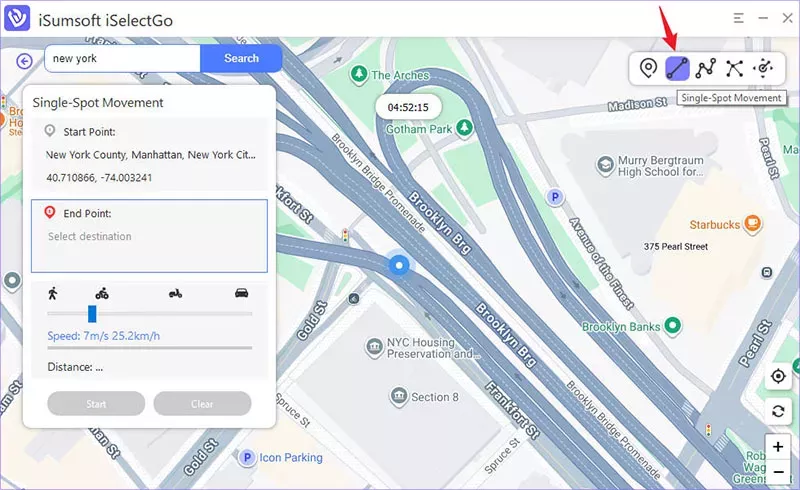
Step 2: Choose your destination
Search your destination in the search box or simply click directly on the map to select a target location.
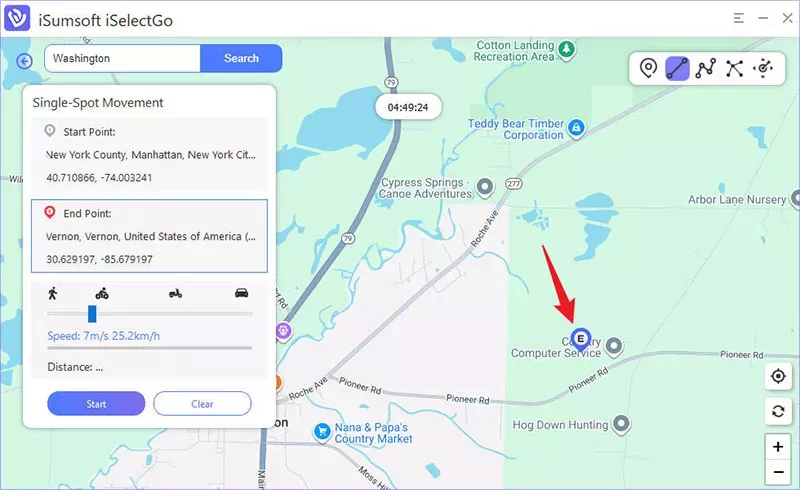
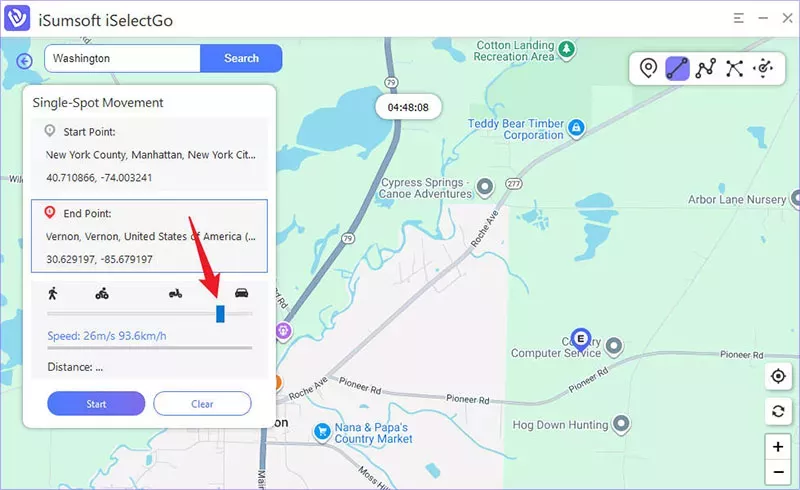
Step 3: Set movement speed
Use the slider to choose your travel mode: Walk, Cycle, or Drive, and adjust your moving speed to your preference.
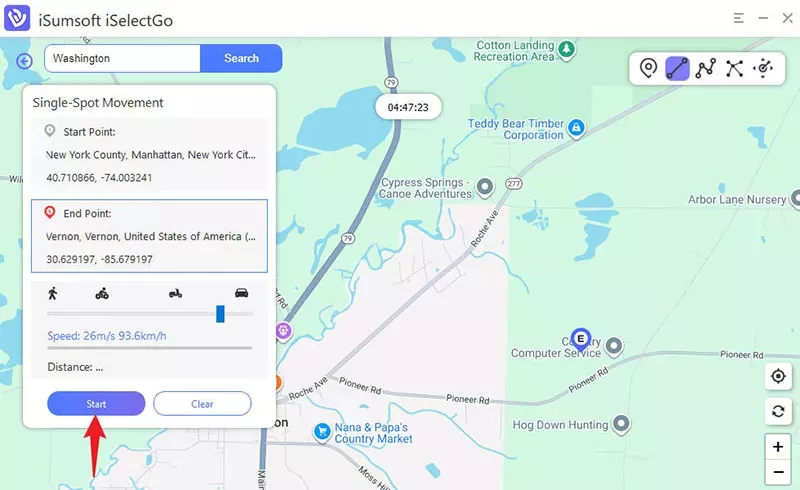
Step 4: Start Moving
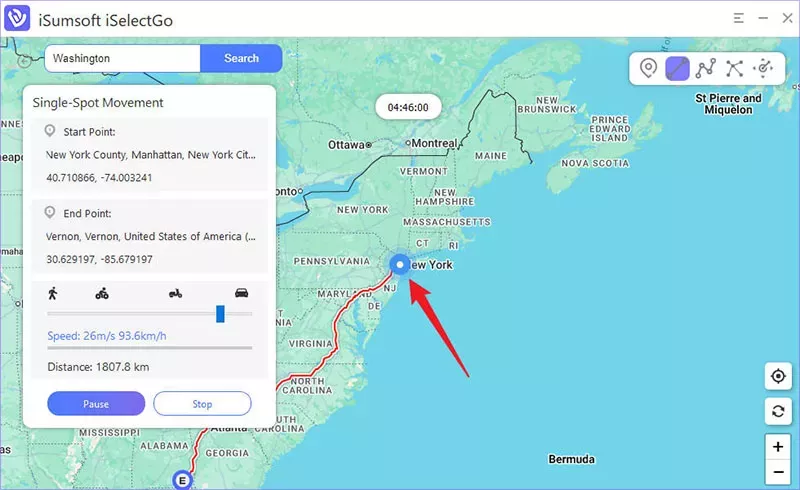
Click the Start button. Your virtual location will now begin moving automatically along the path to your destination.
You can view the movement path directly on the map within the software interface, as well as on your phone’s map. To control the simulation, simply click the Pause or Stop button to pause or halt the path simulation at any time.
Option 3: Simulate Multi-Spot GPS Movement
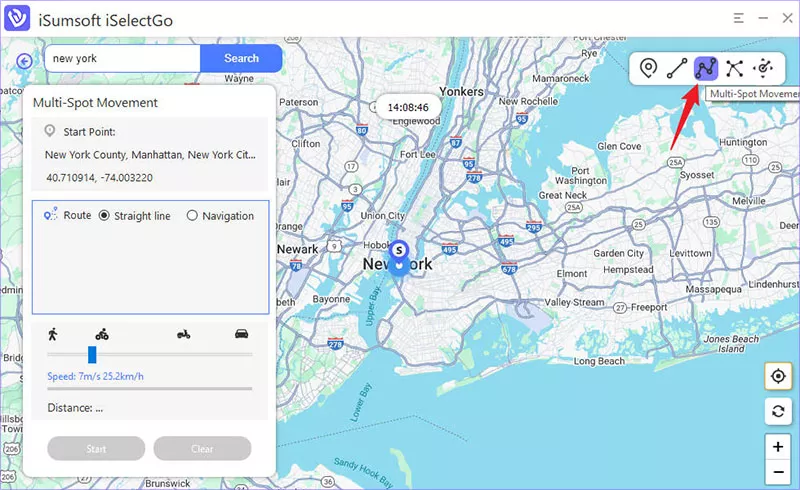
Step 1: Select Multiple-Spot Movement
Click the Multi-Spot Movement option located in the upper-right corner of the software's main interface.
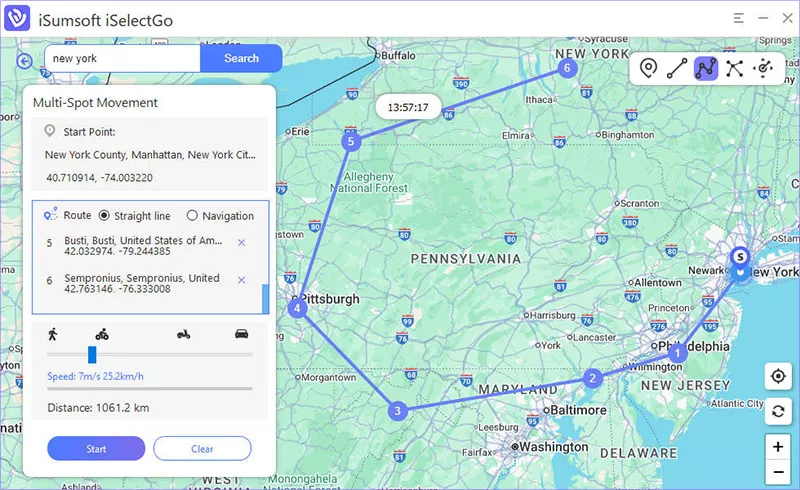
Step 2: Choose the points along the route
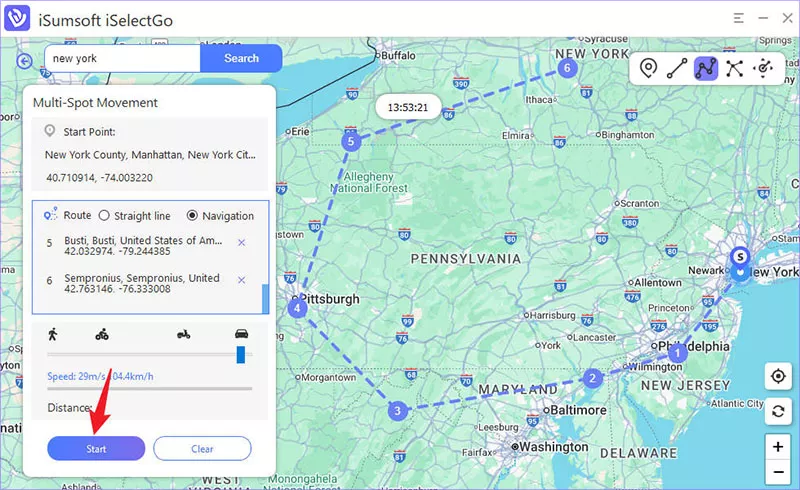
On the map, click on the desired locations to set multiple points and define your desired path. You can add as many points as needed to create a custom route.
Step 3: Select movement type
Choose Between Straight Line or Navigation.
Straight Line: This option will make the device travel directly from one point to the next, following a straight line between each location. It’s ideal for simple, quick simulations.
Navigation: If you prefer a more realistic experience, select the Navigation option. This will simulate travel according to the actual paths or roads between the selected points, mimicking how you would travel in real life. 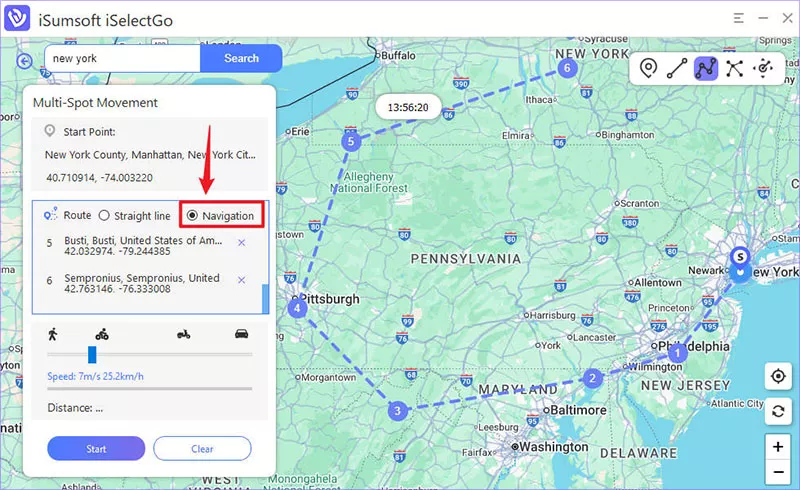
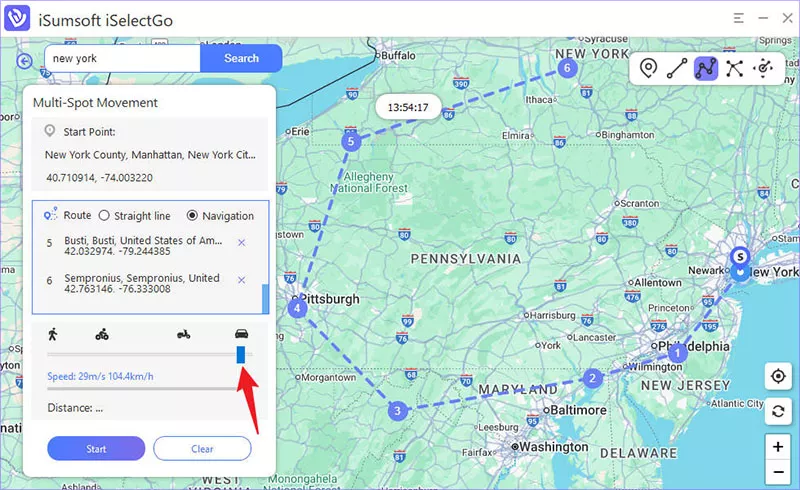
Step 4: Set Movement Speed
Use the speed slider to choose how fast you move along the route. Adjust from a slow walk to a fast drive depending on your scenario.
 ;
;
Step 5: Start Simulation
Click the Start button to begin the simulated movement. Your GPS location will follow the chosen route, moving through the selected points, and adjusting to the speed you specified.
Option 4: Simulate Jump Movement
Jump Movement allows you to instantly "jump" to any location on the map, bypassing a smooth travel simulation. This feature is ideal for quickly changing your virtual location without following a specific path. Whether you’re in a game, testing location-based apps, or just exploring different places, the Jump Movement mode provides a fast and efficient way to move your device's GPS.
Step 1: Select Jump Movement
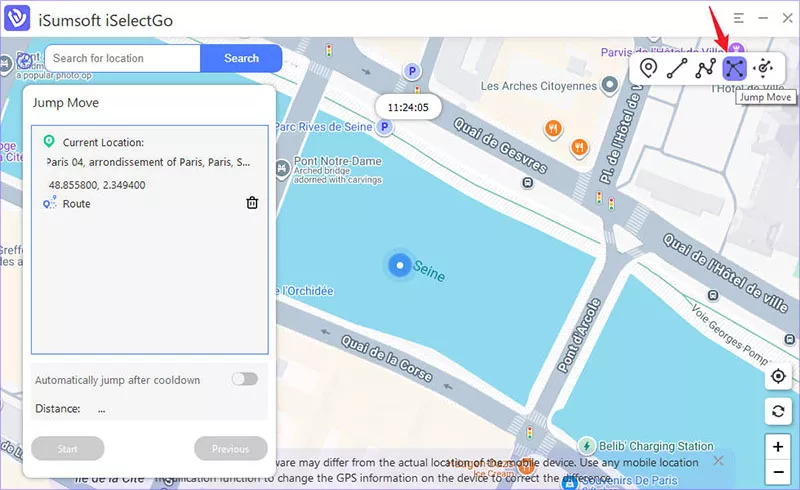
From the software’s main interface, choose the Jump Movement mode.
Step 2: Choose Your Destination
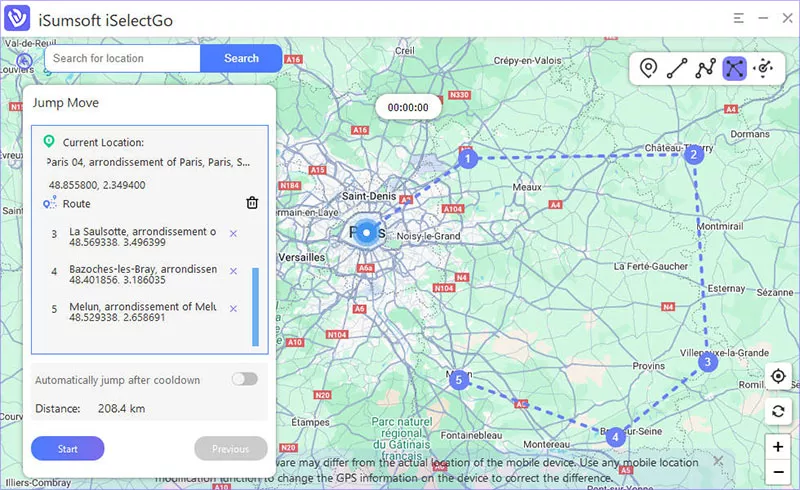
Click on the map to select your desired destination, or enter an address or coordinates in the search box at the top left. You can select one location or multiple locations to jump between.
Step 3: Start the Jump
Click Start to immediately "jump" from your current location to the selected destination(s). Your GPS will update instantly, taking you to your chosen location(s) without following a path.
Option 5: Simulate Joystick Movement
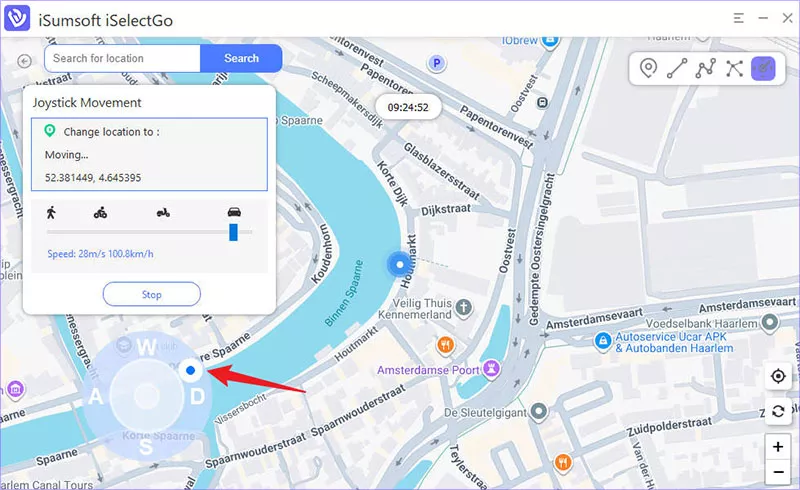
The Joystick Movement feature gives you full control over your device’s GPS location using a 360-degree joystick, allowing you to move in real-time as if you were physically traveling. This feature is ideal for situations where you need precise movement control, such as testing apps, playing games, or simulating walking or driving in real time.
Step 1: Select Joystick Movement
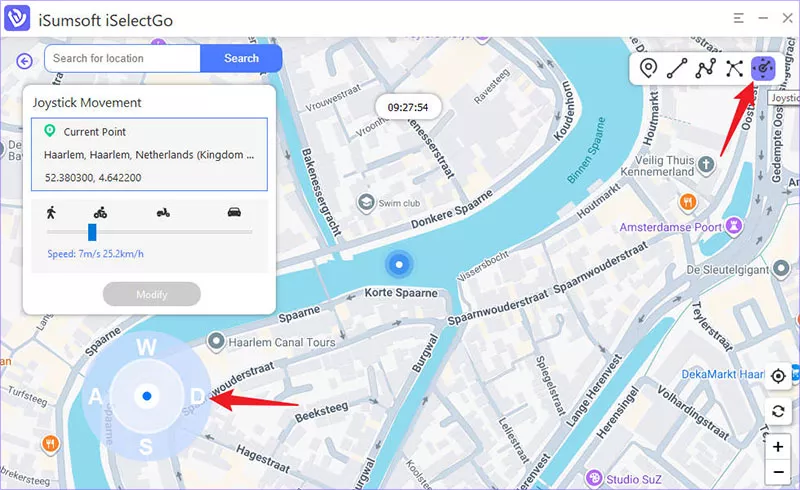
Select the Joystick Movement option in the upper right corner. You will see the joystick interface in the lower left corner, which is a 360-degree control circle representing the area where you can move freely.
Step 2: Set Movement Speed
Drag the slider to set the speed you would like to move. You can choose walking, cycling, or driving speed.
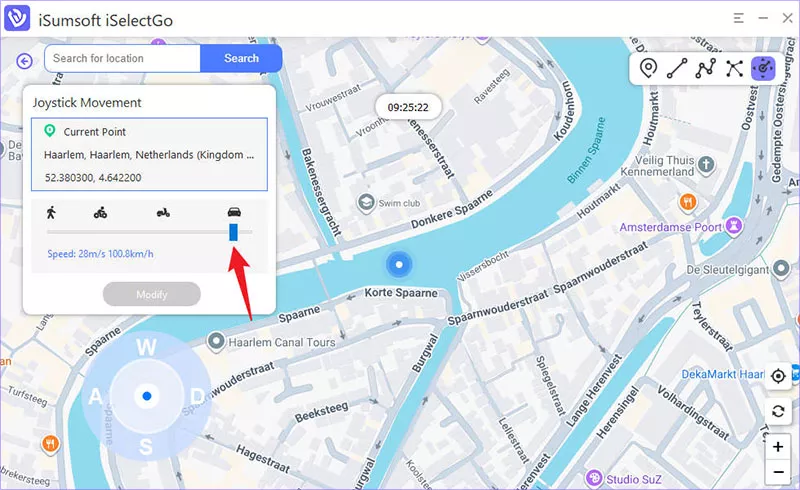
Step 3: Start Joystick Movement
Drag the middle button to the circle and release it, and the GPS will start to move automatically at the set speed.