Fixed: BitLocker Recovery Key Cannot be Saved Error

You may experience a problem that BitLocker recovery key couldn't be saved to your Microsoft account, a USB flash drive or a file. This problem may be caused by improper setting of the corresponding policy. This article will guide you through configuring your computer to back up recovery information.
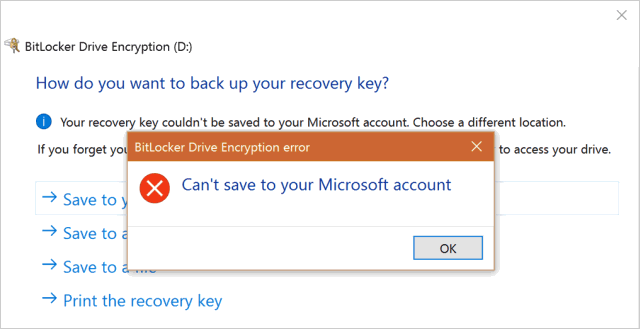
Fixed BitLocker recovery key could not be saved to Microsoft account error
Make sure your PC is signed in with a Microsoft Account
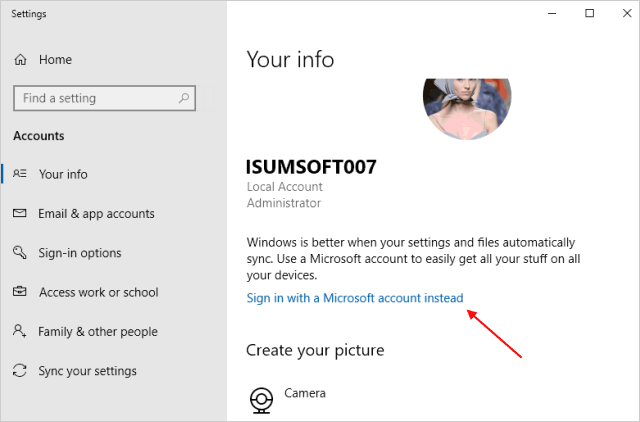
When your PC is logged in with a Microsoft account, Windows allows you to save your BitLocker recovery key to OneDrive in your Microsoft account. If you are logged in with a local account, follow these steps switch to sign in with a Microsoft account.
Select the Start button, then select Settings > Accounts. Select Sign in with a Microsoft account instead. Follow the prompts to switch to your Microsoft account.
Make sure that Group Policy settings to save recovery keys to AD DS are enabled
You can configure your computer to allow BitLocker recovery information to be saved to AD for a fixed data drive, operating system drive, or removable data drive.
Step 1: Open Local Group Policy Editor.
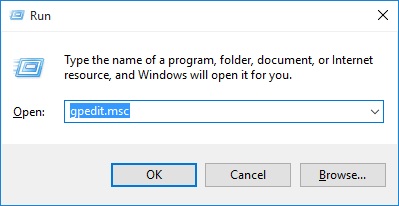
Press the Windows + R keys to open the Run dialog, type gpedit.msc, and press Enter.
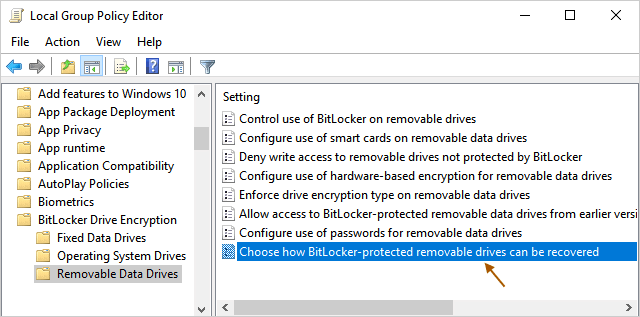
Step 2: In Local Group Policy Editor, navigate to the following location:
Local Computer policy -> Computer Configuration -> Administrative Templates -> Windows Components -> BitLocker Drive Encryption -> Removable data drives
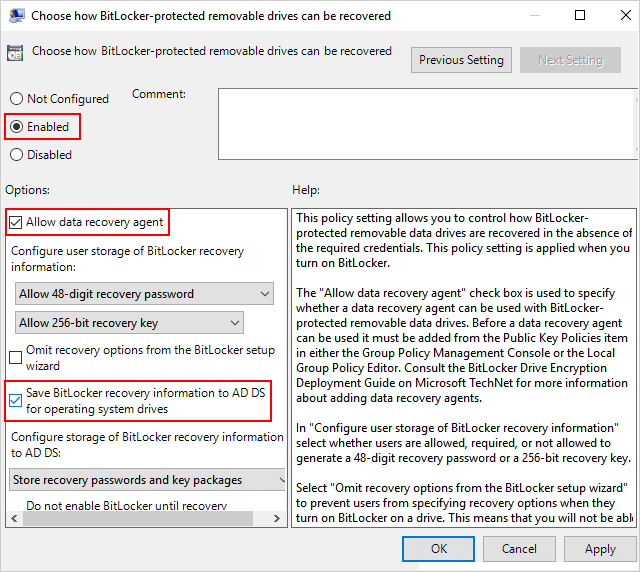
On the right-side pane, click Choose how BitLocker-protected removable drives can be recovered to edit it.
Step 3: Click the Enable button, then check on Allow data recovery agent and Save BitLocker recovery information to AD DS for removable data drives boxes.
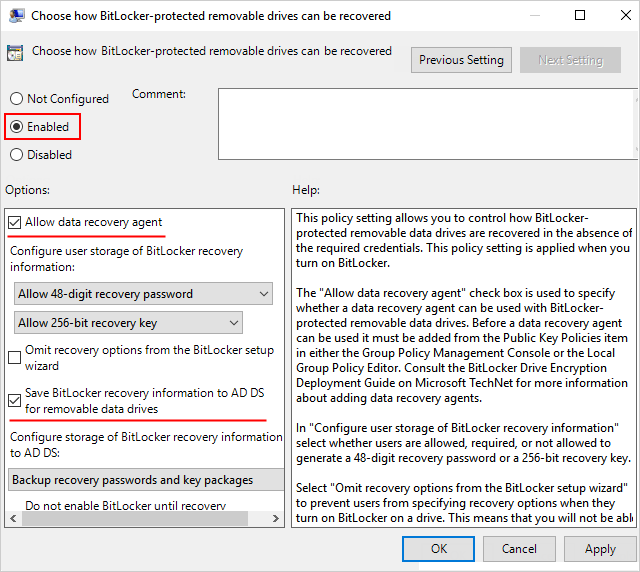
When you're done, click on Apply followed by OK button.
Configure to save the BitLocker Recovery key to AD for Operating System Drives
Use the steps above to open BitLocker Drive Encryption, but this time click Fixed Data Drives, then click Choose how BitLocker-protected operating system drives can be recovered.
Click the Enable button, then check on Allow data recovery agent and Save BitLocker recovery information to AD DS for Operating System Drives boxes. When done, click Apply and save this change.
Configure to save BitLocker Recovery information to AD for fixed data drives
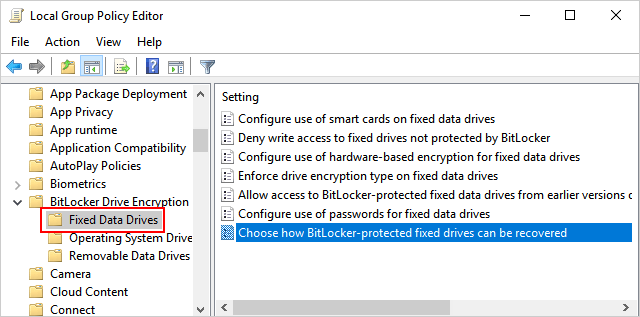
Navigate to Fixed Data Drive under the BitLocker Driver Encryption folder, then double-click on Choose how BitLocker-protected fixed drives can be recovered.
Click the Enable button, then check on Allow data recovery agent and Save BitLocker recovery information to AD DS for Operating System Drives boxes. When done, click Apply and save this change.
That's it!