
How to Find Your Hard Drive Serial Number (HDD & SSD): Four Easy Methods

Whether you're registering a new PC, claiming a warranty, or arranging for data recovery, you may be asked for a very specific piece of information: your hard drive's SN (Serial Number). Unlike a model number, which is shared by thousands of identical drives, the serial number is a unique identifier assigned to your specific physical drive by the manufacturer.
Finding this number isn't always obvious, especially when your hard drive has been in use for a long time. But don't worry. This guide will walk you through 4 simple methods to locate the serial number for any hard disk drive (HDD) or solid-state drive (SSD) on both Windows and Mac systems.
- Why Do You Need a Hard Drive Serial Number?
- Method 1: Using Command Prompt (Windows)
- Method 2: Using PowerShell (Windows 10 & 11)
- Method 3: On a Mac (Using System Information)
- Method 4: The Physical Check (The Universal Method)
- Frequently Asked Questions
Why Do You Need a Hard Drive Serial Number?
Before we dive into the HOW, let's quickly cover the WHY. You'll typically need this number for one of those following reasons:
1. Warranty Claims & RMA
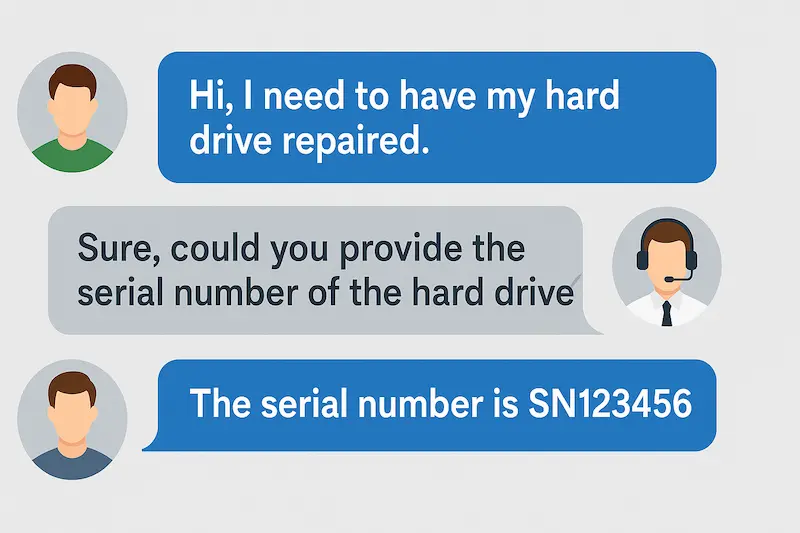
This is the most common reason. Manufacturers use the serial number to verify your drive's warranty status.
2. Technical Support
Support technicians may ask for it to look up specific firmware or known issues.
3. Asset Tracking
Businesses use serial numbers to keep an inventory of their IT hardware.
4. Data Recovery Services
Facing data loss? You're not alone!
We resolve your urgent data dilemmas with comprehensive recovery and support. Our expertise covers password recovery, data backup, secure cleanup, and efficient retrieval for Apple (iPhone/iPad) & Android devices. Plus, our powerful in-house tools handle all complex issues.

iSumsoft Data Refixer
Recover deleted or lost files from HDD, SSD, and USB drives.
- Retrieve deleted files even if Recycle Bin is emptied.
- Support formatted/damaged drive data recovery.
- Support NTFS and FAT32 file systems.
- Recover lost data with a high success rate.
Click now to visit our official website and explore our professional services to Give Your Data A New Life.
One of those reasons may lead you here, and now, let's find that number!
Method 1: Using Command Prompt (Windows)
For Windows users, the Command Prompt offers a quick and reliable way to find the serial number without installing any software.
Step 1Click the Start Menu and type cmd.
Step 2Right-click on Command Prompt and select "Run as administrator."
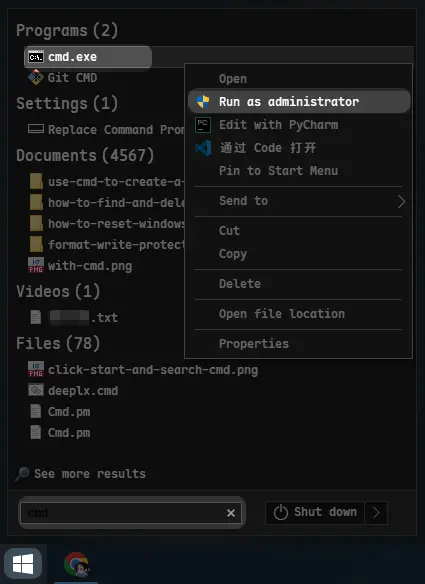
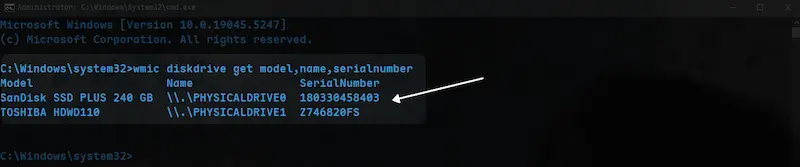
Step 3In the black console window that appears, type the following command and press Enter:
wmic diskdrive get model,name,serialnumberThe command will display a list of all physical drives connected to your computer, along with their model and serial numbers.
Method 2: Using PowerShell (Windows 10 & 11)
PowerShell is a more modern and powerful command-line tool in Windows. The process is very similar to using Command Prompt.
Step 1Click the Start Menu and type "powershell".
Step 2Right-click on Windows PowerShell and select "Run as administrator."
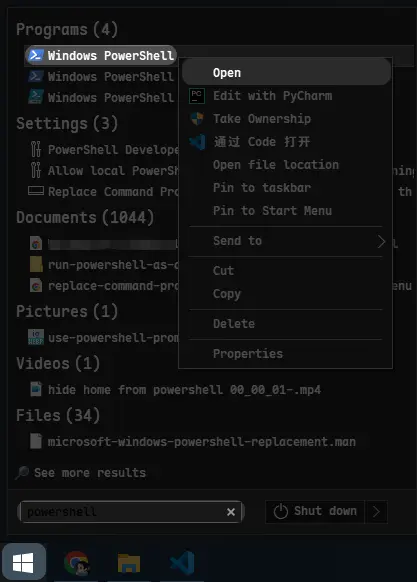
Step 3Copy and paste the following command into the PowerShell window and press Enter:
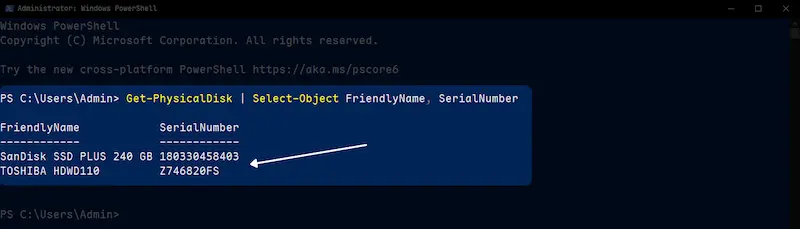
Get-PhysicalDisk | Select-Object FriendlyName, SerialNumberPowerShell will neatly list your drives and their corresponding serial numbers. This method is excellent for easily identifying which serial number belongs to which drive.
Method 3: On a Mac (Using System Information)
Finding the hard drive serial number on a Mac is just as simple, using its built-in utility.
Step 1Click the Apple icon in the top-left corner of your screen.
Step 2Select "About This Mac."
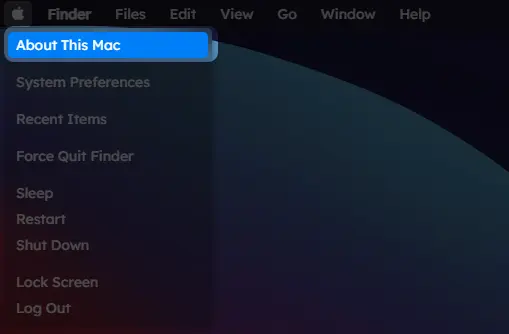
Step 3In the window that pops up, click the "System Report..." button.
Step 4In the System Information window, navigate to the "Hardware" section on the left-hand panel.
Step 5Click on "Storage" (or "SATA/SATA Express" on older macOS versions).
Step 6Select your hard drive or SSD from the top pane. The drive's details, including the "Serial Number," will be displayed in the bottom pane.
Method 4: The Physical Check (The Universal Method)
If you can't boot into your operating system or if you have an external drive, the most reliable method is to look at the drive itself.
Step 1For internal drives, completely shut down your computer and unplug it from the power source.
Step 2Carefully open your desktop or laptop case to access the hard drive. For laptops, this often involves removing a specific panel on the bottom. For external drives, you may need to open the enclosure.
Step 3Locate the Label: The manufacturer's label on the top of the drive contains a wealth of information. Look for the text "Serial No.", "S/N", or "SN". This is the number you need.
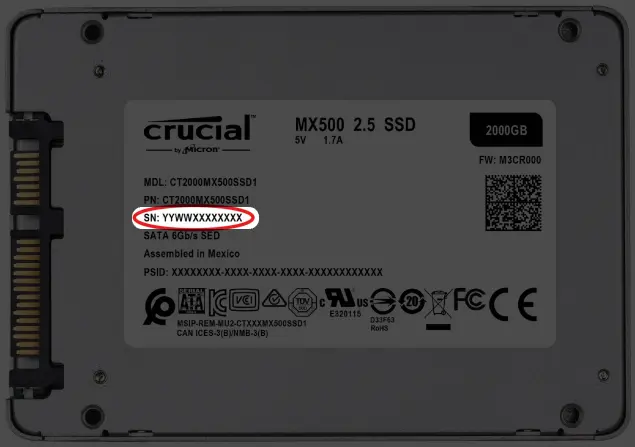
This method is foolproof, as it comes directly from the source. Be careful when handling internal components!
Frequently Asked Questions
Q: Is a hard drive serial number the same as the Windows Product Key?
A: No, they are completely different. The hard drive serial number identifies the physical hardware, while the Windows Product Key is a software license code that activates your copy of the Windows operating system.
Q: Can I find the serial number in the BIOS/UEFI?
A: Sometimes. Many modern BIOS/UEFI systems will list a drive's model and serial number under the storage or boot device sections. However, this isn't standardized across all manufacturers, so using the operating system methods is often faster.
Q: What's the difference between a serial number and a model number?
A: The model number (e.g., "Samsung 970 EVO Plus") identifies the product line—all drives of that type share the same model number. The serial number is a unique identifier for your specific drive and is different for every single unit produced.
Conclusion
Knowing how to check your hard drive's serial number is a valuable piece of technical knowledge. Whether you prefer a quick command-line query in Windows, a few clicks in macOS, or a hands-on physical inspection, you now have the tools to find this unique identifier whenever you need it.
Related Articles
-
 How to Clone Windows
10 OS from HDD to M.2 SSD
How to Clone Windows
10 OS from HDD to M.2 SSD
-
 How to Clone an SSD to a Larger
SSD in Windows 10 Laptop
How to Clone an SSD to a Larger
SSD in Windows 10 Laptop
-
 2 Ways to Clone HDD to
Samsung 860 EVO SSD in Windows 10
2 Ways to Clone HDD to
Samsung 860 EVO SSD in Windows 10
-
 How
to Upgrade Laptop Hard Drive to SSD without Reinstalling Windows
How
to Upgrade Laptop Hard Drive to SSD without Reinstalling Windows
-
 How
to Clone Windows 10 System Boot Drive from HDD to a New SSD
How
to Clone Windows 10 System Boot Drive from HDD to a New SSD
-
 How to
Transfer Windows 10 from HDD to SSD without Data Loss
How to
Transfer Windows 10 from HDD to SSD without Data Loss