Turn on Two-factor Authentication for your Apple ID

Two-factor authentication is designed to improve the security of your Apple ID and all the personal information you store with Apple. Here will show you how to set up two-factor authentication for your Apple ID.
Set up two-factor authentication for your Apple ID on iPhone/iPad
Two-factor authentication is available to iCloud users with device running iOS 9 or later. You can follow the steps below to turn on two-factor authentication for iPhone/iPad.
Step 1: Go to Settings > iCloud. Tap your Apple ID.
Step 2: Tap Password & Security.

Step 3: Tap on Setup Two-Factor Authentication.
Step 4: Tap on Continue.
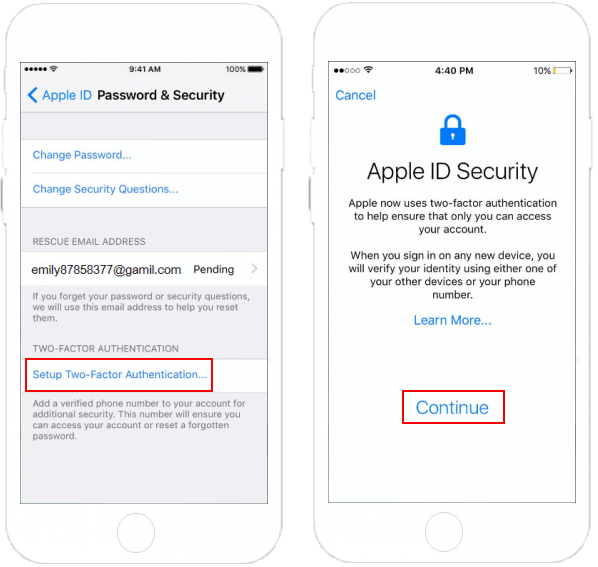
Step 5: Choose between Text Message and Phone Call for verification. Tap Next at the top right.
Step 6: Enter the password for Apple ID, then tap Sign In.
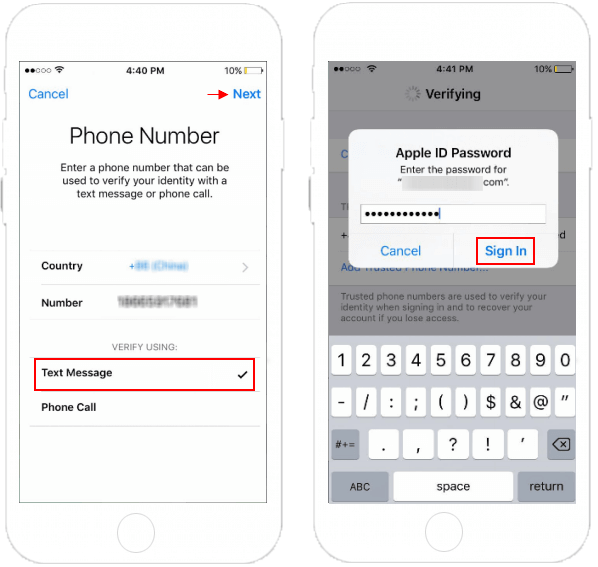
After done, two-factor authentication is enabled. When you sign in with Apple ID on a new browser, or another iPhone or Mac, you'll get a sign in the requested notification on the trusted device. At that time, tap Allow to receive your verification code, then use that code to complete sign in.

Turn on Two-factor Authentication for Apple ID on Mac
You can also set up two-factor authentication for Apple ID on Mac.
Step 1: On Mac, go to Apple menu > System Preferences.
Step 2: Click on iCloud > Account Details.
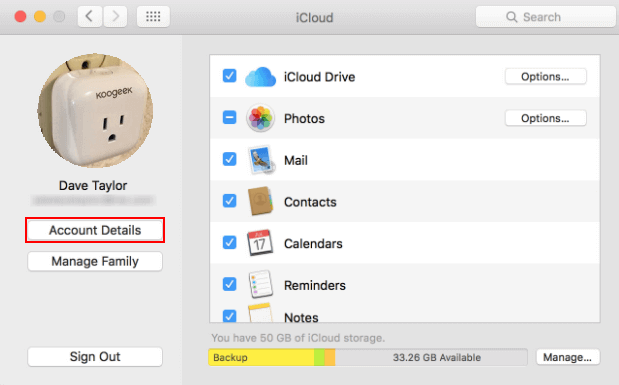
Step 3: Click the Security tab.
Step 4: Click Turn on Two-Factor Authentication.
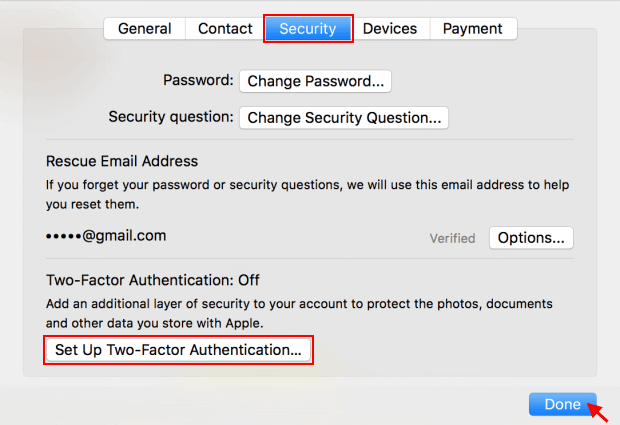
Step 5: When finished, click Done.
With two-factor authentication enabled, you'll verify your identity by entering both your Apple ID password and a six-digit verification code each time you sign in with the Apple ID account.
Related Articles
-
![Turn off Two-factor Authentication]() How to Turn
off Two-factor Authentication for Apple ID
How to Turn
off Two-factor Authentication for Apple ID
-
![Reset Password for Apple ID]() Reset
Password for Apple ID with Two-factor Authentication
Reset
Password for Apple ID with Two-factor Authentication
-
![remove Apple ID from iPhone without password]() 3 Ways
to Remove Apple ID from iPhone without Password
3 Ways
to Remove Apple ID from iPhone without Password
-
![Unlock a Locked/Disabled Apple ID]() How to Unlock an Apple
ID That is Locked for Security Reasons
How to Unlock an Apple
ID That is Locked for Security Reasons
-
![Change Trusted Phone Numbers]() How to
Change Trusted Phone Number for Apple ID Using 2FA
How to
Change Trusted Phone Number for Apple ID Using 2FA
-
![Turn off iPhone backup encryption]() 2 Ways to
Turn off iPhone Backup Encryption without Password
2 Ways to
Turn off iPhone Backup Encryption without Password