
If you've recently updated your iPhone to iOS 26 but are facing issues like performance slowdowns, app crashes, or other bugs, you might want to downgrade back to iOS 18. Whether it's to regain stability, enjoy better battery life, or avoid certain iOS features, downgrading to an older iOS version can be a viable solution. In this article, we'll walk you through how to downgrade iOS 26 to iOS 18 without losing data.
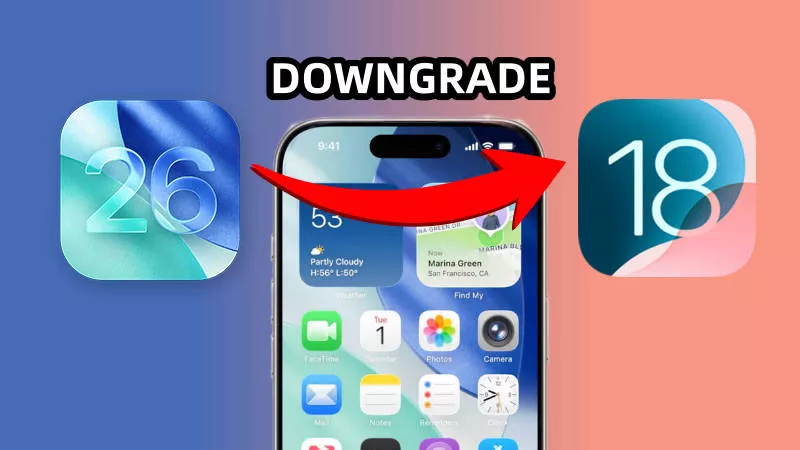
In most cases, downgrading your iOS version is possible, but there are some important factors to consider. Apple generally allows users to downgrade their iPhones or iPads to a previous iOS version within a limited time frame after a new update is released.
When Apple releases a new iOS version (like iOS 26), it continues to sign the previous version (iOS 18.6) for a short period, typically a week or two.
To downgrade from iOS 26 to iOS 18 without losing data, it’s essential to back up your device before starting the downgrade process. Downgrading your iOS essentially involves erasing the current version of iOS and installing an older one, which would result in data loss unless precautions are taken. The best way to ensure your data is safe is by backing up your iPhone via iCloud or iTunes. Once the backup is complete, you can proceed with downgrading to iOS 18. After the process is finished, you can restore your backup to recover your apps, settings, and other data.
Assuming you’ve already backed up your iPhone, here are three simple and effective methods to downgrade iOS 26 to iOS 18.
1. Go to ipsw.me in your computer’s web browser, then choose your iPhone model and download the signed IPSW file for iOS 18.
2. Connect your iPhone to your computer using a USB cable, then unlock your iPhone and tap Trust if prompted.
3. Go to Settings > [your name] > iCloud > Find My to turn off Find My iPhone.
4. Open iTunes on your computer and select your iPhone once it’s detected.
5. Click the Restore iPhone button in iTunes while holding the Shift key on your keyboard.

6. When a dialog box opens, select the downloaded iOS 18 IPSW file and click Open.

7. Click Restore to confirm that you want to downgrade your iPhone from iOS 26 to iOS 18.

8. iTunes will automatically erase your iPhone and install iOS 18. This process may take some time.

9. Once complete, set up your iPhone from scratch and restore your data from a backup or another device to ensure no data loss when reverting to iOS 18.
If the above method encounters issues or fails, you can try downgrading iOS 26 to iOS 18 in recovery mode.
1. Connect your iPhone to your computer via a USB cable.
2. Press and quickly release the Volume Up button, then press and quickly release the Volume Down button, and finally press and hold the Side button until the recovery mode appears.

3. Open iTunes on your computer. If iTunes displays a dialog box with “Update” and “Restore” options, close the dialog.
4. Click "Restore iPhone" while holding down the Shift key on your keyboard.

5. Select the downloaded iOS 18 IPSW file from your computer and click Restore to confirm.
6. iTunes will automatically restore your iPhone to iOS 18, and once complete, set up your device again and transfer your data to ensure no data loss.
If none of the previous methods work, or if you prefer to downgrade iOS 26 to iOS 18 without iTunes, iSumsoft iOS Refixer is an excellent alternative. This powerful tool bypasses iTunes' restrictions on downgrading iPhones, enabling a safe and smooth downgrade from iOS 26 to iOS 18.

1. Download and install iSumsoft iOS Refixer on your computer, then launch the software.
2. From the software’s main interface, choose the option labeled iOS Upgrade/Downgrade.

3. Select the Downgrade iOS option to confirm that you want to proceed.

4. Make sure your iPhone is connected to your computer via a USB cable, then click Next.

5. Once the software detects your iPhone, click Download to begin downloading the iOS 18 firmware (e.g., iOS 18.6.2) for your device.

6. Once the firmware is downloaded, click Start to begin the downgrade process. The software will handle the rest, downgrading your iPhone from iOS 26 to iOS 18.6.2.

7. The process may take some time, and once complete, your iPhone will reboot with iOS 18 installed.

Downgrading iOS 26 to iOS 18 can help resolve performance issues, restore app compatibility, and bring back the feel of an older, more stable iOS. By using iTunes or third-party software, you can perform this downgrade smoothly. Always ensure you have a backup so that you can downgrade iOS 26 to iOS 18 without losing data. It's also important to check the signing status of iOS 18 before proceeding. With these methods, you should be able to safely and efficiently downgrade your iPhone from iOS 26 to iOS 18.
1. Is it possible to downgrade from iOS 26 to iOS 18?
Yes, it is possible to downgrade from iOS 26 to iOS 18, but only if Apple is still "signing" iOS 18. Once Apple stops signing an iOS version, downgrading becomes impossible through standard methods.
2. Can I downgrade iOS 26 to iOS 18 without a computer?
No, downgrading iOS typically requires a computer, either through iTunes, Finder (on macOS Catalina and later), or third-party software. The downgrade process involves installing firmware files, which is not possible on iOS alone.
3. Can I downgrade iOS without losing data?
Yes, but only if you have a backup before the downgrade. Downgrading iOS usually involves erasing all the data on your device, as the process replaces the current system version with an older one. To avoid data loss, you must back up your iPhone before starting the downgrade.
4. Can I downgrade to any iOS version?
No, you can only downgrade to versions that are still being signed by Apple. If Apple has stopped signing the version you want to downgrade to, you won’t be able to install it without jailbreaking, which is not recommended due to security risks.
![[Fixed] Green Screen of Death iPhone XS/11/12/13/14/15? 8 Ways!](../images/ios-issues/iphone-green-screen-of-death-issue-how-to-fix/how-to-fix-iphone-x-green-screen-of-death.webp) [Fixed] Green
Screen of Death
iPhone XS/11/12/13/14/15? 8 Ways!
[Fixed] Green
Screen of Death
iPhone XS/11/12/13/14/15? 8 Ways!
 How to Fix iPhone Blue Screen of
Death
How to Fix iPhone Blue Screen of
Death
 Fixed:
iPhone
Shows White Screen with Apple Logo Then Turns Off
Fixed:
iPhone
Shows White Screen with Apple Logo Then Turns Off
![[9 Ways] How to Fix Pink Line on iPhone Screen Problems](../images/ios-issues/fix-pink-vertical-line-on-iphone-screen/how-to-fix-pink-lines-on-iphone-screen.png) [9 Ways] How to Fix
Pink Line on
iPhone Screen Problems
[9 Ways] How to Fix
Pink Line on
iPhone Screen Problems
![[10 Ways] How to Fix Green Lines on iPhone X/XR/XS/11/12/13/14 Screen](../images/ios-issues/how-to-fix-green-lines-on-iphone-screen/fix-green-lines-on-iphone-screen.webp) [10 Ways] How to Fix
Green Lines on
iPhone Screen
[10 Ways] How to Fix
Green Lines on
iPhone Screen
 How to Fix iOS 17
Update Stuck
on Apple Logo
How to Fix iOS 17
Update Stuck
on Apple Logo
