

When you make Outlook remember your password, you can receive and send mail without typing your password each time you open Outlook, but this can result in forgetting the passwords. Outlook email passwords are stored in the Windows registry as an encrypted format, Outlook doesn’t allow you to view the saved email account password.
What to do if you forgot your email password? This tutorial will show you how to recover/reset/change the password for the email account that is configured in the MS Outlook app in Windows 10.
- Option 1: Recover password for POP3 or IMAP account
- Option 2: Reset password for Microsoft Exchange account
- Option 3: Change the password for email account in Outlook
What types of e-mail accounts does your Outlook profile have?
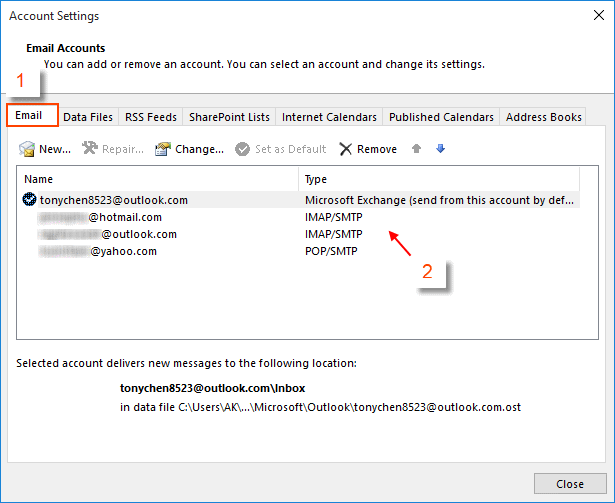
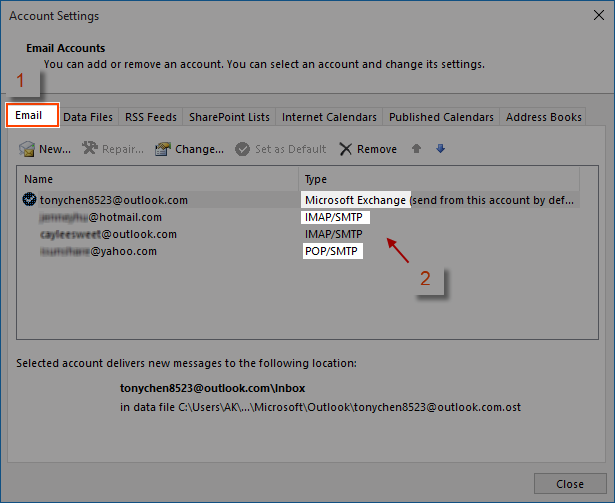
You can check the Account Settings in Outlook to see the types of email accounts in your Outlook profile.
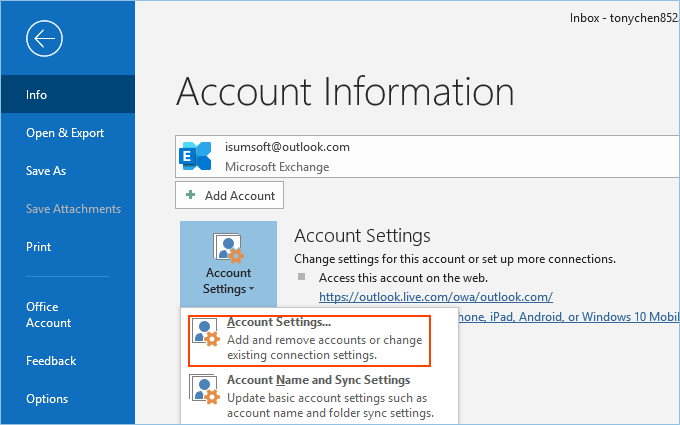
On the menu, select File, then Account Settings and Account Settings.

On the Email tab, the Type column lists the type of account for each entry.

How to Recover Password for POP3 or IMAP Account in MS Outlook App
You can watch the following video and follow the detailed steps to recover password for POP3 or IMAP account configured in your Outlook app.

Step 1: Download the Outlook Email Password Refixer program and install it on your computer.
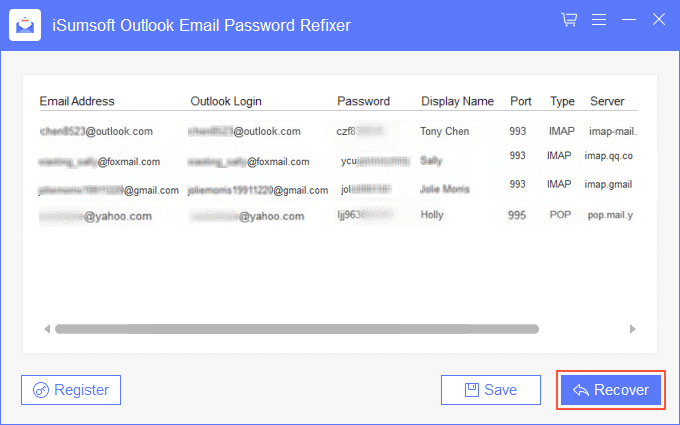
Step 2: After you’ve completed the download, launch the software. It will instantly display the password for email accounts. You can also click the Recover button to scan all types of email account information (such as email address, password, mail server) you have configured in MS Outlook.
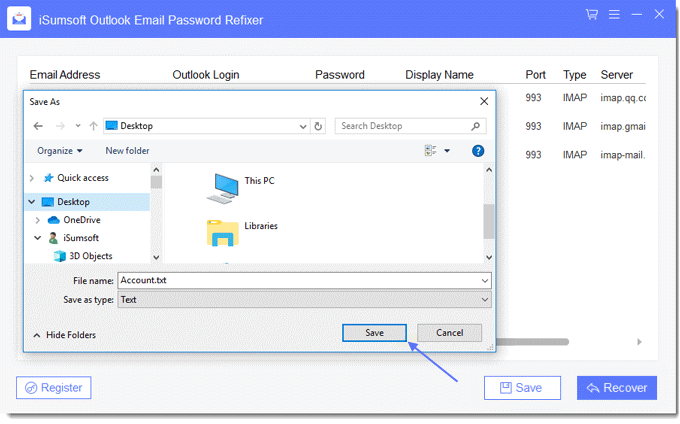
Step 3: After your email passwords are recovered successfully, you can manually copy out your account details or click the Save button to save them to a text file for safekeeping.

With iSumsoft Outlook Email Password Recovery program, you can gain access to any passwords they have stored in the Outlook program in seconds. This software works with all versions of Outlook, including Outlook 2019/2016/2013/2010/2007/2003. It supports for POP3, IMAP, SMTP and HTTP accounts configured in Microsoft Outlook app.
See Also
- How to View/Reveal Email Account Password in Outlook 2016
- How to View Chrome Saved Passwords without Windows Password
- How to See Saved Password in Microsoft Edge/Internet Explorer
How to Reset Password for Microsoft Exchange Account
If you forgot the password for Microsoft Exchange Account, you need to reset it online. Here’s how to do it:
Step 1: Click reset it now link in the Outlook sign-in screen.

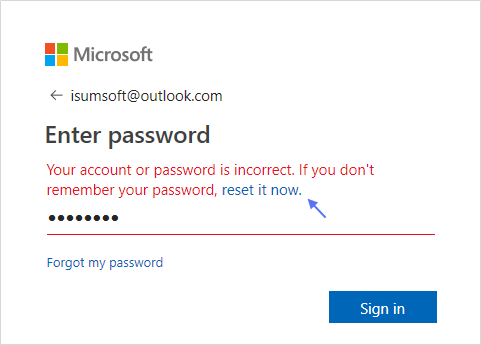
Step 2: In the Recover your account box and type the email address or phone number that needs a password reset. Then select Next.
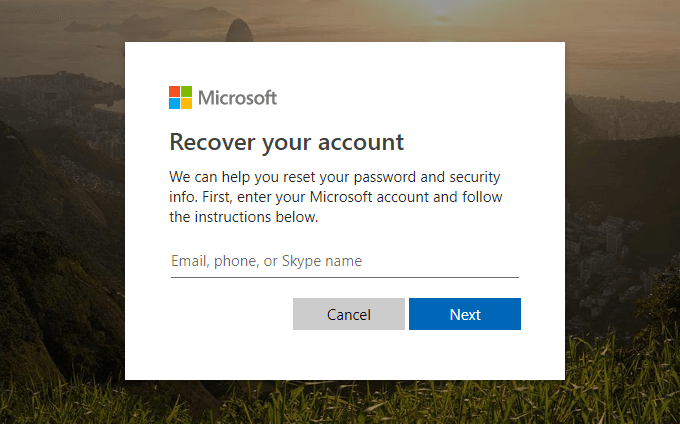
Step 3: Choose one of the alternate contact email addresses or phone numbers on this account. Then select Next.
Step 4: Type the missing info to verify that it’s really your email address or phone number. Next, select the Get code.

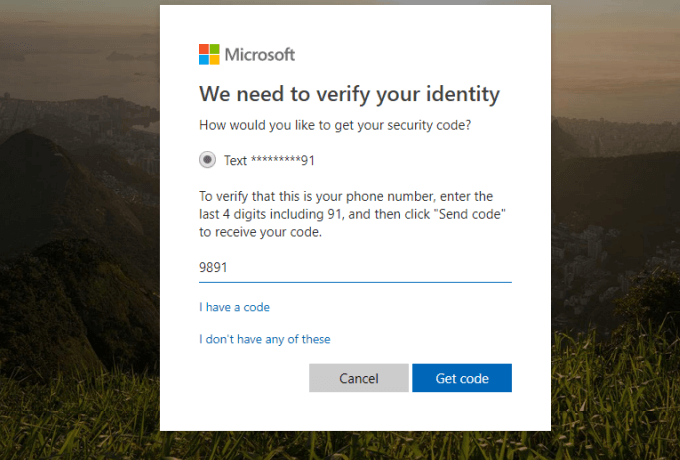
Step 5: Type the security code into Verify your identity, then select Next.
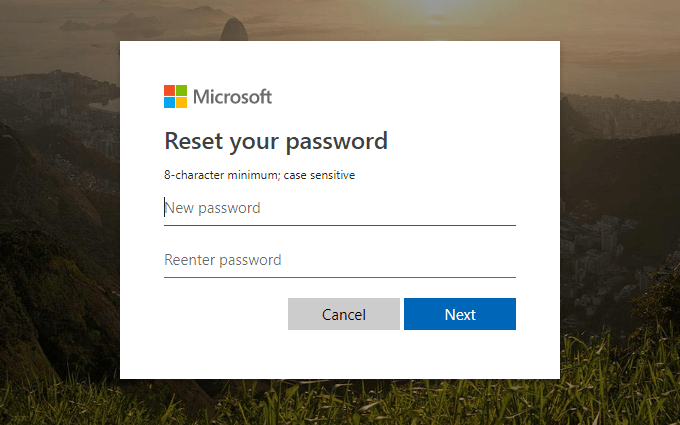
Step 6: Reset the password for your Outlook account by typing it into New password. Then confirm it by typing it again into the Reenter password box, then select Next. You have changed the outlook account password.
If you’ve used Gmail, Hotmail.com, or iCloud, then you’ve used webmail. To reset your webmail account password, you will need to go to your email provider and request a new password after verifying your authentication. For more information, please see:
- How to Retrieve Forgotten Google Account Username and Password
- How to Unlock Apple ID Account and Reset Password
- How to Reset Microsoft Outlook Password When Can’t Sign in
Change Email Password in Outlook application
If you have changed your password through an email provider or a web-based email service, you will need to update the password stored in the email client.
Step 1: Open the Outlook app. Click the File menu.
Step 2: On that menu, click Account Settings and then Account Settings. This will open the Account Settings dialog. Select the Email tab and double-click the email account whose password you want to change.
Step 3: Under the login information section, you will see your username and password. Simply type the new email password on the password box and click Next to save your changes.

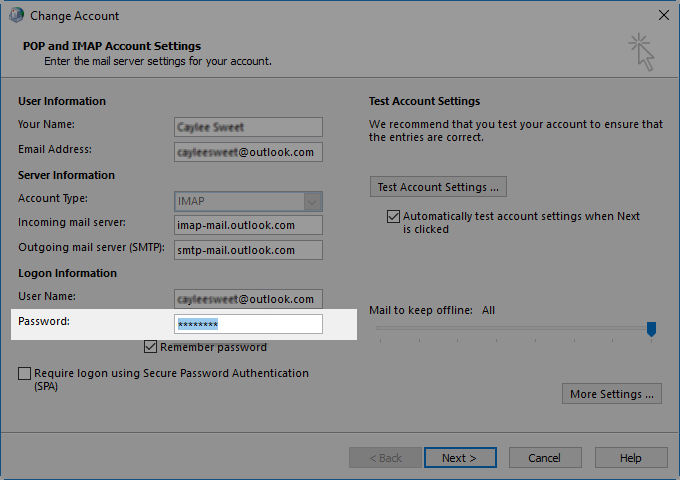
You have now successfully changed your Outlook email password.
See Also: How to Change Password in Outlook 2016